


The full and final version of macOS 27 Golden Gate is now available for download on every Apple silicon Mac around the world.
macOS 27 Golden Gate Now Available for Download with Siri AI, Visual Intelligence, Faster Performance, and More
From Siri AI to Liquid Glass improvements, the macOS 27 Golden Gate update elevates the Mac experience to another level. And, since Apple is completely dropped support for every single Intel Mac this year, this means all supported devices get to experience Siri AI and the new Apple Intelligence features.
Before we move any further, let’s have a quick look at the official changelog of the update itself:
Everything New in macOS 27 Golden Gate
Experience the new Siri AI
Introducing Siri AI, an entirely new version of Siri powered by Apple Intelligence that’s more personal, more capable, and more conversational. It is integrated into Spotlight, so you can search for answers about almost any topic right from where you already search for things across your system. It can draw on personal context to find things across your messages, mail, photos, and more. And it can get things done across your apps, just by asking. Revisit and resume past conversations in the new dedicated Siri app, synced with iCloud across your Apple devices. Siri AI is rolling out to users, and you can get started by turning it on in Settings.
Take action on what’s onscreen
With Visual Intelligence, you can select a window of your screen and Siri can answer questions or take action with what’s onscreen, like adding events to your calendar. You can access Visual Intelligence with a dedicated keyboard shortcut — Command-Shift-Space.
Powerful new ways to edit photos
Use intelligent photo editing tools to reframe a photo after it’s been taken with Spatial Reframing or expand your shot with the Extend tool. And enhancements to Clean Up let you remove distractions with better quality and more realistic infill, even when the scene is complex.
New tools to browse in Safari
Automatically group your tabs into topics, so related pages are easier to find. With Notify Me, Safari can monitor pages for changes like price drops or restocks and alert you when it’s time to act. Describe an Extension lets you use natural language to create custom extensions, like adding a button to save your favorite recipes.
Easily create Shortcuts using natural language
With Describe a Shortcut, you can automate daily tasks with a simple description and all of the required steps are assembled on your behalf. For example, you can describe a shortcut to automatically text your partner when you’re headed home from work with an estimated arrival time based on traffic.
Even more refined design
Updates to Liquid Glass improve readability, and a new slider lets you customize how it looks, from ultra-clear to fully tinted. Uniform toolbars, edge-to-edge sidebars, and more detailed app icons further elevate the design.
New child safety features
Powerful new parental controls help parents manage what content their children see, who they can communicate with, and when they can access apps. Ask to Browse requires kids to request permission before visiting any new website in Safari. Communication Safety expands its protections to help keep conversations safe. Time Allowances gives parents more flexible ways to manage kids’ time in apps across categories. Schedules manage which apps kids can access at different times of day and throughout the week.
A more responsive and delightful experience
An expansive set of improvements make your Mac even faster, more reliable, and easier to use. Better search in Spotlight and Mail helps you find what you’re looking for with greater ease. AirDrop Transfers and network file browsing happen faster. And many more improvements make your day-to-day use more enjoyable.
With all the good reading out of the way, let’s jump to the more exciting part, which is downloading the update itself.
Install macOS 27 on an Apple Silicon Mac
Like I said, every single Apple silicon Mac is supported by the new macOS Golden Gate update. And installing it is a piece of cake too. Follow these steps, and you’ll be enjoying Golden Gate on your Mac in a matter of minutes:
Step 1. Save all your work and settings.
Step 2. Launch the System Settings app.
Step 2. Click on General from the list on the left.
Step 3. On the right you’ll see Software Update at the top. Click on it.
Step 4. Wait a few seconds for the page to refresh, and you’ll see macOS 27 Golden Gate available for download. Click on the Upgrade Now button.
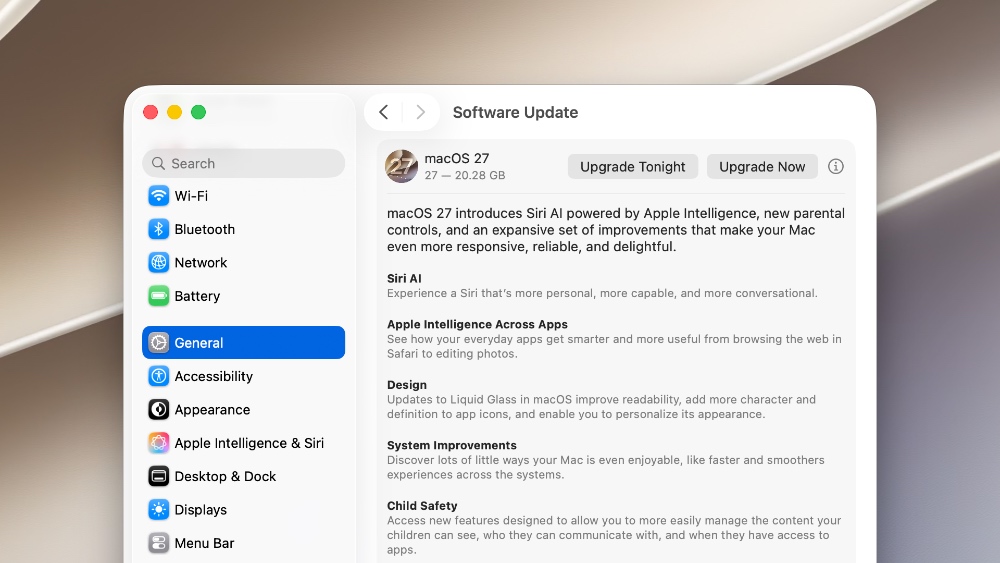
Step 5. The update will now start to download on your Mac, and will be installed afterwards.
Download the macOS 27 Golden Gate Firmware File
If you want to restore another Apple silicon Mac using the macOS 27 Golden Gate firmware file, you’ll find it attached below:
According to Apple, the new macOS 27 Golden Gate update has the following build number: 26A428