
Here’s how you can download iOS 27 and iPadOS 27 beta 1 on iPhone and iPad using over the air method, or perform a clean installation.
Apple Releases Beta 1 of iOS 27 and iPadOS 27 for Compatible iPhone and iPad Devices, Download and Take it for a Spin
Apple has released the first developer beta of iOS 27 and iPadOS 27. I’m sure you want to be the first one to download the update onto your device, and before you do that, there are a few things which you should do.
Check Device Compatibility
The beta is completely useless if the device you’re testing it on is not compatible with iOS 27 or iPadOS 27. In order to make sure that’s the case (or not), head over to this link and find out if your device actually supports the developer beta.
Backup Everything
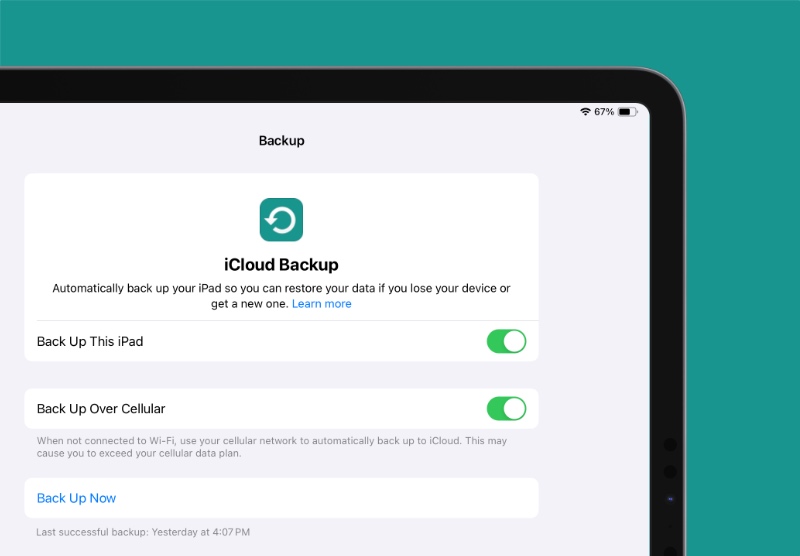
Now that you’ve established that your iPhone and iPad can run the beta, the next logical step is to backup your entire device using iCloud or Finder. Once you’re done with that, move on to the next step, which is a very obvious one.
Sign up to the Apple Developer Program
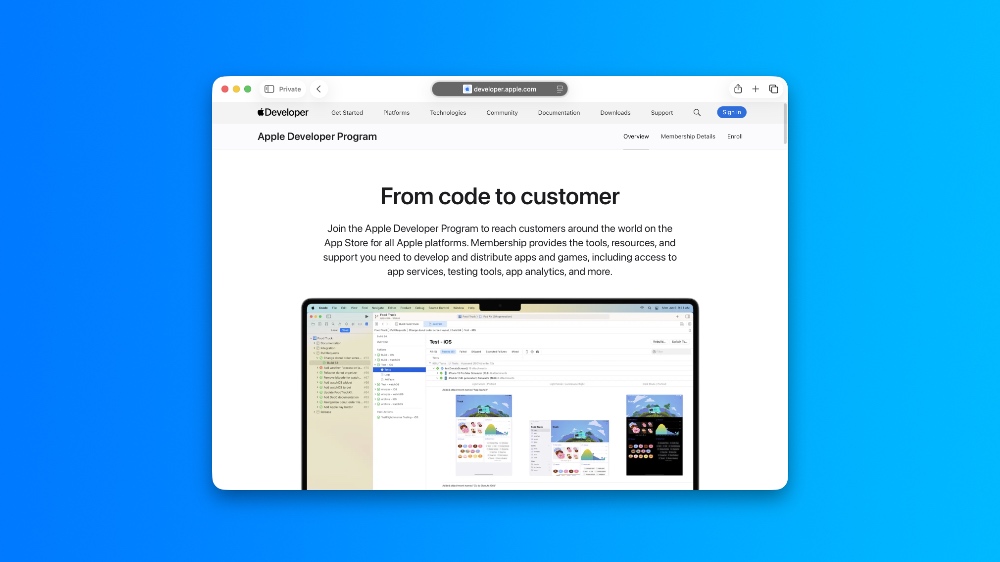
You won’t be able to access the developer beta of iOS 27 or iPadOS 27 if you are not enrolled into the Apple Developer Program. While it does cost $99 on an annual basis, but if you’re just testing out beta software, then you don’t have to pay anything and create a free account. You can start the sign up process by going to this link. Sign up using the same Apple Account you’re using on your iPhone and iPad.
Enable the iOS 27 and iPadOS 27 Developer Beta Updates
Now that you’ve signed up to the Apple Developer Program, you now have to set your iPhone and iPad to receive beta updates. You can do this by connecting to Wi-Fi, then go to Settings > General > Software Update > Beta Updates. Now select iOS 27 / iPadOS 27 Developer Beta from the list of options available.
Download iOS 27 and iPadOS 27 Over-the-Air, Without Losing Files or Settings
This is the easiest way to download and install the new iOS 27 or iPadOS 27 beta. All you have to do is follow these steps:
Step 1. Make sure your device has 50% or more battery remaining. It’s preferred that you plug your device into a power outlet if possible.
Step 2. Connect your iPhone and iPad a fast and stable Wi-Fi network.
Step 3. Launch the Settings app on your device.
Step 4. Tap on General.
Step 5. Open Software Update.
Step 6. After a few seconds, the iOS 27 or iPadOS 27 developer beta will show up. Tap on the ‘Update Now’ button.
Step 7. Your device will start to download the update and install it. The entire process may take up to half an hour.
Clean Installation of iOS 27 or iPadOS 27 Beta on iPhone and iPad
If you’re willing to do a little bit of legwork, you can get the maximum performance benefit from the newly-released beta. And yes, you will lose all your files and settings when you perform a clean installation therefore take a backup of everything using iCloud of Finder immediately before moving forward.
Step 1. Open the Apple Developer Program website and then click on ‘Sign in’ at the top right hand corner using your existing developer account with Apple.
Step 2. Right at the top of the website, you’ll see an option for ‘Downloads.’ Click on it.
Step 3. Under the ‘Latest releases’ section, click on ‘iOS beta’ or ‘iPadOS beta.’
Step 4. Scroll down a little, find the ‘iOS 27 beta’ or ‘iPadOS 27 beta.’
Step 5. Right under it, you’ll see an option for ‘Downloads restore images.’ Click on it to reveal the list of devices for which the firmware is available.
Step 6. Download the correct firmware file for your device, and save it to your desktop. If you’re unsure which device you have, you can confirm it by going to Settings > General > About > Model Name.
Step 7. Disable Find My on your iPhone and iPad. This is an important step, otherwise you won’t be able to perform a clean installation. You’ll find more details posted here.
Step 8. Now connect your iPhone and iPad to your Mac using a USB-C cable.
Step 9. Launch Finder on your Mac.
Step 10. You’ll see your iPhone or iPad on the left of Finder. Click on it to reveal more options.
Step 11. You’ll either see a ‘Restore iPhone’ or ‘Restore iPad’ button, depending on the device you have connected to your Mac. Now hold down the left Option key on your Mac’s keyboard, and then click on the ‘Restore’ button.
Step 12. A new pop-up window will open up. Double-click on the iOS 27 or iPadOS 27 developer beta firmware file you saved to your desktop.
Step 13. Finder will now start to restore your iPhone or iPad. This process will take a while, and it’s important that you do not touch your device throughout the whole thing.
That’s all you have to do.
Downgrade iOS 27 Beta to iOS 26?
Didn’t like the new beta? Running into a lot of problems? You can downgrade your iPhone and iPad back to the publicly available iOS 26 and iPadOS 26 firmware updates. You’ll find a detailed tutorial on it posted here.
iOS 27 and iPadOS 27 Beta 1 Build Number
According to Apple, the newly released iOS 27 and iPadOS 27 beta updates have the following build number: 24A5355q