
Here’s how you can downgrade your iPhone and iPad running iOS 27 and iPadOS 27 beta back to iOS 26 and iPadOS 26.
You Can Downgrade iPhone and iPad from iOS 27 and iPadOS 27 Beta to iOS 26 and iPadOS 26 Using DFU Mode
I’m sure a lot of you installed the new iOS 27 and iPadOS 27 beta just to test out its new features, only to realize that it’s a buggy mess and you now want to downgrade back to iOS 26 and iPadOS 26.
Thankfully, you can downgrade your device right now, but it’s not an easy process, because it involves the dreaded DFU mode on your iPhone and iPad when beta updates are involved.
I’m going to try and make things as simple as possible for you, and walk you through each step carefully. I will recommend that you read the entire tutorial at least once before you attempt it.
Backup Your iPhone and iPad
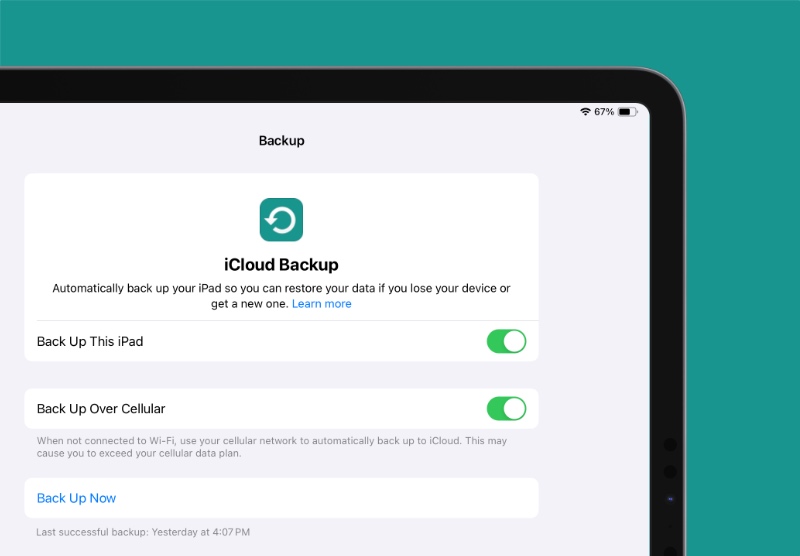
The downgrade process will erase your iPhone and iPad completely. To make sure your data stays in tact, create a backup using Finder or iCloud. Take as long as you want on this step so that your data remains safe and secure going forward.
Disable Find My
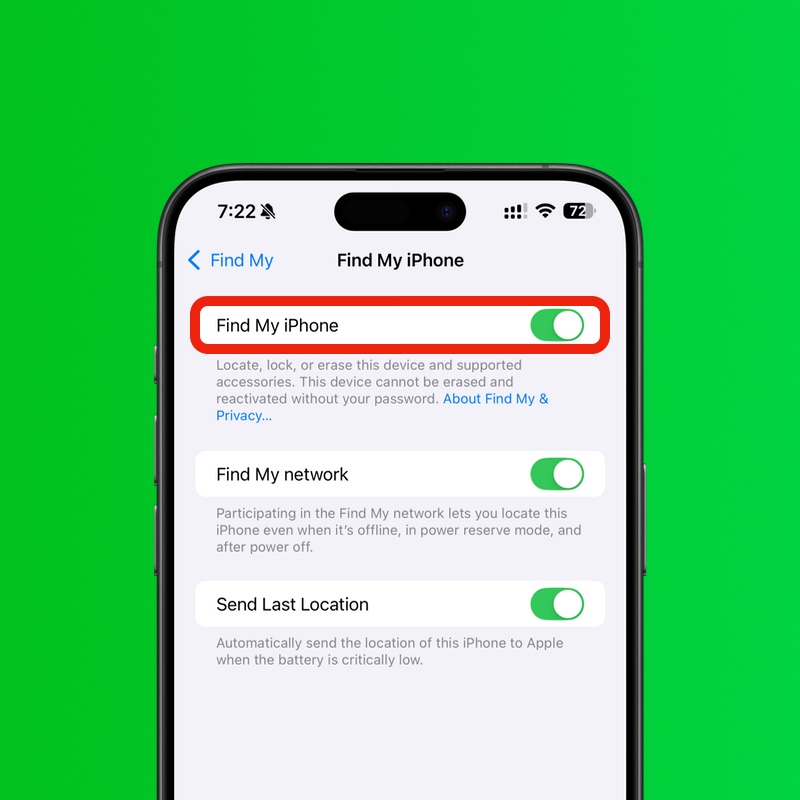
This is another important step. Disabling Find My ensures that you can restore your iPhone and iPad with the iOS 26 and iPadOS 26 firmware. You will find all the details posted here.
Download iOS 26 and iPadOS 26 Firmware Files
Download the correct iOS 26 or iPadOS 26 firmware file for your iPhone and iPad, and save it to your desktop:
- iPhone Air
- iPhone 17 Pro Max
- iPhone 17 Pro
- iPhone 17
- iPhone 17e
- iPhone 16e
- iPhone 16 Plus
- iPhone 16
- iPhone 16 Pro Max
- iPhone 16 Pro
- iPhone 15 Pro Max
- iPhone 15 Pro
- iPhone 15 Plus
- iPhone 15
- iPhone 14 Pro Max
- iPhone 14 Pro
- iPhone 14 Plus
- iPhone 14
- iPhone SE (3rd-generation)
- iPhone 13
- iPhone 13 mini
- iPhone 13 Pro Max
- iPhone 13 Pro
- iPhone 12 Pro Max
- iPhone 12, iPhone 12 Pro
- iPhone 12 mini
- iPhone SE (2nd-generation)
- iPhone 11 Pro, iPhone 11 Pro Max
- iPhone 11
- iPad Pro (M5)
- iPad mini 7 with A17 Pro
- iPad Pro 11-inch (M4), iPad Pro 13-inch (M4)
- iPad (A16)
- iPad Air 11-inch (M4), iPad Air 13-inch (M4)
- iPad Air 11-inch (M3)
- iPad Air 11-inch (M2), iPad Air 13-inch (M2)
- 11-inch iPad Pro (4th-generation), 12.9-inch iPad Pro (6th-generation)
- iPad Air (5th-generation)
- 10.2-in. iPad (10th generation)
- 11-inch iPad Pro (3rd-generation), 12.9-inch iPad Pro (5th-generation)
- iPad mini (6th-generation)
- 10.2-in. iPad (9th generation)
- iPad Air (4th-generation)
- 10.2-in. iPad (8th generation)
- iPad mini (5th-generation), iPad Air (3rd-generation)
- 11-in. iPad Pro (1st and 2nd generations), 12.9-in. iPad Pro (3rd and 4th generations)
Put iPhone and iPad Into DFU Mode
This is the tricky part, and I will suggest reading everything in this section at least twice before you go ahead and attempt DFU mode. If you get the button combinations wrong, you have to start all over. But if you get it right, Finder will immediately tell you that a device is connected to your Mac in DFU mode.
Depending on what type of iPhone or iPad you have, follow the tutorials linked below:
Restore iPhone and iPad to iOS 26 and iPadOS 26
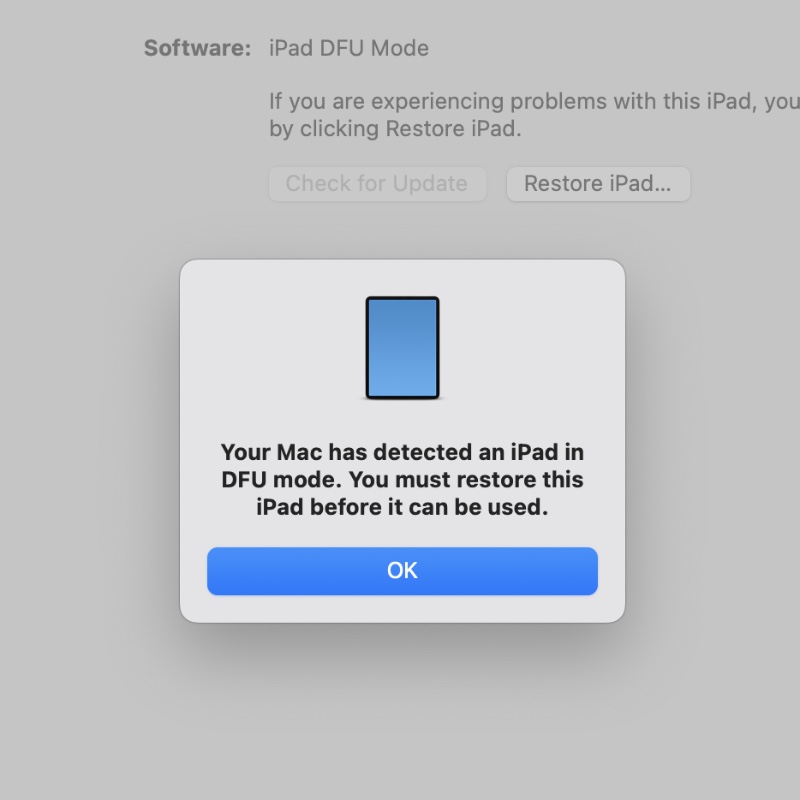
If you’ve followed the steps correctly, your Mac will tell you that an iPhone or iPad is connected using DFU mode. Now just press and hold the left Option key on your keyboard, and then click on the ‘Restore iPhone’ or ‘Restore iPad’ button.
Select the iOS 26 or iPadOS 26 firmware file you saved to your desktop, and then let Finder restore your device.
The whole thing may take up to 15 minutes, and once everything is complete, you can start setting up your iPhone and iPad from scratch, or restore from a previously created backup.