

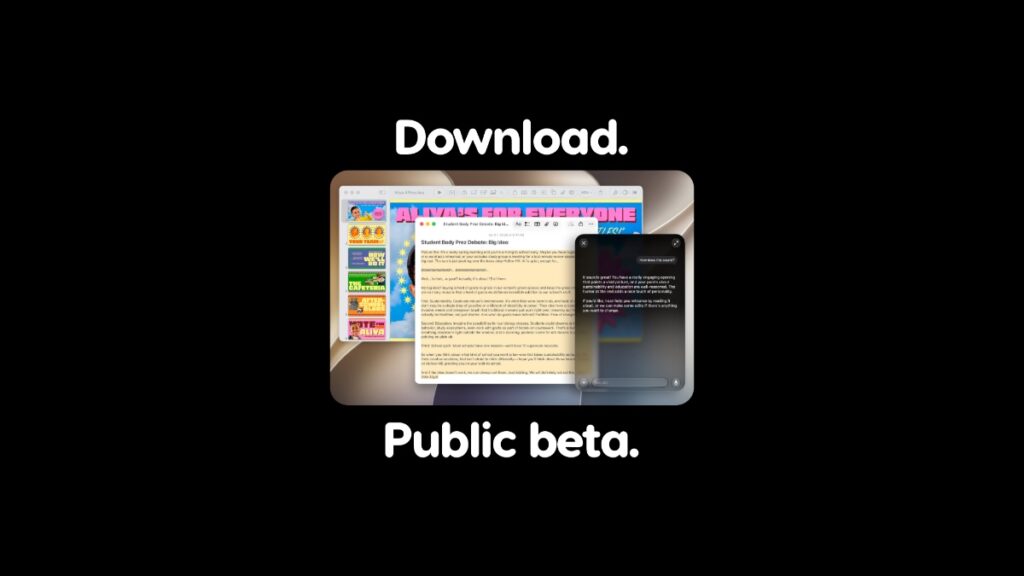

Here’s how you can download and install macOS 27 Golden Gate public beta on the Mac with the all-new Siri AI.
Apple Officially Releases First Public Beta of macOS 27 Golden Gate with Siri AI, Download it Now for Free
If you skipped installing the macOS 27 developer beta thinking the sign-up process was a little difficult, then you should be pleased to learn that the public beta is now here.
Unlike the developer beta, the public beta of macOS 27 Golden Gate is extremely easy to download and install, thanks to a super-easy sign-up process. However, like the developer beta, you have to make sure of a few things before installing it onto your Mac.
Let’s dive right in.
Check Compatibility with macOS 27 Golden Gate
macOS 27 Golden Gate is designed for the Apple silicon Mac only. If you have an Intel Mac, it won’t work at all. Here’s the complete list anyway:
- MacBook Air with Apple silicon, 2020 and later
- MacBook Pro with Apple silicon, 2020 and later
- MacBook Neo
- iMac, 2020 and later
- Mac mini, 2020 and later
- Mac Studio, 2022 and later
- Mac Pro, 2023
Even if you have the trusty-old M1 MacBook Air, macOS 27 Golden Gate will run absolutely fine on it.
Sign up to the Apple Beta Software Program
Go to beta.apple.com using Safari or any other web browser of your choice, and log in using your Apple Account. This is the same account which you’re using on your Mac on which you’re going to download macOS 27 Golden Gate public beta.
Once you’ve signed up, head over to the next obvious step.
Backup Everything
It’s a good idea to backup all your files and settings to a safe and secure location. How you take this backup is entirely up to you. You can either use iCloud, Google Drive, or maybe just an external drive of your choice. As long as your data is secure, you’re good to go, and ready to move to the next step.
Enable macOS 27 Golden Gate Public Beta Updates
Now that you’re signed up to the Beta Software Program, you’re all set to receive macOS 27 Golden Gate public beta updates. Follow these steps:
Step 1. Launch the System Settings app.
Step 2. Click on General on the left.
Step 3. Now click on Software Update.
Step 4. Click on the (i) icon next to Beta Updates.
Step 5. From the drop-down menu, select macOS 27 Golden Gate Public Beta and then click on Done.
Download and Install macOS 27 Golden Gate Public Beta
Step 1. Launch System Settings.
Step 2. Go to General > Software Update.
Step 3. Wait for the page to refresh and you’ll see macOS 27 Golden Gate public beta in a few seconds. Click on Update Now next to it to begin download.
Your Mac will restart in order to complete the download, which is perfectly normal. And, it will be a while until the installation is complete, which is perfectly normal too.


![iPhone Duo Shipping Date Slips to 8-9 Weeks [Update: January]](https://www.anotherapple.com/wp-content/uploads/2026/10/iphone-duo-shipping-date-slipped-300x169.jpg)

![Siri AI Coming to the Original HomePod mini too [Update: False]](https://www.anotherapple.com/wp-content/uploads/2026/10/siri-ai-on-original-homepod-mini-300x169.jpg)