



Here’s a tutorial on how to customize Siri AI accent, pace, and expressivity in iOS 27 and iPadOS 27 running on iPhone and iPad.
iOS 27 and iPadOS 27 Lets You Fine-Tune the Voice of Siri AI by Changing Accent, Pace, and Expressivity
In iOS 27 and iPadOS 27, you can customize the voice of Siri AI and tweak it in a way that suits you best for everyday use. You can change the accent, the pace, and even tweak the expressivity of the voice.
However, do keep one thing in mind: this option is not available on all devices. You must have at least an iPhone 17 Pro or above, or one of the latest iPads with the M4 chip.
And of course, you need to have Siri AI enabled as well. In order to do that, just go to Settings > Siri. With every prerequisite met, let’s customize the voice of Siri.
Tutorial
Step 1. Launch the Settings app.
Step 2. Scroll down a little and tap on Siri.
Step 3. Now tap on Voice.
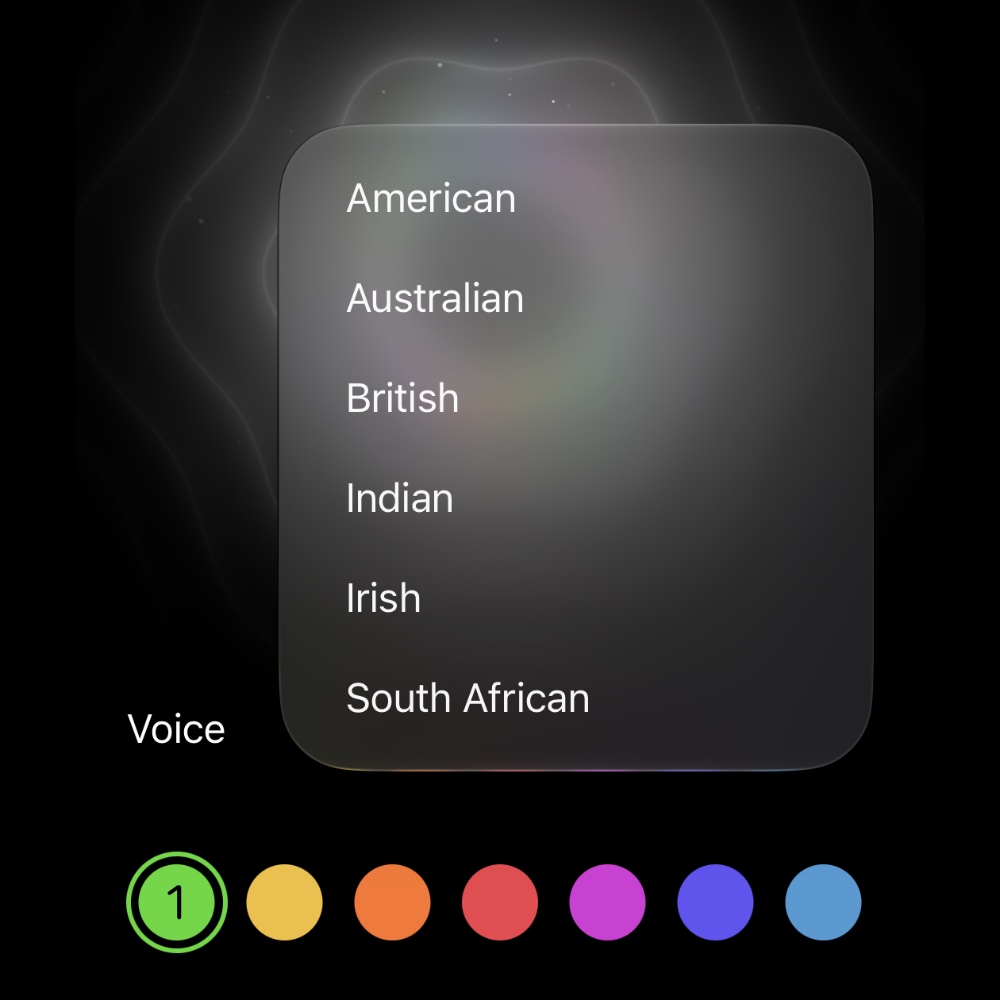
Step 4. At the top is the Voice drop-down. Tap on it and choose the accent that suits you best. You can fine-tune the accent by choosing one of the seven color-coded options too. Go through each and see which one is more audible for you.
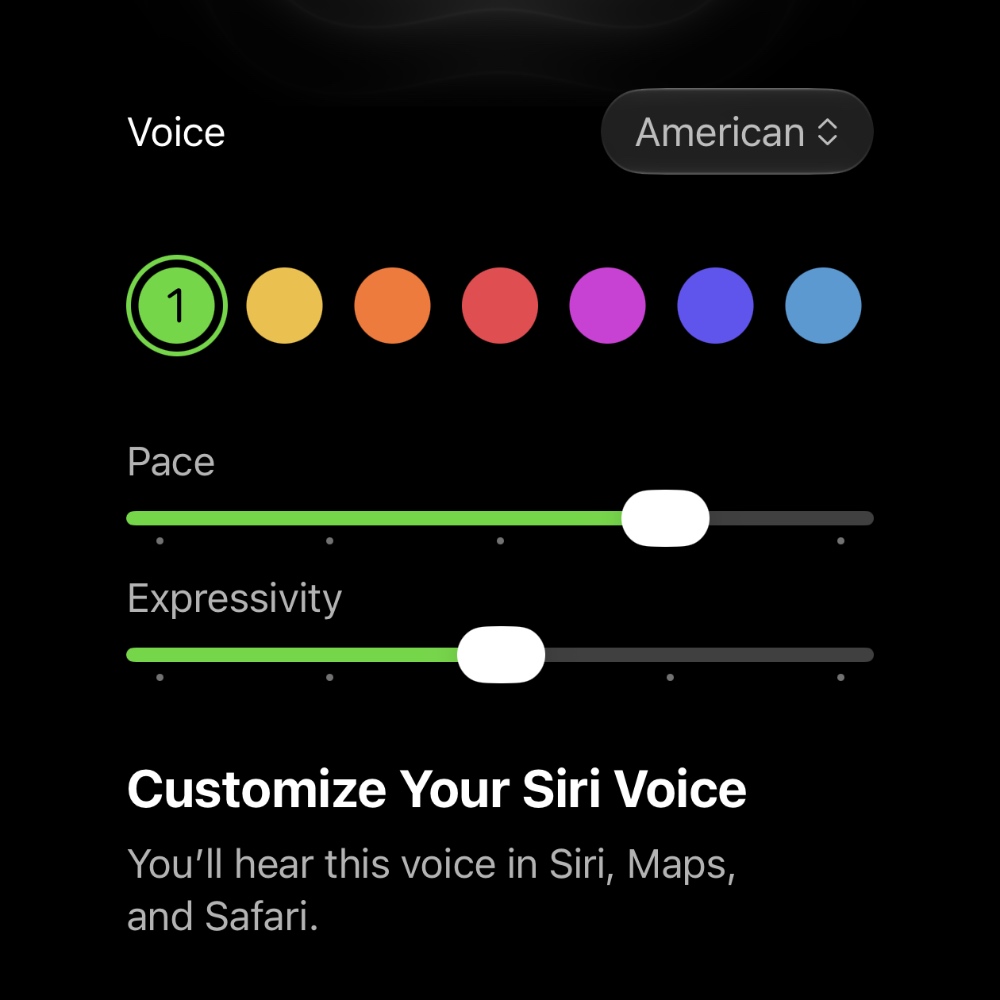
Step 5. Right underneath Voice, you’ll see the Pace slider. Move it left or right to make Siri faster or slower when talking back to you. You can make the voice slower by moving the slider to the left, or very fast by moving it all the way to the right.
Step 7. Last option to customize is Expressivity. If you want Siri to sound more like a human and full of character, move the slider to the right. Need a lifeless robot talking back at you? You’ll find that voice by moving the slider to the left.
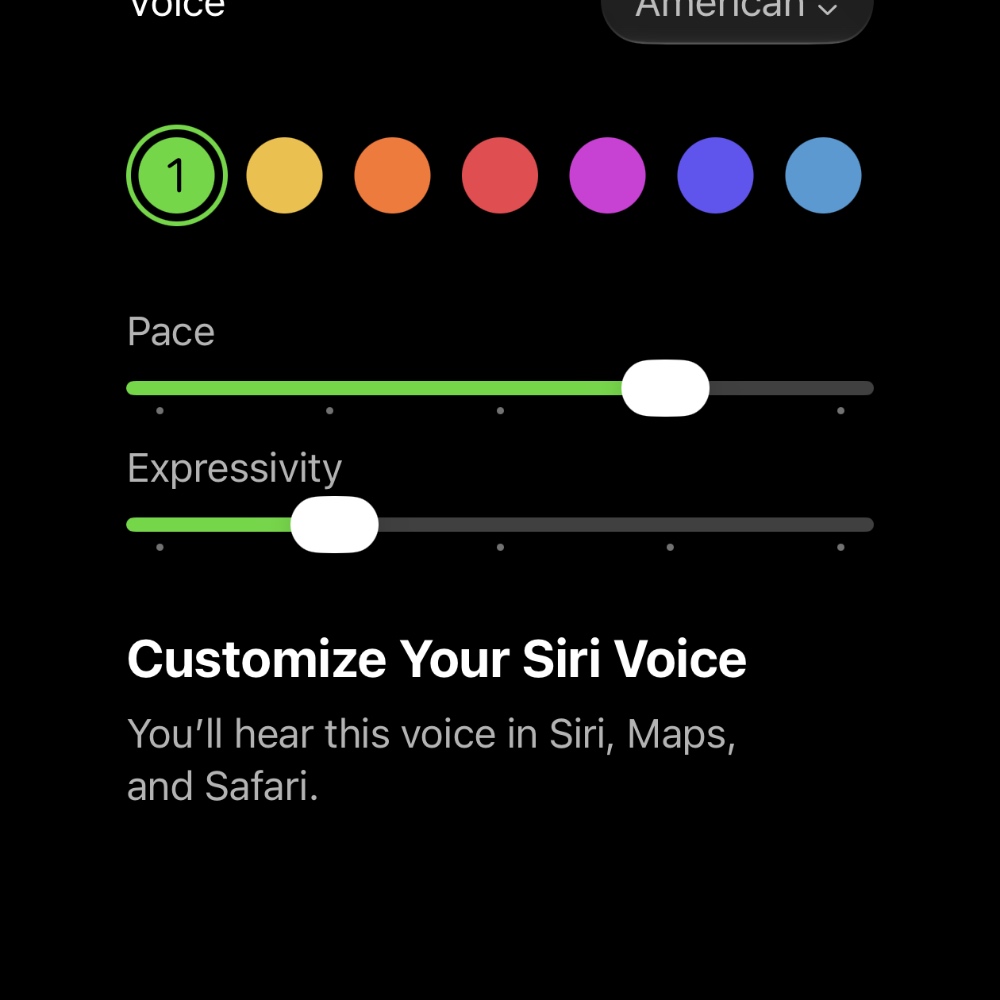
And that’s it. Once you’ve made the changes, you can test it out by simply talking to Siri.




![iPhone Duo Shipping Date Slips to 8-9 Weeks [Update: January]](https://www.anotherapple.com/wp-content/uploads/2026/10/iphone-duo-shipping-date-slipped-300x169.jpg)