

Here’s how you can download and install iOS 27 and iPadOS 27 public beta 1 on your iPhone and iPad with the new Siri AI.
Public Beta of iOS 27 and iPadOS 27 is Now Available for Download, Here’s How You Can Sign up for it and Test it Out
The first public beta of iOS 27 and iPadOS 27 is finally here, and if you’ve been patiently waiting for it, you’ll be pleased to learn that downloading is way easier than the developer beta.
However, do keep one thing in mind: you have to follow the same checklist before you can actually install the public beta. This includes device compatibility, signing up for the Beta Software Program, things like that.
So, with that out of the way, let’s dive in.
Check Device Compatibility
If your iPhone and iPad is not on the list, it means you cannot download and install the public beta. Unfortunately, iOS 27 and iPadOS 27 drops support for several devices, and you can check out the complete list below:
iPhone Models Compatible with iOS 27
- iPhone 17 Pro, iPhone 17 Pro Max
- iPhone 17
- iPhone 17e
- iPhone Air
- iPhone 16, iPhone 16 Plus
- iPhone 16 Pro, iPhone 16 Pro Max
- iPhone 16e
- iPhone 15, iPhone 15 Plus
- iPhone 15 Pro, iPhone 15 Pro Max
- iPhone 14, iPhone 14 Plus
- iPhone 14 Pro, iPhone 14 Pro Max
- iPhone 13, iPhone 13 mini
- iPhone 13 Pro, iPhone 13 Pro Max
- iPhone 12, iPhone 12 mini
- iPhone 12 Pro, iPhone 12 Pro Max
- iPhone 11, iPhone 11 Pro, iPhone 11 Pro Max
- iPhone SE 2 and newer
iPad Models Compatible with iPadOS 27
- iPad Pro (M4 and later)
- iPad Pro 12.9-inch (4th generation and later)
- iPad Pro 11-inch (2nd generation and later)
- iPad Air 13-inch (M2 and later)
- iPad Air 11-inch (M2, M3, and M4)
- iPad Air 11-inch (4th generation and later)
- iPad (A16)
- iPad (9th generation and later)
- iPad mini (A17 Pro)
- iPad mini (6th generation and later)
If your device is in the list, head over to the next step.
Sign up to Apple Beta Software Program
Head over to this link, and sign up using your Apple Account. This is the same Apple Account which you are currently using with your iPhone and iPad.
Signing up is very simple, and it takes just a couple of minutes. Once you’re enrolled into the program, you can move on to the next step.
Backup Everything Now
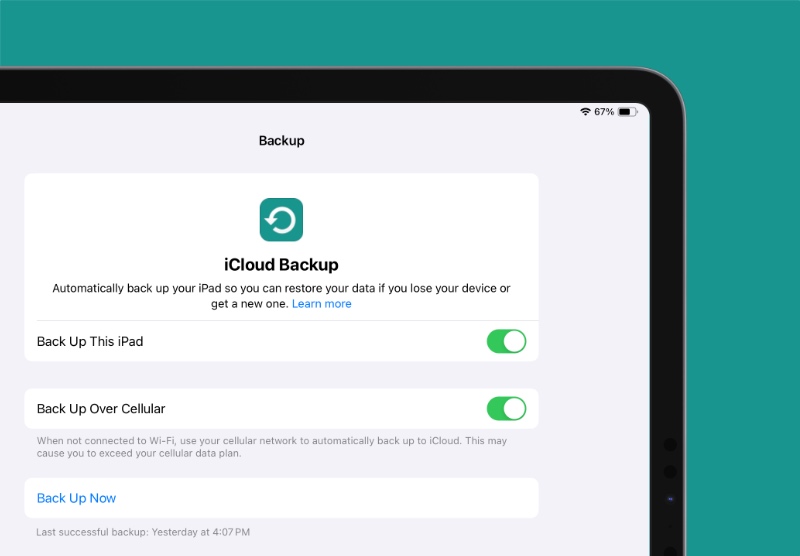
At this point, you should backup everything to either iCloud or Finder. It takes a few minutes, and ensures that your data stays safe and sound, especially if you’re updating your primary device to iOS 27 or iPadOS 27.
You’ll find the complete tutorial for backup posted here.
Enable iOS 27 and iPadOS 27 Public Beta Updates
Now that you’re enrolled into the Apple Beta Software Program, you can start receiving public beta updates for iOS 27 and iPadOS 27 immediately. But first, you need to change just one setting on your iPhone and iPad:
Step 1. Launch the Settings app.
Step 2. Go to General > Software Update.
Step 3. Tap on Beta Updates at the top.
Step 4. Select either iOS 27 Public Beta, or iPadOS 27 Public Beta, depending on whether you’re using an iPhone or iPad.
Download and Install iOS 27 and iPadOS 27 Public Beta
Step 1. Launch the Settings app.
Step 2. Go to General.
Step 3. Open Software Update.
Step 4. Once the page is done refreshing, you’ll see the iOS 27 or iPadOS 27 public beta update. Tap on the Update Now button.
At this point, make sure you’re connected to a Wi-Fi network, and plugged into a power source. Once the installation is complete, you can start using iOS 27 or iPadOS 27 public beta on your device immediately.
The update will take a while to stabilize. Your device will take a couple of days to index all the files and settings, and once that is done you’ll notice a huge boost in performance.

![iPhone Duo Shipping Date Slips to 8-9 Weeks [Update: January]](https://www.anotherapple.com/wp-content/uploads/2026/10/iphone-duo-shipping-date-slipped-300x169.jpg)

![Siri AI Coming to the Original HomePod mini too [Update: False]](https://www.anotherapple.com/wp-content/uploads/2026/10/siri-ai-on-original-homepod-mini-300x169.jpg)