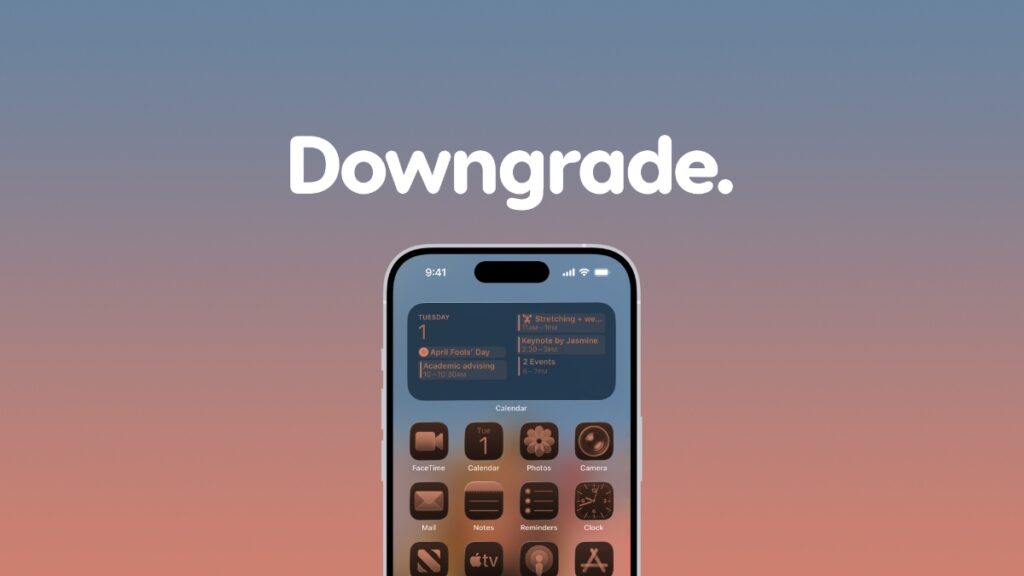

Here’s a step-by-step tutorial on how to downgrade iOS 27 and iPadOS 27 to iOS 26 and iPadOS 26 on iPhone and iPad.
Apple is Still Signing iOS 26.6.2 and iPadOS 26.6.2, Downgrade from iOS 27 and iPadOS 27 Possible for Limited Time
Apple gives you an option to skip the new iOS 27 and iPadOS 27 updates entirely by choosing iOS 26.7 and iPadOS 26.7 instead. All you have to do is go to Settings > General > Software Update, and choose the 26.7 update. It’s that simple.
If you did manage to install iOS 27 or iPadOS 27 instead, and think it’s a mistake, you have a few days to correct it. At the time of writing this, iOS 26.6.2 and iPadOS 26.6.2 are still signed by Apple, allowing you to downgrade immediately.
Here is everything you need to do in order to perform the downgrade:
Backup Everything
It all starts with a backup because downgrading will erase everything off your device, including your messages, photos, apps, games, you name it. Use Finder or iCloud to backup everything before moving forward.
Disable Find My
Without disabling Find My, you won’t be able to downgrade at all. Also keep in mind that you need your Apple Account password in order to turn off Find My. You’ll find all the details on this posted here.
Download iOS 26.6.2 and iPadOS 26.6.2 Firmware Files
Depending on the device you have, download the correct firmware file, or files, from the links below and save them to your desktop:
- iPhone Air
- iPhone 17
- iPhone 17 Pro Max
- iPhone 17 Pro
- iPhone 17e
- iPhone 16e
- iPhone 16 Plus
- iPhone 16
- iPhone 16 Pro Max
- iPhone 16 Pro
- iPhone 15 Pro Max
- iPhone 15 Pro
- iPhone 15 Plus
- iPhone 15
- iPhone 14 Pro Max
- iPhone 14 Pro
- iPhone 14 Plus
- iPhone 14
- iPhone SE (3rd-generation)
- iPhone 13
- iPhone 13 mini
- iPhone 13 Pro Max
- iPhone 13 Pro
- iPhone 12 Pro Max
- iPhone 12, iPhone 12 Pro
- iPhone 12 mini
- iPhone SE (2nd-generation)
- iPhone 11 Pro, iPhone 11 Pro Max
- iPhone 11
- iPad Pro (M5)
- iPad mini 7 with A17 Pro
- iPad Pro 11-inch (M4), iPad Pro 13-inch (M4)
- iPad (A16)
- iPad Air 11-inch (M4), iPad Air 13-inch (M4)
- iPad Air 11-inch (M3)
- iPad Air 11-inch (M2), iPad Air 13-inch (M2)
- 11-inch iPad Pro (4th-generation), 12.9-inch iPad Pro (6th-generation)
- iPad Air (5th-generation)
- 10.2-in. iPad (10th generation)
- 11-inch iPad Pro (3rd-generation), 12.9-inch iPad Pro (5th-generation)
- iPad mini (6th-generation)
- 10.2-in. iPad (9th generation)
- iPad Air (4th-generation)
- 10.2-in. iPad (8th generation)
- iPad mini (5th-generation), iPad Air (3rd-generation)
- 11-in. iPad Pro (1st and 2nd generations), 12.9-in. iPad Pro (3rd and 4th generations)
Downgrade to iOS 26 and iPadOS 26
Step 1. Connect your iPhone or iPad to your Mac using a USB-C cable.
Step 2. Launch Finder.
Step 3. You’ll see your iPhone or iPad listed on the left. Click on it to reveal more options.
Step 4. You’ll either see a ‘Restore iPhone’ or ‘Restore iPad’ button. Hold down the left Option key on your Mac’s keyboard and click on ‘Restore iPhone’ or ‘Restore iPad.’
Step 5. A new pop-up window will now appear. Double-click on the iOS 26.6.2 or iPadOS 26.6.2 firmware file you saved to your desktop.
Step 6. Finder will immediately start extracting the contents of the firmware file and then restore it onto your device.
Once everything is complete, you can set up your iPhone and iPad from scratch, or restore the backup you created at the start.