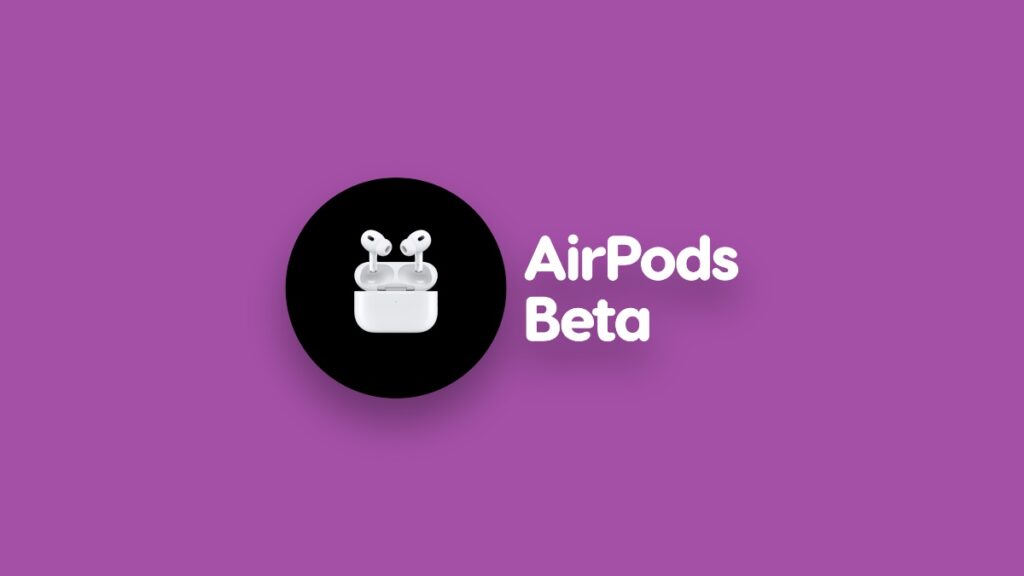

You can now enable, download and install beta firmware on your AirPods using macOS 26 Tahoe installed on your Mac.
Apple Enables Signing up to AirPods Beta Firmware Using macOS 26 Tahoe, Here’s How it Works
The second developer beta of macOS 26 Tahoe is now available for download and it allows users to sign up to Apple’s beta firmware for AirPods.
Previously, this was only possible using an iPhone or iPad. But now, you can sign up to the beta using your Mac as well and test out upcoming features for AirPods before everyone else.
Download and Install macOS 26 Tahoe First
Enrolling your AirPods is easy and you have to start things off by installing macOS 26 Tahoe on your Mac. You’ll find all the details about it here.
Sign up for AirPods Beta Firmware
Once you update to beta firmware, you cannot downgrade your AirPods back to the publicly available software update.
Step 1. Connect your AirPods to your Mac.
Step 2. Launch System Settings.
Step 3. You’ll see your AirPods in the list of settings on the left. You may have to scroll down a little in order to find them.
Step 4. Right at the top you’ll see AirPods Beta Updates. Just enable this switch.
According to Apple, the beta firmware will install when the AirPods are in their charging case and close to your Mac.
Though Apple doesn’t mention this, I recommend plugging your AirPods to a power outlet to ensure they’re fully charged up during the entire process.
It’s entirely up to you whether or not you want to install the new beta update on your AirPods. Though there are some exciting features, such as automatic sleep with your AirPods AirPods in your ears, but testing beta software can be risky.
You may run into connectivity issues, subpar battery life without any warning, and so on.