
Here’s a step by step tutorial on how to downgrade iOS 26.6 and iPadOS 26.6 to iOS 26.5.2 and iPadOS 26.5.2 on iPhone and iPad.
Apple is Still Signing iOS 26.5.2 and iPadOS 26.5.2, Downgrade from iOS 26.6 and iPadOS 26.5 Possible for Limited Time
Given how good the iOS 26.6 and iPadOS 26.6 updates are, I’m surprised you’re thinking about downgrading to iOS 26.5.2 or iPadOS 26.5.2. If you are, for any reason at all, I suggest you do it fast as long as Apple is signing the older firmware.
Backup Everything
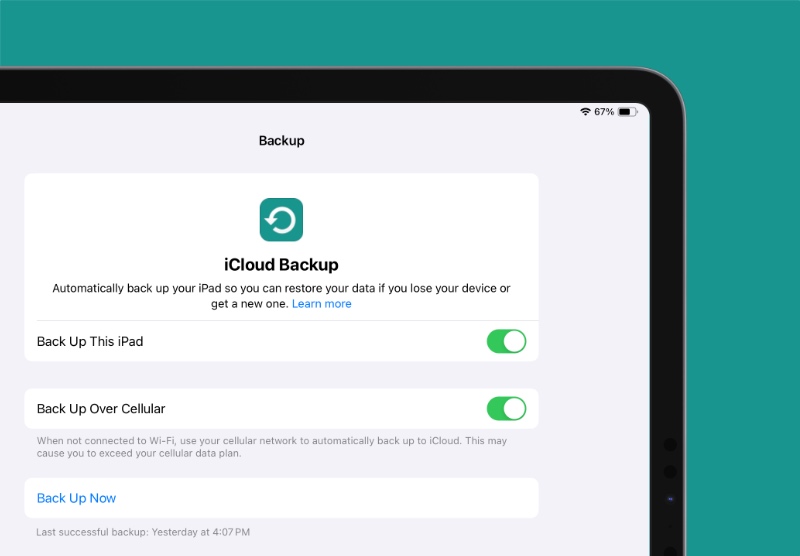
First and foremost, backup all your data using Find My or iCloud. You’re basically performing a clean installation of the firmware, which means it will erase everything off your iPhone and iPad. If you fail to backup your data, you’ll lose everything permanently.
Disable Find My
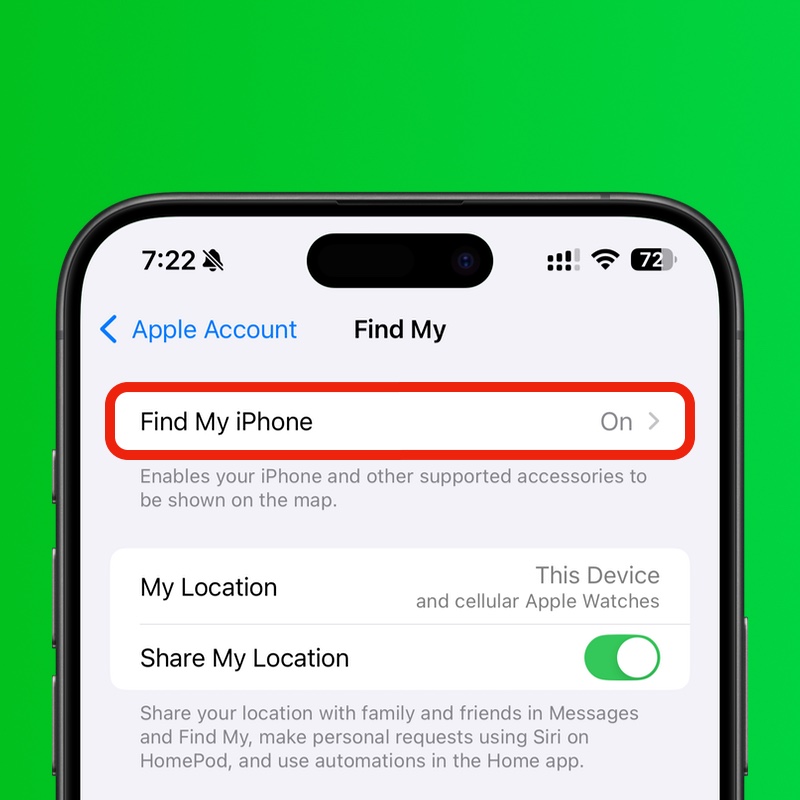
Make sure Find My is disabled on your device. You’ll find all the details about it posted here.
Download the iOS 26.5.2 and iPadOS 26.5.2 Firmware Files
Using the links below, download the firmware file for your iPhone and iPad. Make sure you get the model right otherwise you won’t be able to downgrade.
- iPhone Air
- iPhone 17
- iPhone 17 Pro Max
- iPhone 17 Pro
- iPhone 17e
- iPhone 16e
- iPhone 16 Plus
- iPhone 16
- iPhone 16 Pro Max
- iPhone 16 Pro
- iPhone 15 Pro Max
- iPhone 15 Pro
- iPhone 15 Plus
- iPhone 15
- iPhone 14 Pro Max
- iPhone 14 Pro
- iPhone 14 Plus
- iPhone 14
- iPhone SE (3rd-generation)
- iPhone 13
- iPhone 13 mini
- iPhone 13 Pro Max
- iPhone 13 Pro
- iPhone 12 Pro Max
- iPhone 12, iPhone 12 Pro
- iPhone 12 mini
- iPhone SE (2nd-generation)
- iPhone 11 Pro, iPhone 11 Pro Max
- iPhone 11
- iPad Pro (M5)
- iPad mini 7 with A17 Pro
- iPad Pro 11-inch (M4), iPad Pro 13-inch (M4)
- iPad (A16)
- iPad Air 11-inch (M4), iPad Air 13-inch (M4)
- iPad Air 11-inch (M3)
- iPad Air 11-inch (M2), iPad Air 13-inch (M2)
- 11-inch iPad Pro (4th-generation), 12.9-inch iPad Pro (6th-generation)
- iPad Air (5th-generation)
- 10.2-in. iPad (10th generation)
- 11-inch iPad Pro (3rd-generation), 12.9-inch iPad Pro (5th-generation)
- iPad mini (6th-generation)
- 10.2-in. iPad (9th generation)
- iPad Air (4th-generation)
- 10.2-in. iPad (8th generation)
- iPad mini (5th-generation), iPad Air (3rd-generation)
- 11-in. iPad Pro (1st and 2nd generations), 12.9-in. iPad Pro (3rd and 4th generations)
Now follow these steps for downgrading your iPhone and iPad:
Step 1. Assuming you have backed up everything and turned off Find My, connect your iPhone or iPad to your Mac using a USB-C or Lightning cable.
Step 2. Launch Finder from the Dock on your Mac.
Step 3. You’ll see your device listed on the left. Click on it once to reveal more options.
Step 4. On the right, you’ll see a button labeled ‘Restore iPhone’ or ‘Restore iPad.’ Hold down the left Option key on the keyboard and click on ‘Restore iPhone/iPad.’
Step 5. A new window will open. Choose the iOS 26.5.2 or iPadOS 26.5.2 you downloaded earlier.
Step 6. Find My will immediately start to unpack the contents of the firmware file and restore it onto your iPhone and iPad. The whole process may take up to 20 minutes.
Once everything is complete, you’ll be back on iOS 26.5.2 or iPadOS 26.5.2.