
If you want to nail the dark mode look on your iPhone, iPad, or Mac with Liquid Glass, then follow these simple steps.
Get the Correct Dark Mode Look with Liquid Glass on iPhone, iPad, and Mac by Enabling Just One Extra Feature
Turning on dark mode in iOS 26, iPadOS 26, and macOS 26 Tahoe, is just 50% of the work done. You also have to enable clear or dark icons in order to complete the look, yet you’re still not quite there.
The thing is, Liquid Glass may get in the way of what you’re trying to achieve, and thanks to Apple’s recent changes to how Liquid Glass looks and behaves, dark mode gets even better.
Here’s what do in order to get the perfect dark mode look on iOS 26, iPadOS 26, and macOS 26 Tahoe.
Enable Dark Mode First (Obviously)
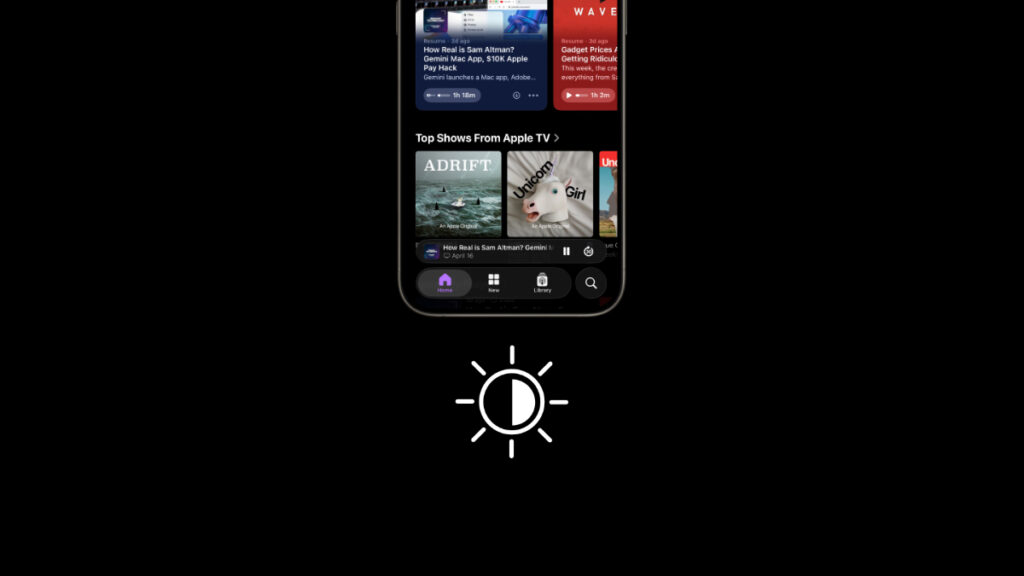
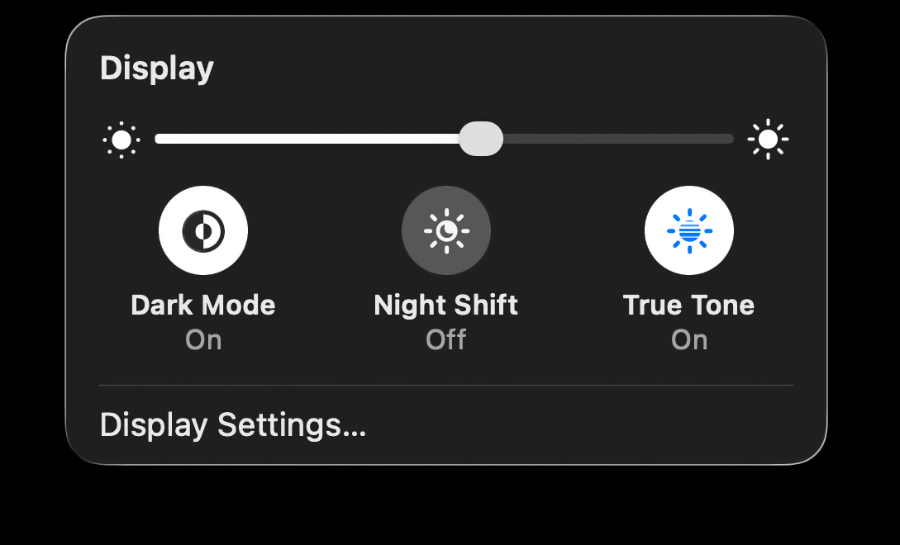
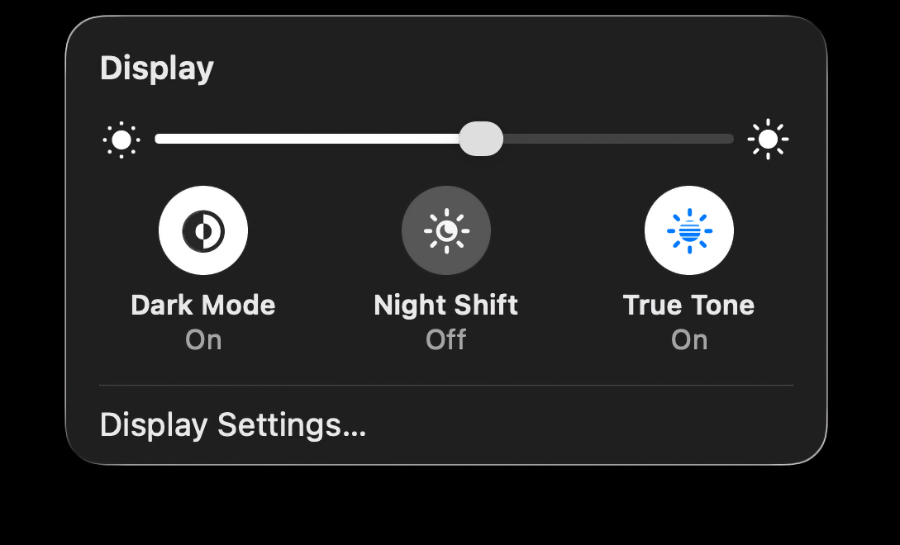
First and foremost, enable dark mode on your iPhone, iPad, or Mac, by simply launching Control Center, then tap or click on the brightness slider, and enable ‘Dark Mode’ from here. The UI will immediately go dark when you do this.
Dark Icons
This is a must, and you can do this on iOS or iPadOS by simply following the tutorial posted here. On the Mac, just launch System Settings, click on Appearance on the left, and then click on ‘Dark’ right next to ‘Icon & widget style.’
Set Liquid Glass to Tinted
This is the step that completes the dark mode look. All you have to do is switch Liquid Glass from Clear to Tinted. I’ve covered this in detail, and you’ll find everything about it here.
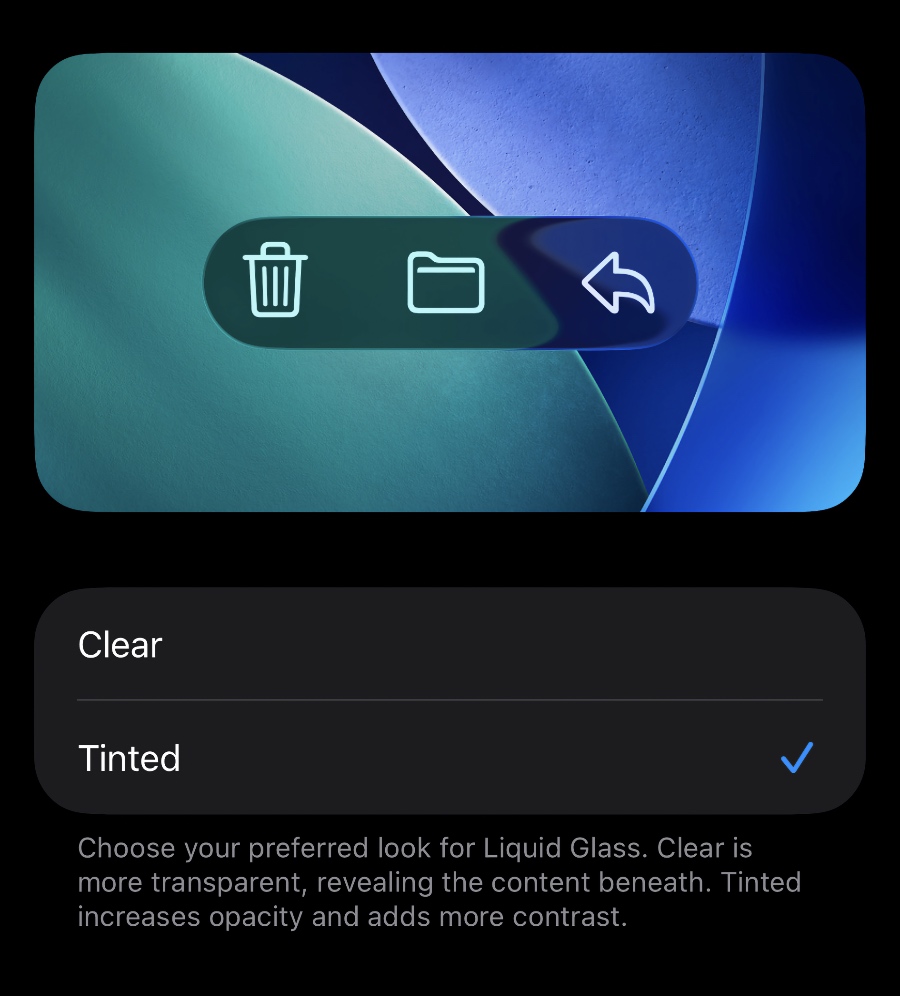
On your iPhone or iPad, go to Settings > Display & Brightness > Liquid Glass, and select Tinted. On the Mac, launch System Settings, click on Appearance, and then select Tinted next to Liquid Glass.
When you do this, every single floating button, search bar, or icon will look like it belongs to the rest of the UI. Furthermore, it will improve the legibility of text and design elements in general.
While the Clear look for Liquid Glass looks great, but it works well when you’re using light mode on your iPhone, iPad, and Mac. When everything goes dark, switch over to Tinted, and that’s the key to the ultimate stealthy look.