


The Mac has a built-in feature that allows you to see clipboard history of up to 7 days. I’ll show you how you can enable it right now.
macOS has a Built-in Clipboard History Viewer Which You can Enable Right Now with a Few Clicks
I’m sure you copy and paste a lot of stuff on your Mac. After all, it’s a crucial part of the whole computing experience. From links, to images, videos, or just small strings of text, it happens on a daily basis.
But, what if you copied something important to the clipboard and you may want to revisit it at a later date? Well, turns out, macOS can save clipboard history for up to 7 days, allowing you to see everything you copied during that time.
Do keep one thing in mind: this feature is not enabled by default, which means your clipboard history will start today once you enable it, and it is highly recommended that you do enable it.
Here’s what you have to do on the Mac:
Step 1. Launch the System Settings app.
Step 2. Find Spotlight in the list of options on the left and click on it to open.
Step 3. Scroll down and you’ll see a switch called ‘Results from Clipboard.’ Click to enable it, and set the history limit to 7 days.
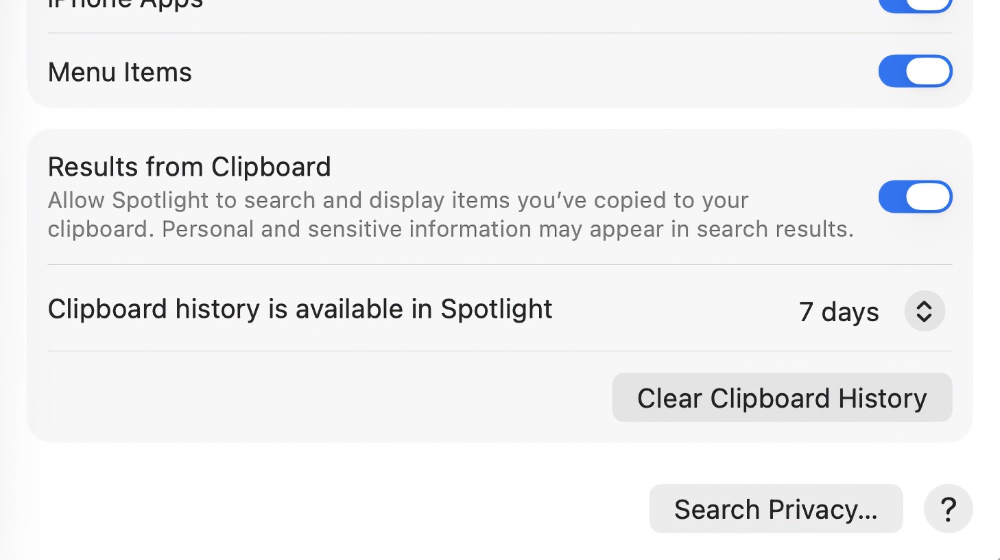
In order to test out the feature right now, just copy a random string of text or a link, then launch Spotlight search by pressing the Command+Space keys. Once Spotlight search is in view, press Command+4. You’ll instantly see a list of stuff you copied.
Like I said, the list will be empty the first time you enable this feature. But over time, it will start to populate itself. However, do keep one thing in mind, if you’ve copied something sensitive, that too will show up in Spotlight, so it’s a good idea to click on that ‘Clear Clipboard History’ button from time to time.

![iPhone Duo Shipping Date Slips to 8-9 Weeks [Update: January]](https://www.anotherapple.com/wp-content/uploads/2026/10/iphone-duo-shipping-date-slipped-300x169.jpg)
![Siri AI Coming to the Original HomePod mini too [Update: False]](https://www.anotherapple.com/wp-content/uploads/2026/10/siri-ai-on-original-homepod-mini-300x169.jpg)