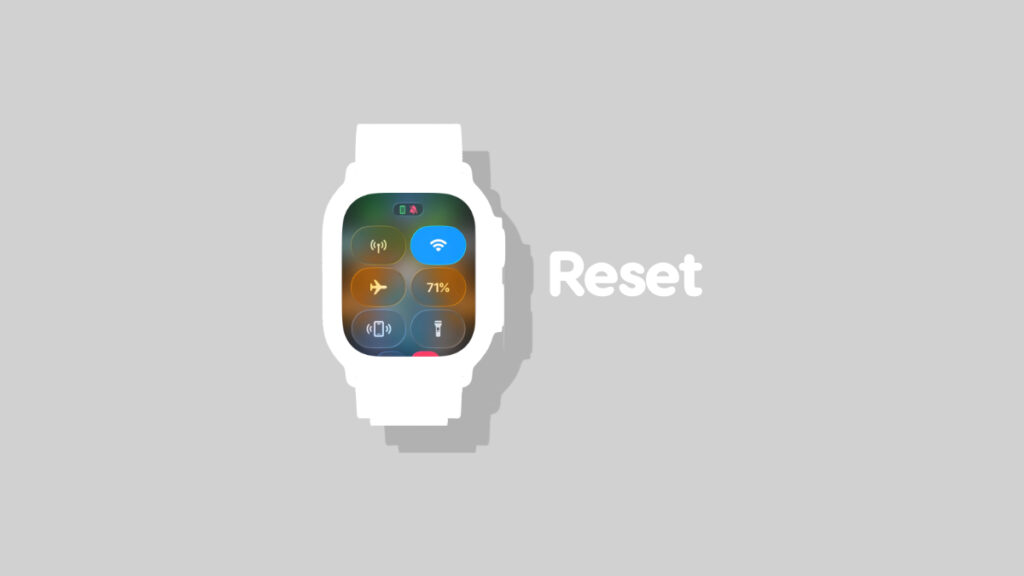

You can reset the Control Center layout on your Apple Watch very easily, and I’ll show you how to do it right now.
Undo All Control Center Changes on Apple Watch and Reset to the Default Layout in a Few Simple Steps
It’s very easy to get carried away while customizing Apple Watch. And if you think you went a little too far customizing the Control Center layout, then don’t panic; you can reset everything, go back to the default layout, and start from scratch.
Reset Control Center Layout Using Apple Watch
There are two ways to do this – either using your Apple Watch, or your iPhone. So let’s start from Apple Watch:
Step 1. Press the Digital Crow on your Apple Watch to go to the Home Screen.
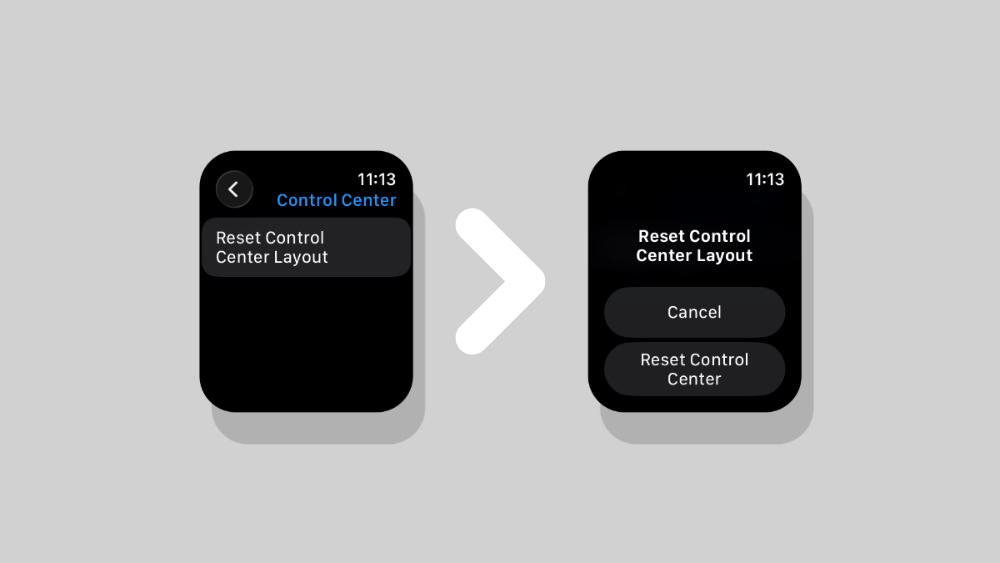
Step 2. Find Settings and open it.
Step 3. Open Control Center.
Step 4. Now tap on Reset Control Center Layout.
Step 5. Select Reset Control Center to confirm your choice.
Reset Control Center Layout Using iPhone
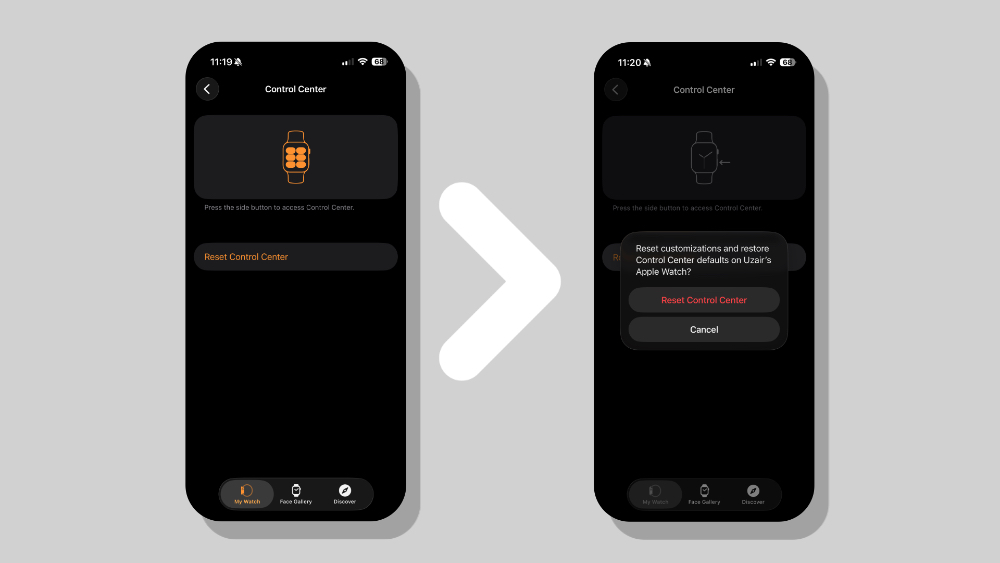
Step 1. Launch the Watch app on your iPhone.
Step 2. Tap on Control Center.
Step 3. Tap on Reset Control Center.
Step 4. Now select Reset Control Center to confirm.
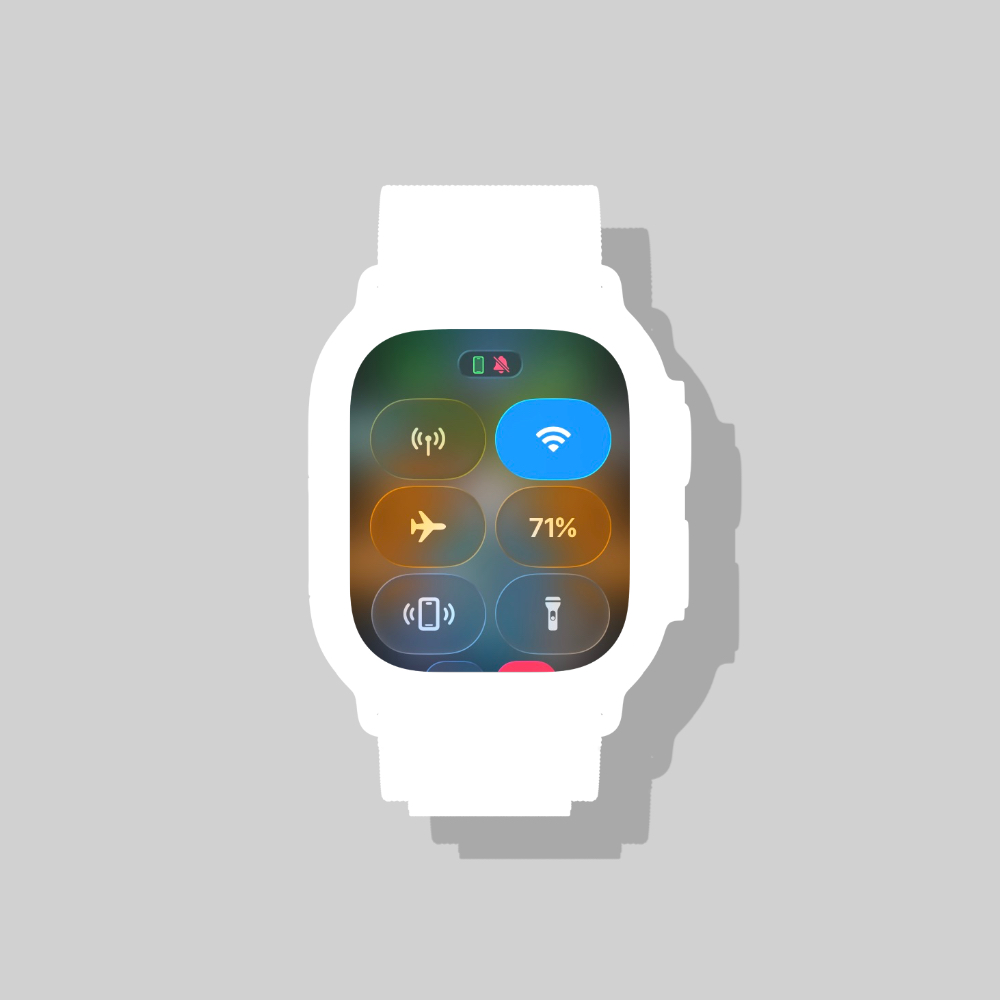
Once you’ve followed the steps above, your Control Center layout will be reset to factory defaults, and will look like this:
Interestingly, you can do the same thing on your iPhone and iPad as well, reset the Control Center layout to default. You’ll find all the details on it posted here.
It’s important that you know how to do this, especially if you get a little too carried away and want to start from scratch. Rather than just hit that factory reset button, just reset the Control Center part of your iPhone and iPad instead.