
Overwhelmed by the sea of notifications from Instagram? Take a break and temporarily pause all notifications in the app for iPhone and iPad.
Instagram for iPhone and iPad Lets You Temporarily Pause Notifications up to 8 Hours
These days it’s hard to find someone who isn’t actively doing something on Instagram. Some scroll through Reels, while others spend a lot of time creating content.
If you have been spending time on Instagram creating content instead, then you already know how notifications can suddenly become overwhelming when people rapidly start to like and comment on your content.
At first, the attention is satisfying because people are engaging with your content. But over a period of time, it can become a huge distraction and a cause for concern. Because your Apple Watch and iPhone start to light up every other second.
Thankfully, Instagram offers a great solution to this problem, and it doesn’t involve blocking the entire app from iOS or iPadOS. Instead, you can pause notifications temporarily for up to 8 hours.
Here’s how you can use this feature:
Step 1. Launch the Instagram app on your iPhone or iPad.
Step 2. Select your profile tab from the bottom if you’re using an iPhone, or from the list of options on the left if you’re using iPad.
Step 3. Tap on the hamburger menu button on the top right of the display to reveal more options.
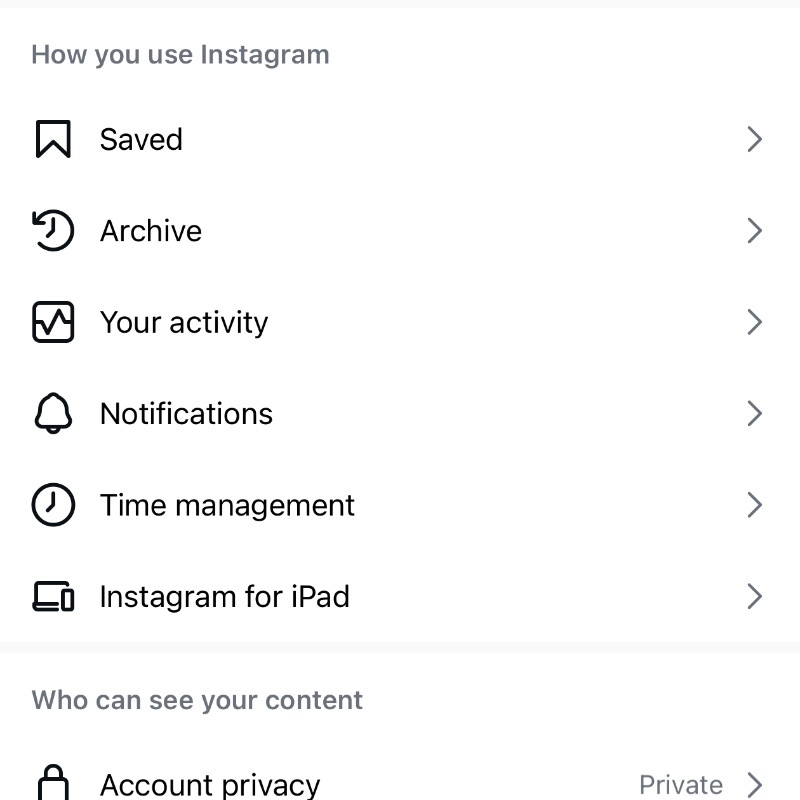
Step 4. Tap on Notifications.
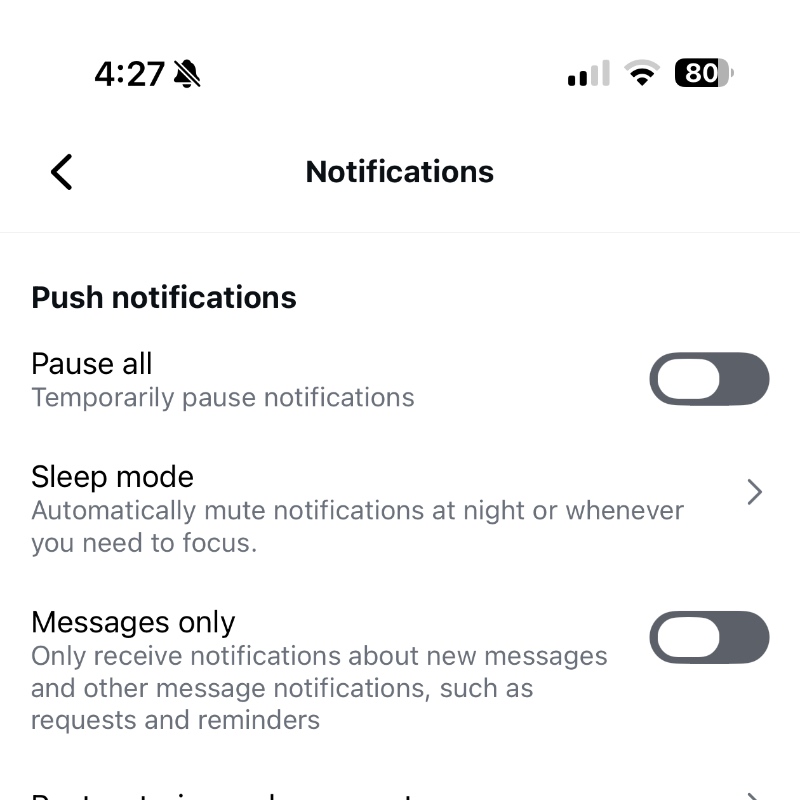
Step 5. Right at the top you’ll see an option called Pause All. Tap on it.
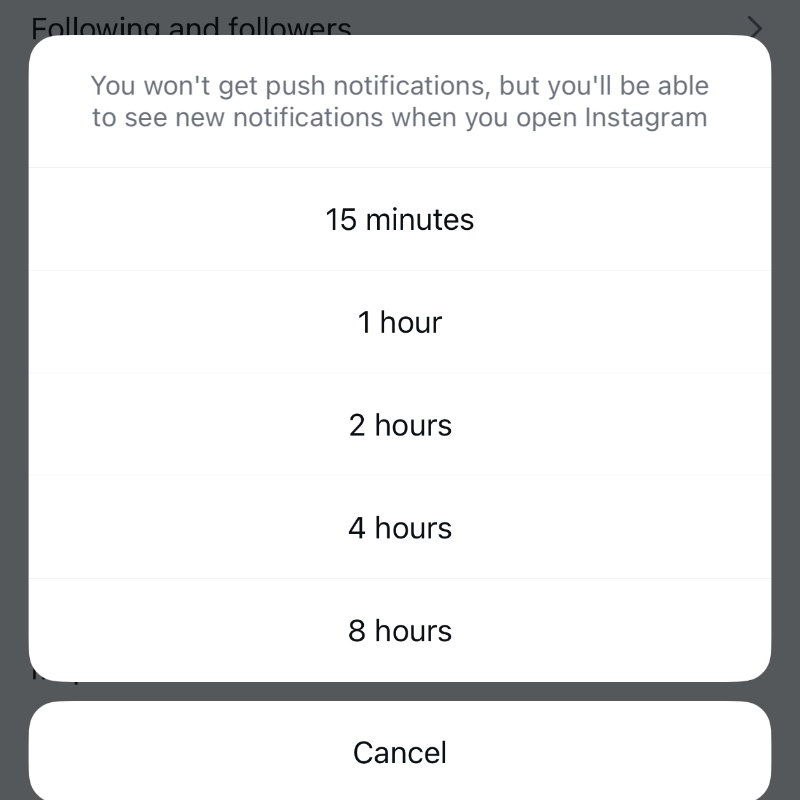
Step 6. You have the option to either pause notifications for 15 minutes, or up to 8 hours. Select the one that suits you best.
Once your account gets way too big, you may have to go with a permanent solution, and that involves disabling notifications completely from within iOS and iPadOS. You can do this by going to Settings > Notifications > Instagram, and disabling the Allow Notifications toggle switch at the top.