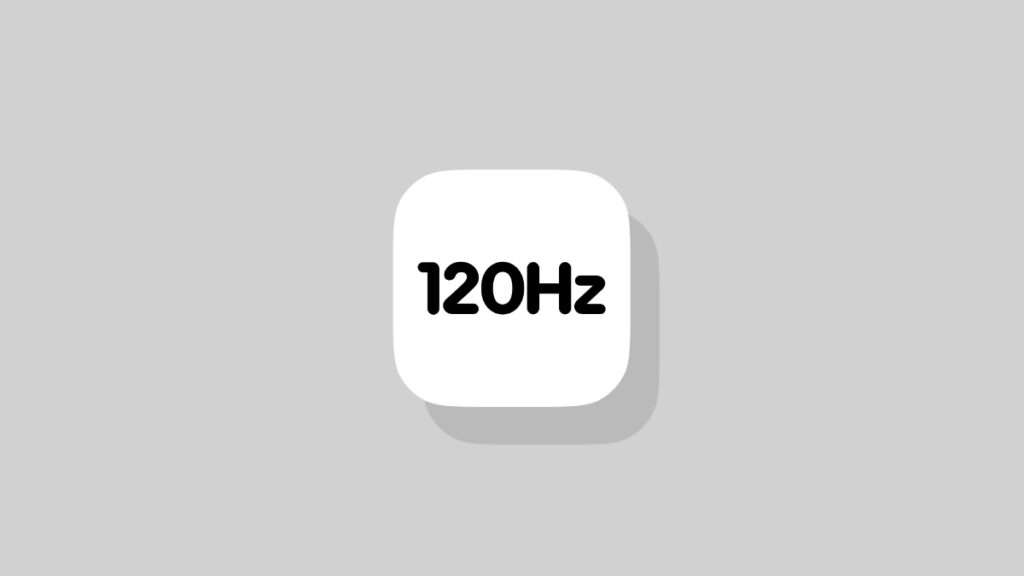

Safari for iPhone and iPad is locked to 60Hz by default, but you can enable the 120Hz feature in a few taps, and I’ll show you how to do that.
Safari Renders at 60Hz by Default, But You Can Enable 120Hz on iPhone and iPad in a Few Taps
A lot of people don’t even realize this, but Safari is locked to 60Hz on iPhone and iPad models despite supporting the ProMotion 120Hz refresh rate. Thankfully, you can enable 120Hz on Safari when browsing the web.
The advantage of doing this? Web browsing using Safari will feel buttery smooth. If you’re asking me, it’s a nice touch, and something that’s worth checking out.
Here’s what you have to do in order to enable 120Hz browsing on Safari for iPhone and iPad:
Step 1. Launch the Settings app.
Step 2. Scroll all the way down and then open Apps.
Step 3. Now go to Safari > Advanced.
Step 4. Find Feature Flags and open it.
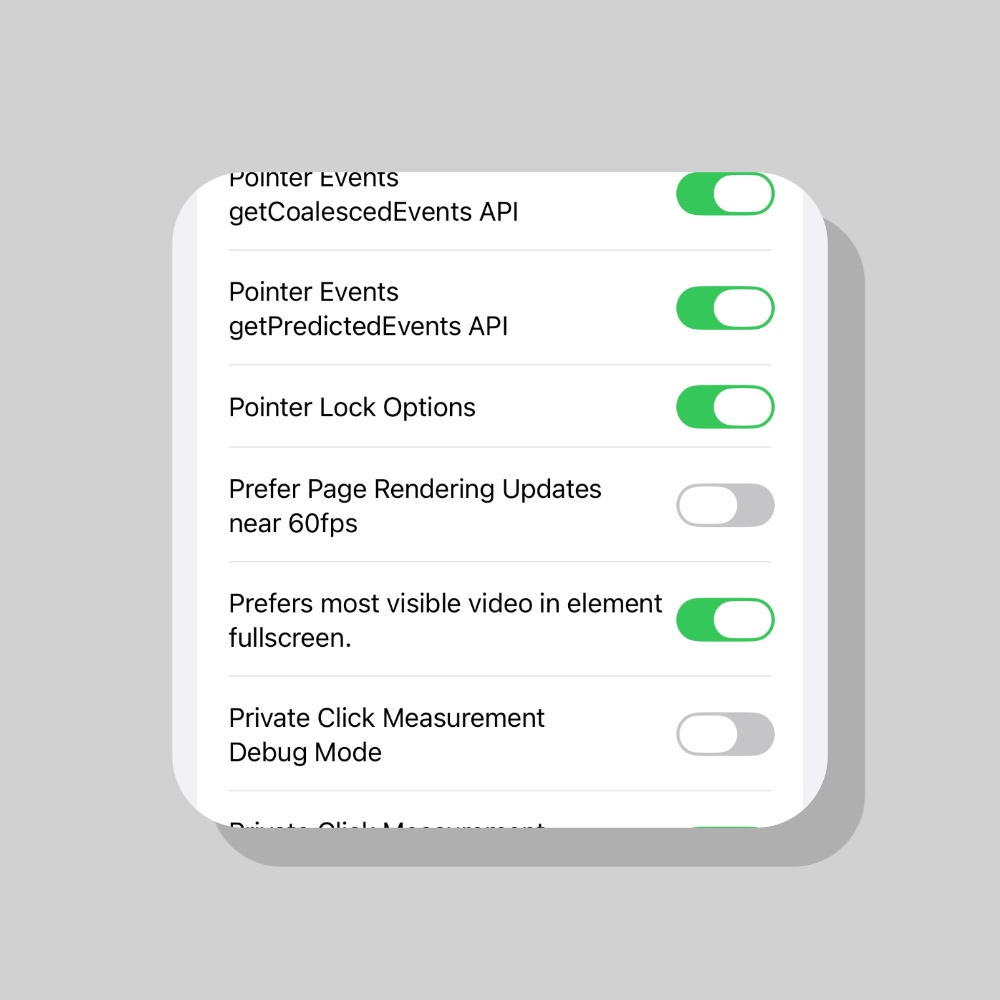
Step 5. Find the ‘Prefer Page Rendering Updates near 60fps’ option and turn it OFF. It’s a long list of options to scroll through, but thankfully it’s alphabetically sorted.
Honestly speaking, a lot of people may not even see the difference this option makes. If you have a keen eye for distinguishing 60Hz and 120Hz refresh rates, and lots of people do, only then will you enjoy this feature.
If you want a more consistent ProMotion experience across your iPhone and iPad devices, I would suggest enabling 120Hz right away. This way, jumping between Safari and other apps will look smoother.
Another thing worth pointing out is that enabling this feature may cause some websites to act a little weird at times. There’s a reason why some features across web browsers are disabled by default, so that users get a stable experience in everyday usage.