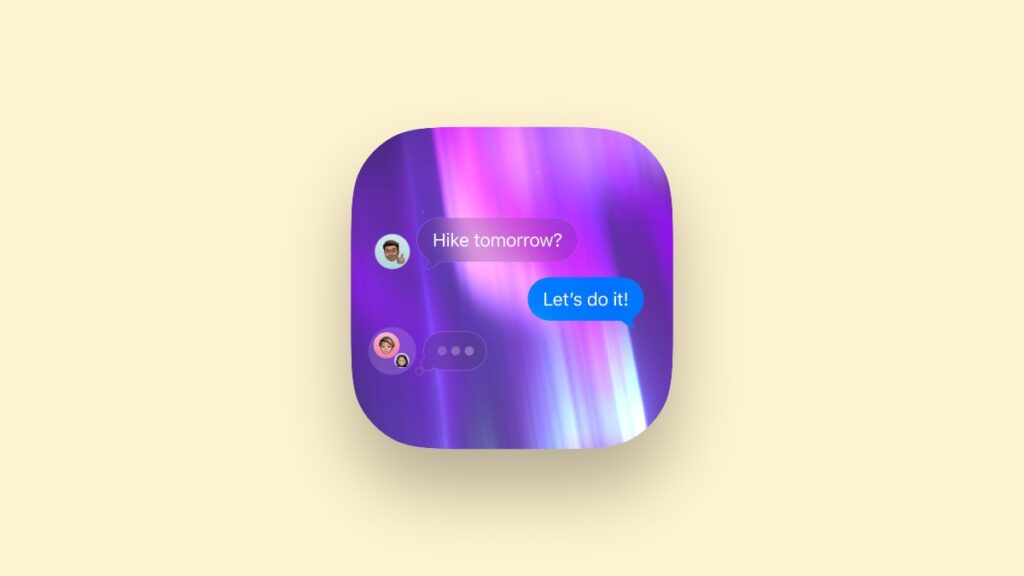

iOS 26 and iPadOS 26 lets you customize and change the background in the Messages app and I’ll show you how.
Personalize the Messages App in iOS 26 and iPadOS 26 with a Custom Background, Including Live Options
Though iOS 26 and iPadOS 26 are packed with lots of features, one that has been on the bingo card for a long time was the ability to change the background of a conversation in the Messages app.
Yes, you can finally do that, and the stock options are so good, it’ll be a long time before you start to create one using Image Playground.
Here’s how you can change the background in the Messages app.
Step 1. Launch the Messages app.
Step 2. Open any message thread at all.
Step 3. Right at the top you will see the contact name and details. Tap on it.
Step 4. Right at the top you’ll see Backgrounds. Tap on it.
Step 5. From here, you can choose from a ton of options, including the ability to create your own using Image Playground or just use a photo that’s sitting in your library.
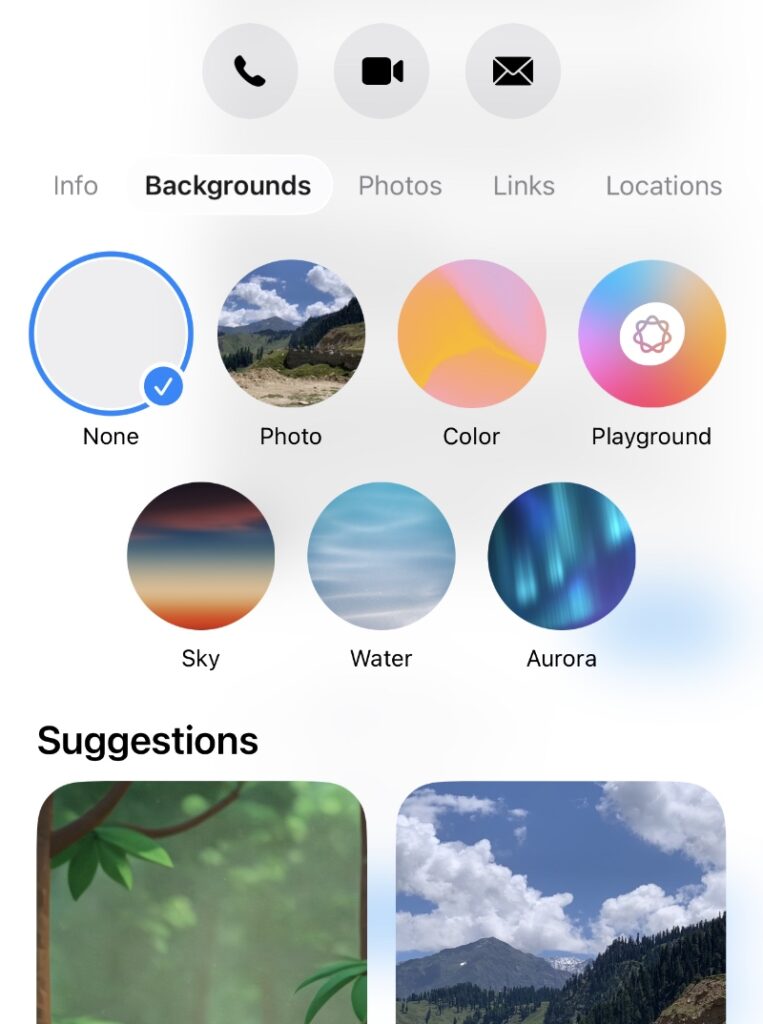
My favorite background is Aurora, which also happens to be a stock option in iOS 26 and iPadOS 26. Once you tap on it, swipe on it to see it in more color options. And yes, the background is live as well, and it will sync across devices too.
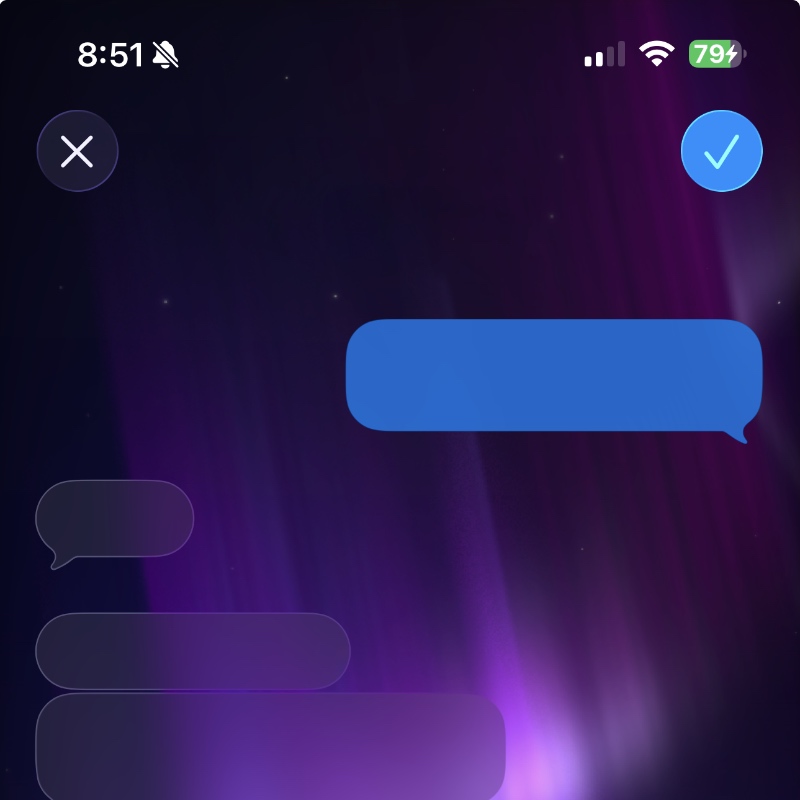
Once you’ve chosen which background you want to use, tap on the Done icon on the top right.
As you can expect, the Image Playground option is only limited to devices that support Apple Intelligence. But I’m pretty sure a lot of people aren’t going to dip their toes in Image Playground anyway for this.
Most users will likely end up with a photo they took using their iPhone. But if you don’t plan to do that, then the stock options are more than enough. That’s exactly where I’ll find myself for the next few months before making any sort of decision.