
Here’s how you can stop receiving new watchOS 26 developer or public beta updates on your Apple Watch.
Turn Off Beta Updates Once the Full and Final Version of watchOS 26 for Apple Watch Comes Out Later this Year
Before you go straight into the tutorial, I want to make it absolutely clear that disabling watchOS 26 beta updates will not downgrade your Apple Watch back to watchOS 11.
Once you’ve upgraded to the beta, you cannot downgrade back.
You have to download and install every watchOS 26 beta update until the final version arrives later this year in order to get back on the stable update channel.
When watchOS 26 final version arrives later this year, you have to turn off beta updates to ensure you do not accidentally install a new beta update, such as watchOS 26.1 and so on.
That being said, here’s what you have to do on your iPhone in order to disable and stop receiving watchOS 26 beta updates:
Step 1. Launch the Watch app.
Step 2. Go to General.

Step 3. Now open Software Update.
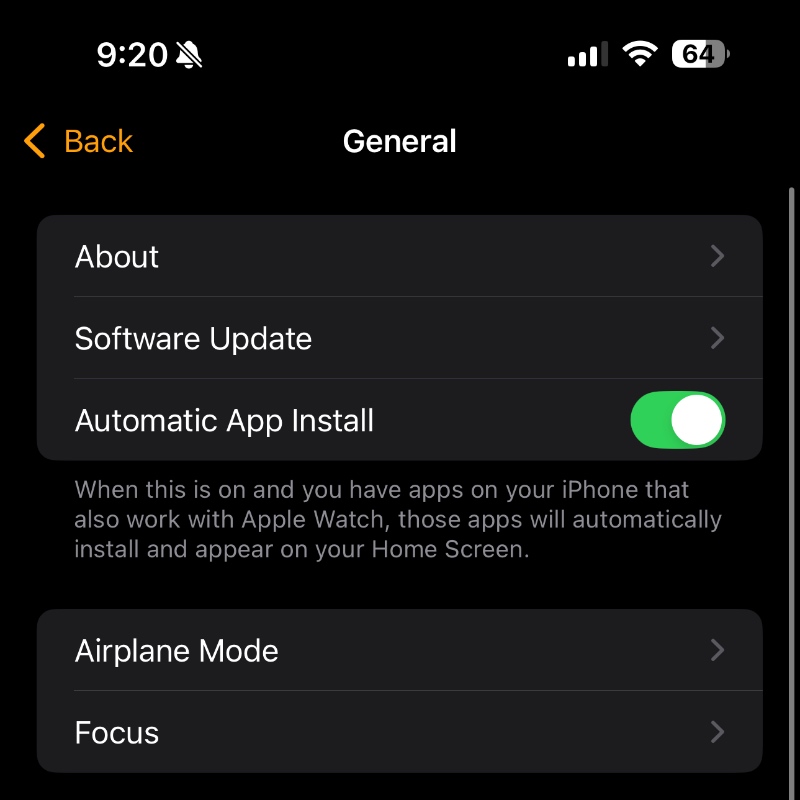
Step 4. At the top you’ll see Beta Updates. Open it.
Step 5. Select Off.

Once this is done, you will stop receiving new watchOS 26 updates for your Apple Watch. And again, this will not downgrade your Apple Watch to watchOS 11, if you are testing out the watchOS 26 beta.
New watchOS 26 beta updates will be available for both developers and public beta testers in the future. If you wish to test them out, you can simply enable Beta Updates from Watch > Software Update.
Public beta software is usually released when Apple believes everything is stable enough for daily use, even though things can get rough at times, especially when it comes to battery life and third-party apps support.