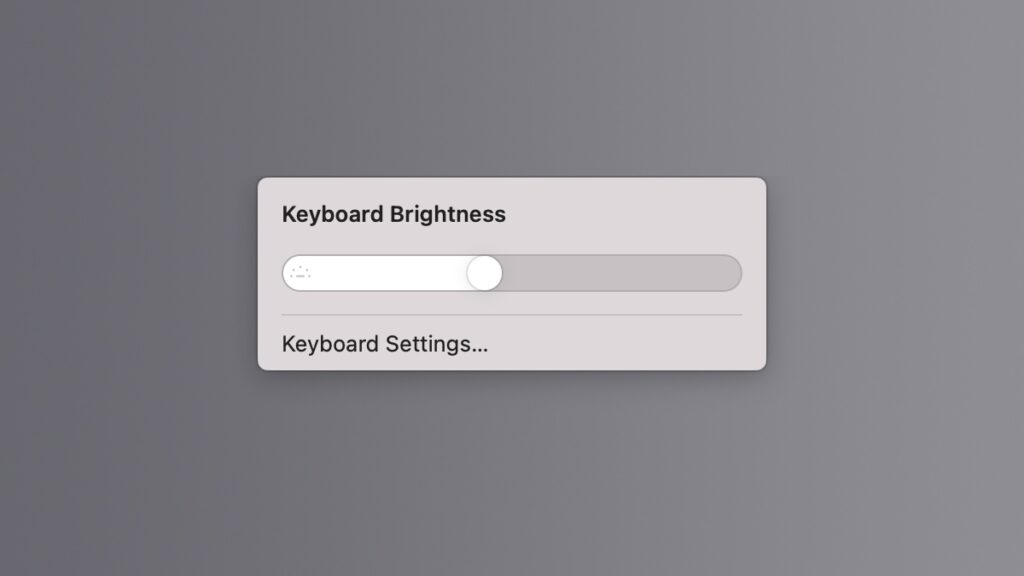

You can add a keyboard brightness slider in the menu bar on MacBook Air and Pro, allowing you to control the intensity of the backlit keys.
Adjust the Keyboard Brightness on your MacBook Air or MacBook Pro Using a Handy Little Slider from the macOS Menu Bar
While Apple does include dedicated keys for adjusting the brightness of your MacBook’s display from the keyboard, there’s no key for adjusting the keyboard backlighting.
While the hardware keys might not be there, you can add a slider to the menu bar, allowing you to adjust the keyboard brightness whenever you feel like it.
Here’s what you have to do:
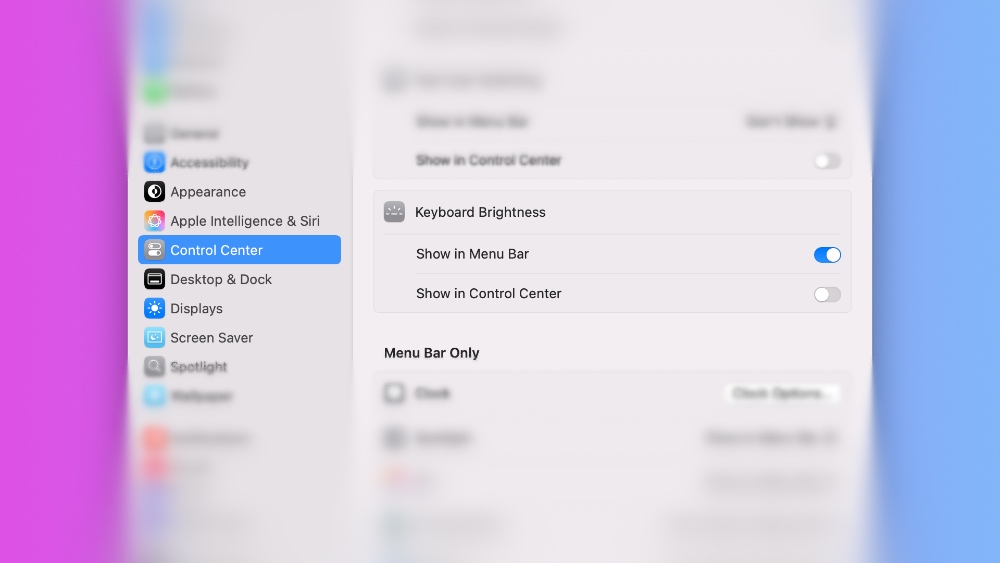
Step 1. Launch System Settings.
Step 2. Click on Control Center on the left.
Step 3. In the list of options on the right, look for Keyboard Brightness under the Other Modules section.
Step 4. Click on ‘Show in menu bar’ to enable the feature. You’ll immediately see the keyboard brightness button in the menu bar.
Step 5. Click on the keyboard brightness button and move the slider around to adjust the brightness to anything you want.
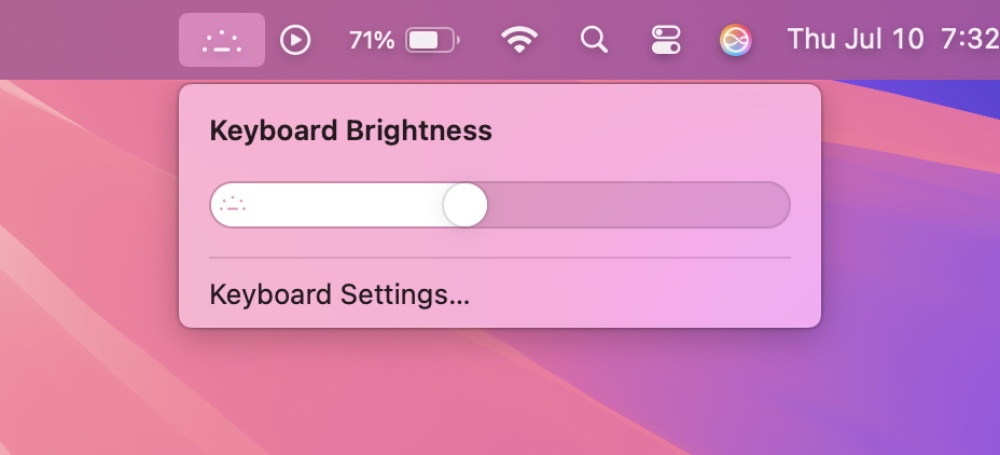
Although the automatic setting is more than enough for me, I do sometimes fiddle with the slider, especially when I want to focus more on the display and less on the shining keys.
I usually keep the brightness of my keys to an absolute minimum, because the backlighting is so good, you’ll see it anyway in a dark room, so there’s no point in keeping it at full.
Do keep in mind that keeping the keyboard brightness to full will affect your MacBook Air and MacBook Pro battery life as well.