

If you have an iPad Air or iPad Pro with Magic Keyboard, here’s how you can disable the backlight on the keys.
You Can Completely Turn off the Magic Keyboard Backlight on iPad Pro and iPad Air in a Few Taps
The moment you attach your iPad Air or iPad Pro to the Magic Keyboard, the keyboard lights up, showing you exactly where each key is in the dark.
Since the keyboard relies on the ambient light sensor of the iPad to automatically adjust the brightness of the keys, you don’t have to worry about brightness being too high or too low either.
However, if you think the backlight of the keys is not to your liking and want to disable it completely, you can do that too.
While the steps are pretty simple, but it puzzles me why Apple has buried this setting away a little. Still, it’s not as bad as the Auto Brightness switch.
Step 1. Launch the Settings app.
Step 2. Now tap on General on the left.
Step 3. Scroll down a little and you’ll see an option for Keyboard. Tap on it to open.
Step 4. Now tap on Hardware Keyboard.
Step 5. See that Keyboard Brightness slider? Slide it all the way to the left.
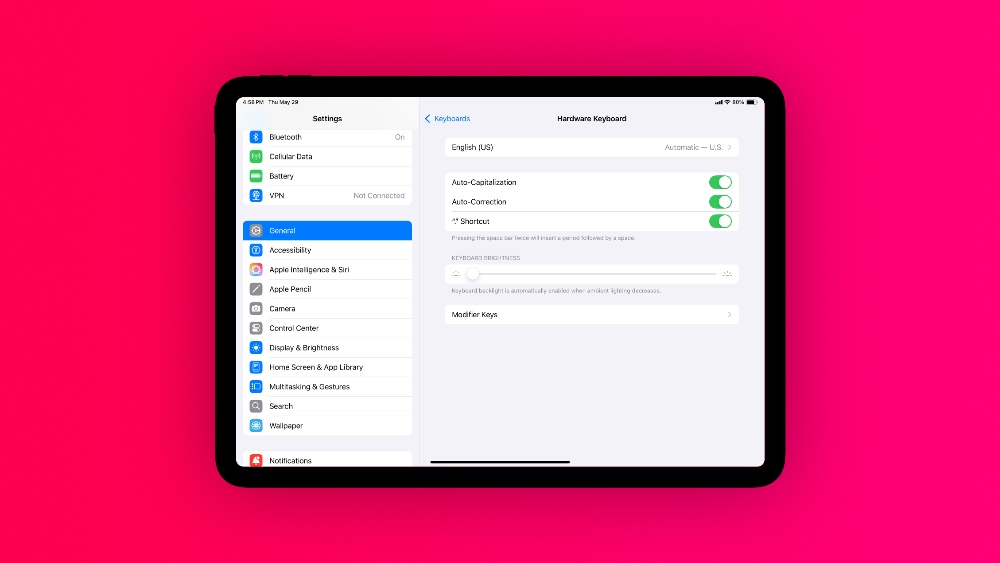
With that, you also now know how to adjust the brightness of the keys manually, in case it’s too bright or too dark.
I usually keep the setting as is, but there is a small advantage to keeping the backlight off. It will save you battery life, especially if you keep an eye on the percentage whenever you’re typing away.