


Here’s a complete yet simple step-by-step guide on how to enable Siri AI on your iPhone, iPad, and Mac right now.
Enable and Use Apple’s Siri AI on Your iPhone, iPad, and Mac, No Need for Third Party AI Apps from Now On
iOS 27, iPadOS 27, and macOS Golden Gate bring Apple’s Siri AI assistant to iPhone, iPad, and Mac. By default, it is disabled, but before you attempt to enable it, there are a few things you should know.
Device Compatibility
The first thing is very obvious: Siri AI works on an officially supported iPhone, iPad, and Mac only. The list of supported devices are as follows:
- iPhone 15 Pro or higher.
- M1 iPad or higher, and A17 Pro iPad mini.
- Every Mac with Apple silicon inside.
Install iOS 27, iPadOS 27, and macOS 27
It’s pretty obvious that you should have iOS 27, iPadOS 27, and macOS 27 Golden Gate installed in order to access and use Siri AI. Take the time to install the update by going to Settings > General > Software Update.
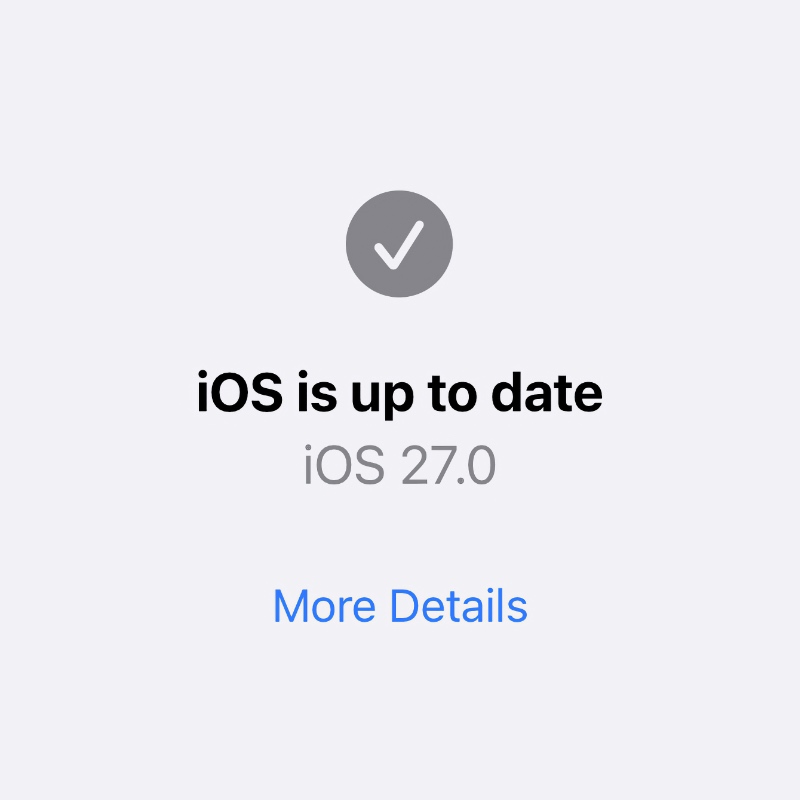
Once updated, move on to the next step.
Enable Siri AI
Whether’s it’s your iPhone, iPad, or Mac, the steps for enabling Siri AI are the same. Here’s what you have to do:
Step 1. Launch the Settings app on your iPhone or iPad, or System Settings on your Mac.
Step 2. Now find ‘Siri’ in the list of options and open it.
Step 3. Make sure your device’s language is set to ‘English’. Currently, no other language is supported.
Step 4. If Siri was disabled, you have to click/tap on ‘Turn on Siri.’ Once that’s done, now click/tap on ‘Try Siri AI (Beta).’
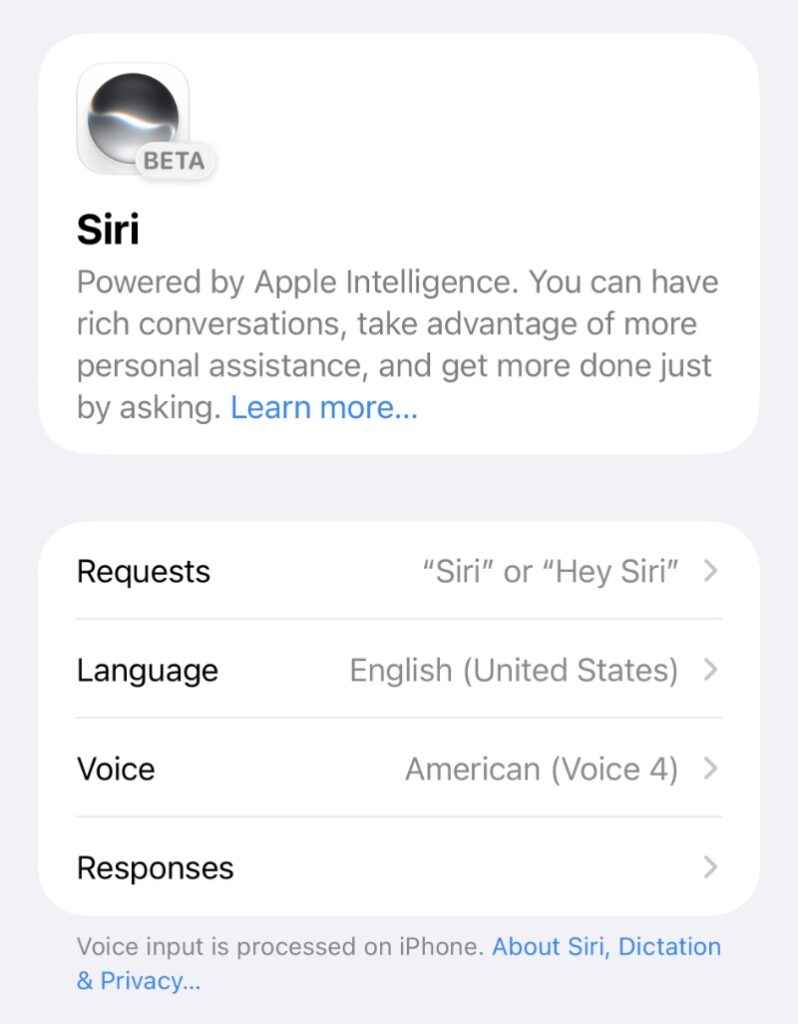
Step 5. Since Siri AI is rolling out gradually, Apple will put you in a waitlist. It may take up to a couple of days for it to start working. But once it’s ready, you’ll see a notification for it, alongside the new Siri app. Or, if you happen to miss both, you’ll se something like this in Settings > Siri:
Use Siri AI on the Mac

Accessing Siri AI on the Mac is easy. You can either say “Hey Siri” (if the feature is enabled), click on the Siri icon in the menu bar, press the Command+Space keys, or just use the new Siri app.
Use Siri AI on the iPhone and iPad

Just like the Mac, there are multiple ways to access Siri AI once it’s enabled. You can say “ Hey Siri” to access it, use the Siri app, pull down from the top of the display to access it anywhere, or press the Command+Space key combination on the Magic Keyboard.
What Can I do with Siri AI?
There are a ton of things you can do. If you’ve ever used ChatGPT or Gemini, it’s the same thing, but far more personal. For example, if someone sent you a recipe in the Messages app, and you can’t find it, you can use Siri AI to look it up for you. You’ll be surprised how accurate it is when it comes to finding things on your device.
Of course, you can ask it all sorts of questions which you’d normally ask any AI chatbot. Things like: how to assemble a cheeseburger correctly. You know, the important stuff.