
Seeing the ‘Weak Security’ warning when connected to a Wi-Fi network on iPhone, iPad, and Mac? Here’s how you can fix it.
Make Your Home Wi-Fi Secure and Robust by Fixing the ‘Weak Security’ Warning on Your iPhone, iPad, and Mac
Apple takes privacy and security very seriously, and will let you know if a Wi-Fi network you’re connected to is insecure. It does so by showing you a ‘Weak Security’ warning next to the network name, along with the reason why it’s insecure.
In most cases, you can fix that issue by changing a few settings on your Wi-Fi router, and usually it’s an issue related to what type of wireless security your router is using.
WPA/WPA2 is the Culprit
If you’re using WPA/WPA2 mixed security on your Wi-Fi router, you’ll see the ‘Weak Security’ warning all the time. The thing is, WPA (TKIP) is a huge security risk since it’s a completely deprecated type of security that exposes your device to an attack.
To make matters worse, if your iPhone, iPad, or Mac accidentally connects to WPA (TKIP), and not WPA2 (AES), you’ll experience slow speeds as well, capped to just 54Mbps. WPA does not support the latest Wi-Fi standards such as Wi-Fi 5 and beyond.
Disable WPA (TKIP) Completely
All you have to do is go to your Wi-Fi router’s settings page, using your web browser or a dedicated mobile app, then go to the section that is generally labeled as ‘Wireless Settings.’ Over here, make sure your Wi-Fi is set to broadcast WPA2-PSK (AES) only.
All Wi-Fi routers may have a different-looking settings page, but the security type section is generally the same. You might need to do a quick search online in order to reach your Wi-Fi settings page, but the time and effort to change this setting is completely worth it.
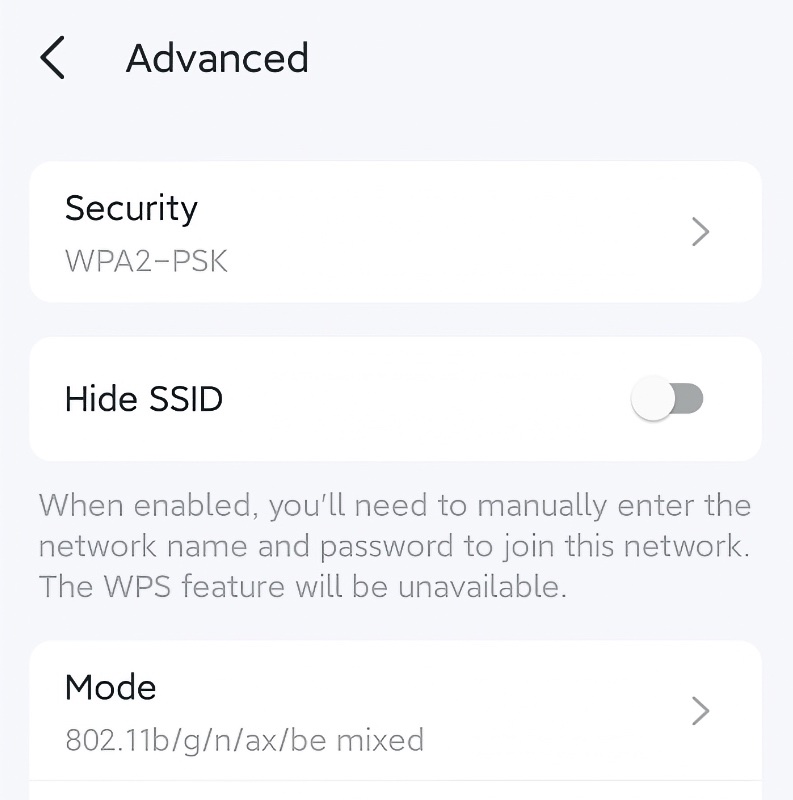
If possible, select WPA2/WPA3 mixed mode. Or even better, set it to WPA3 if every single device at home supports the latest WPA3 standard. Bottom line is, you have to avoid WPA (TKIP) completely, that’s all.
Restart Your Wi-Fi Router
Once you’ve set your Wi-Fi to use WPA2 or WPA3, simply give your router a restart and connect your devices again. You’ll notice that the ‘Weak Security’ warning in Settings > Wi-Fi is now gone.
If you’re looking for the best Wi-Fi router settings for your iPhone, iPad, and Mac, make sure you check out my quick guide posted here.
Conclusion
ISPs and OEMs tend to ship their Wi-Fi routers with WPA security for better compatibility with older devices. But I believe using WPA (TKIP) in 2026 should be completely outlawed since it’s a huge security risk.
A lot of people don’t know this, but WPA requires a lot of CPU power as well and is not supported at a hardware level. So keeping it on, even though it’s not being used, eats away resources needlessly.
In certain cases, you might even notice better internet speeds over Wi-Fi as well once you disable WPA, because your router doesn’t have to work that hard to carry the load of an older Wi-Fi security standard.