
Here’s a complete tutorial on how to shut down (or power off) the iPhone Air, iPhone 17, iPhone 17 Pro, or iPhone 17 Pro Max.
New to iPhone Air, iPhone 17, or iPhone 17 Pro? Here’s How You Can Shut Down these Models Whenever Needed
An iPhone is supposed to be powered on day and night, ensuring that you’re connected to everyone. However, you may be required to turn it off occasionally.
For example, you’re on a flight with no connectivity at all, and you’re low on battery, so a shut down makes sense to conserve as much juice as possible.
However, an iPhone is not an easy device to shut down because you have to press a bunch of key combinations in order to do that.
If you just bought an iPhone Air, iPhone 17, iPhone 17 Pro, or the iPhone 17 Pro Max, and wondering how you can perform a shut down, then I’ll walk you through the two available methods.
Shut Down Using iOS
Step 1. Launch the Settings app.
Step 2. Tap on General.
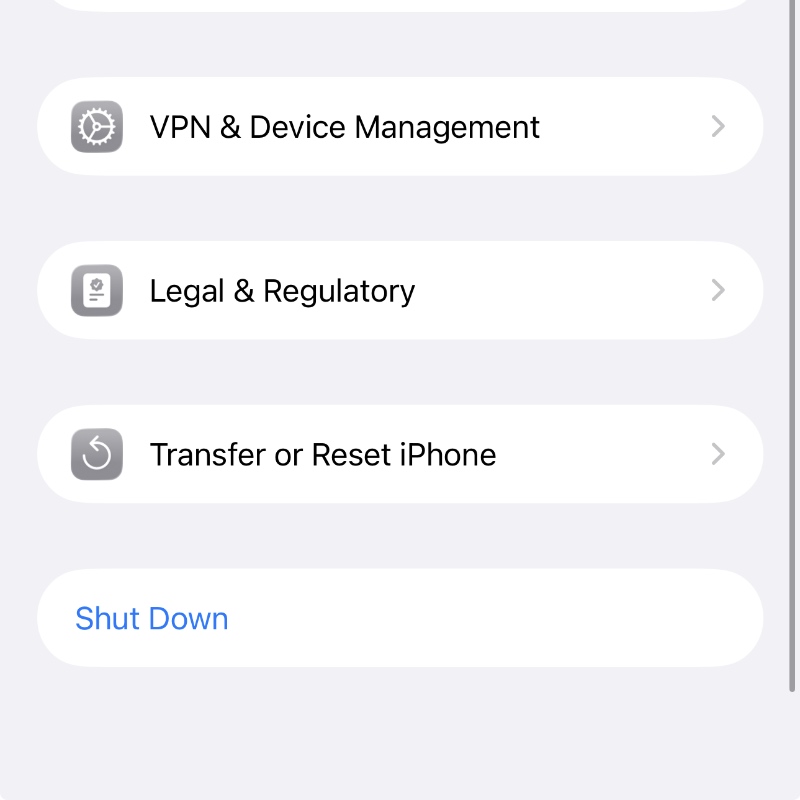
Step 3. Scroll all the way down and tap on Shut Down.
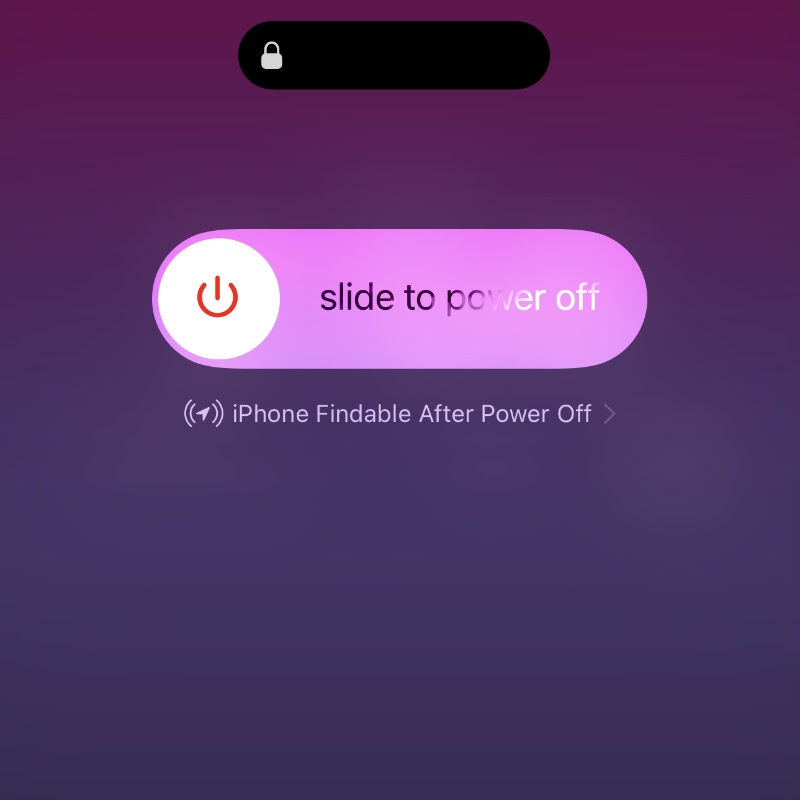
Step 4. You’ll now see the ‘Slide to power off’ screen. Just move the slider to the right and your iPhone will start to shut down.
If you want to turn it back on, just press and hold the Power button on the right until you see the Apple logo on the screen.
Shut Down Using Button Combination
Step 1. Press and let go of the Volume Up button.
Step 2. Press and let go of the Volume Down button.
Step 3. Press and hold the Power button until you see the ‘Slide to power off’ screen.
Step 4. Just move the slider to the right and the iPhone will start to power down.
Restart Instead?
Is your iPhone completely unresponsive and you want to restart it instead? You will find the entire tutorial for it posted here. It applies to all iPhone models, including the latest iPhone Air, iPhone 17, iPhone 17 Pro, and iPhone 17 Pro Max.
The reason why shutting down an iPhone is so difficult is simple – for safety and security. See, if someone decides to snatch away your iPhone, they cannot immediately turn it off, allowing you to track it on Find My.
If they do manage to power down your iPhone, it is still findable on Find My. But, if it’s turned on and connected to cellular, you can view the live location of your iPhone.