
iOS 26 includes a new full-screen screenshot interface, but you can get the iOS 18-style preview back on iPhone in a few steps.
iOS 26 Lets You Revert to iOS 18-Style Screenshot Preview on the iPhone in Just a Few Taps
In order to accommodate Visual Intelligence for the display on newer iPhone models, Apple changed the screenshot interface in iOS 26. Whenever you take a screenshot, you instantly see a full-screen UI with Ask and Search buttons at the bottom.
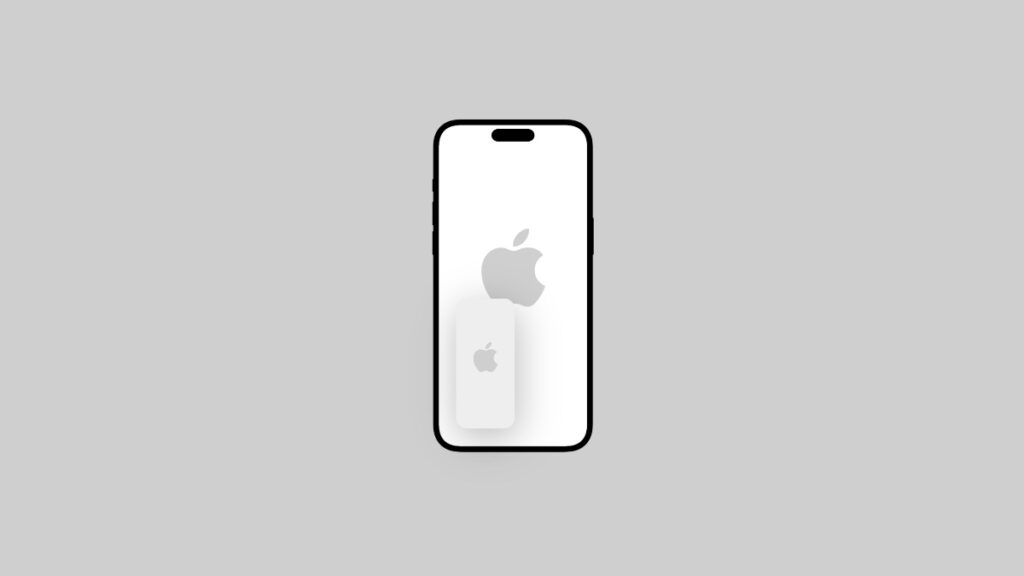
If you’ve been using iOS 18, then you already know that taking a screenshot just flashes the screen, a tiny preview of the screenshot appears in the corner which then goes away on its own.
Want the iOS 18-style screenshot previews back in iOS 26? You can do that, and all it takes is a couple of taps and swipes.
Step 1. Launch the Settings app.
Step 2. Tap on General.
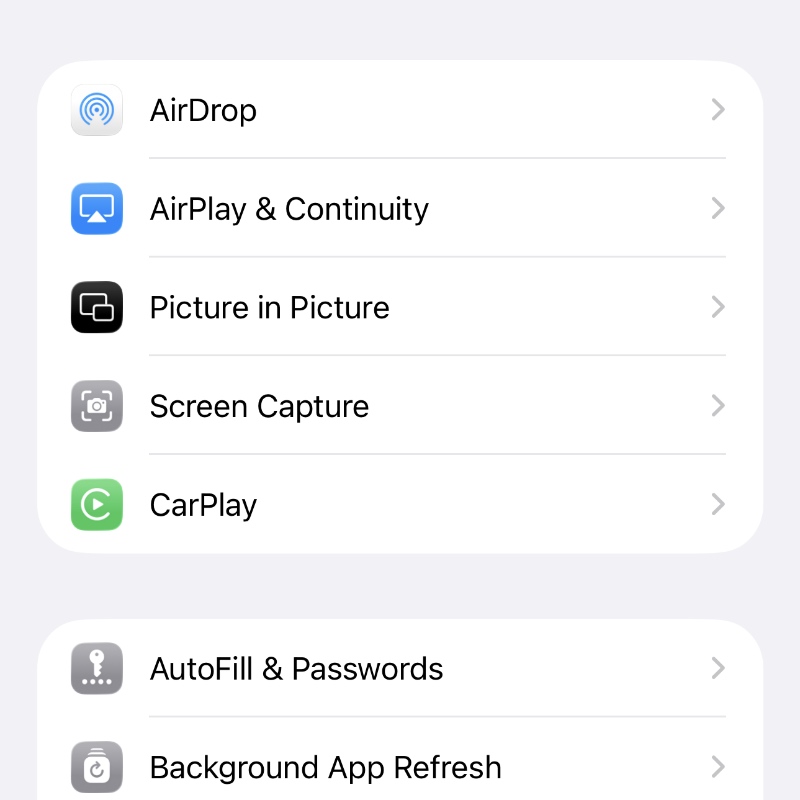
Step 3. Tap on Screen Capture.
Step 4. Disable the Full-Screen Previews toggle switch at the top.
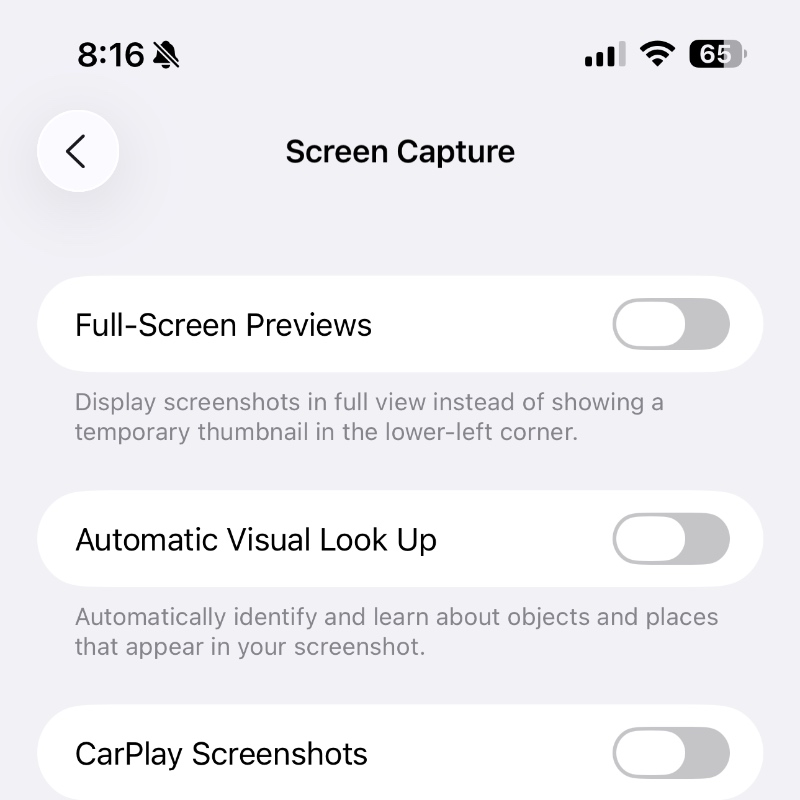
Once done, just take a screenshot using the power and volume up buttons, and you’ll see a preview appear at the bottom left corner instead of taking you to the full-screen interface. Once the preview goes away, the screenshot is instantly saved to your Photos app.
I personally find the new user interface fresh, but at the same time I think I’ll revert to how it was in iOS 18. Because the thing is, while the AI element is great and all, it’s so slow when it comes to processing. Over time, I’m sure this issue will be fixed too.