

macOS 26 Tahoe lets you change the background of a chat thread in the Messages app in just a few clicks. Here’s how it works.
macOS 26 Tahoe Lets You Set a Custom Chat Background in Messages App for a Personalized Look and Feel
I’ve covered the same tutorial for iOS 26 and iPadOS 26 here. But if you’re using macOS 26 Tahoe, the procedure is exactly the same. However, I’m going to walk you through it anyway to make sure you get to exactly where you should be.
Step 1. Launch the Messages app.
Step 2. Click on any message thread from the list on the left.
Step 3. Right at the top of the thread is the contact’s name and profile image. Click on it.
Step 4. You’ll immediately see a set of new options on the right. At the top you’ll see Backgrounds. Click on it to reveal more options.
Step 5. You’ll now see some stock options, along with the ability to choose a photo from your library, or create a custom background using Image Playground.
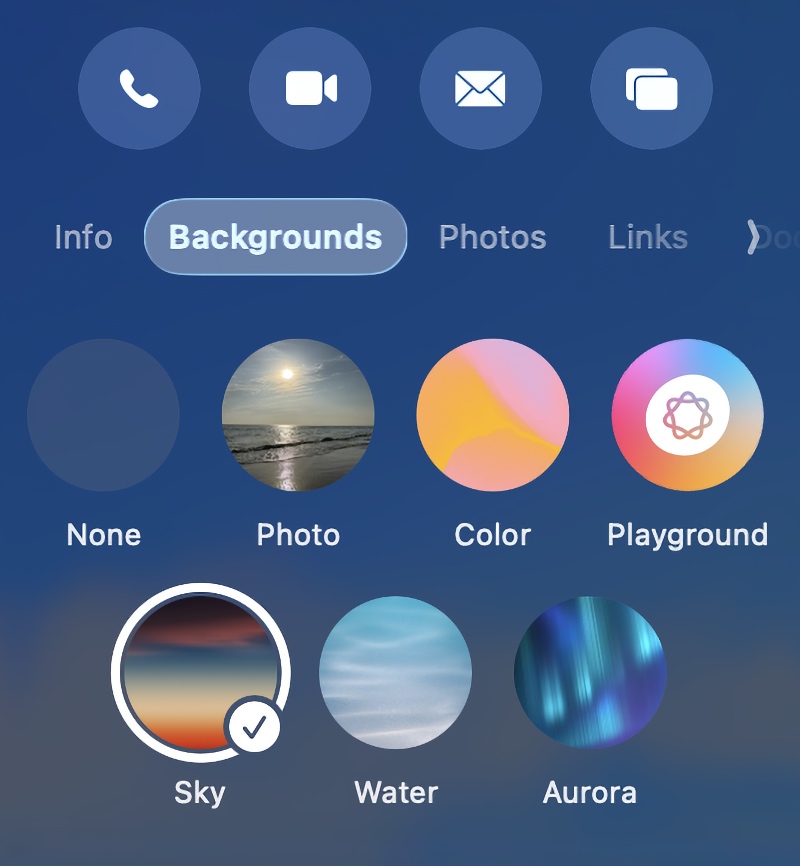
Step 6. Once you’ve decided what you’re going with, click on Set on the bottom right corner.
One more thing, and I love this – when you set a custom background, it will appear for the other person as well so that you both see the same thing. Apple has really thought this one through.
If you have an Apple Watch, you’ll see the background in the Messages app on that too. But make sure you’re running watchOS 26 otherwise you won’t see it.
I really thought chat backgrounds were just a meh thing. But once I started messing around with it, especially given how Apple’s implementation works, I’m now a fan.