
Today I will show you how you can enable and set clear app icons and widgets in iOS 26, iPadOS 26, and macOS 26 Tahoe in a few steps.
Get the All-Clear Liquid Glass Icon and Widgets Look in iOS 26, iPadOS 26, and macOS 26 Tahoe
With iOS 26, iPadOS 26, and macOS 26 Tahoe, you can have absolutely clear app icons and widgets through which you can see through. The look may be polarizing, but if you’re wondering how you can enable them, I will show you how you can do just that on iPhone, iPad, and Mac.
Let’s dive into iPhone and iPad first:
Step 1. Unlock your iPhone or iPad, and go to the Home Screen.
Step 2. Tap and hold on any empty area until the icons start to jiggle.
Step 3. Tap on Edit at the top left corner.
Step 4. Now tap on Customize.
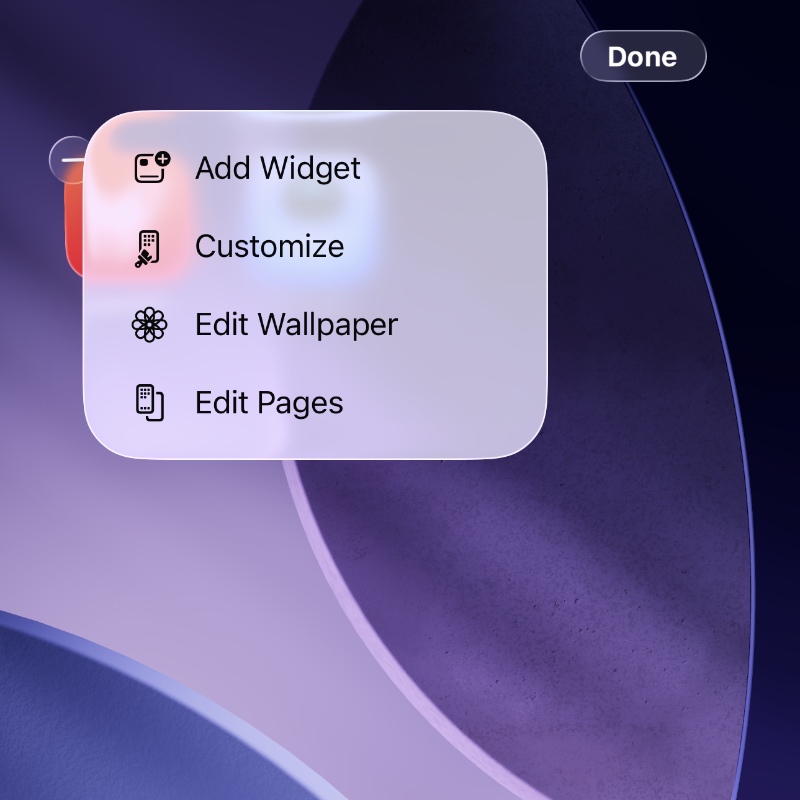
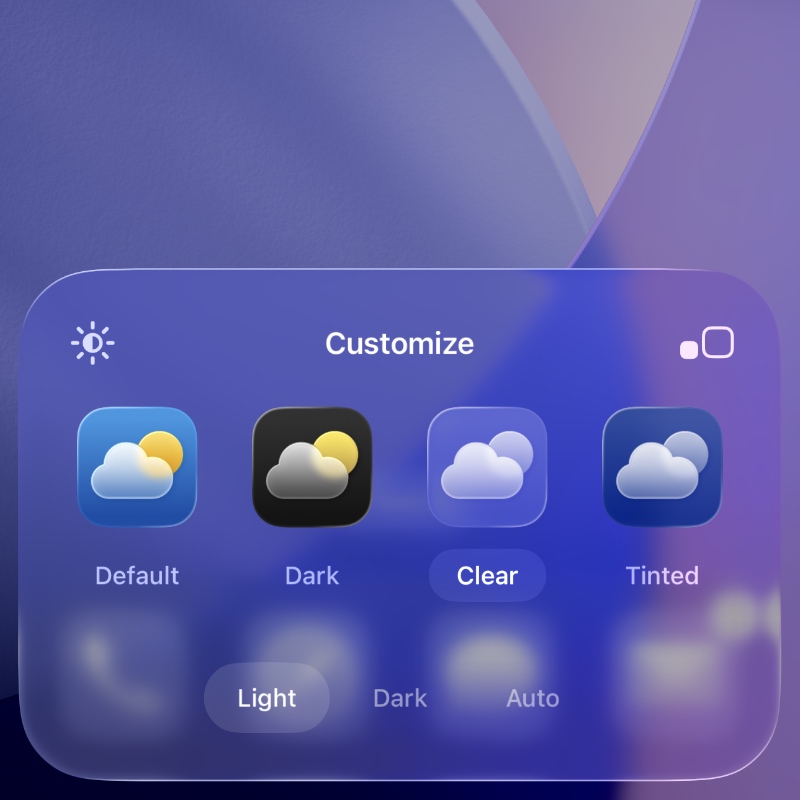
Step 5. A drawer will pop up from below, and all you have to do is tap on Clear. You can also choose between Light, Dark, and Auto settings for your Clear setup.
Let’s move on to the Mac.
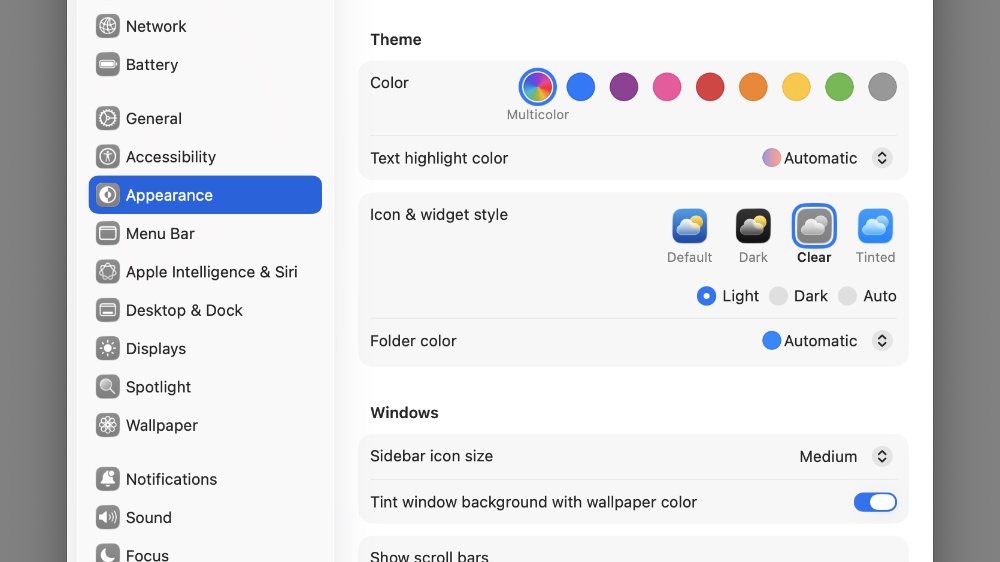
Step 1. Launch System Settings.
Step 2. Select Appearance from the options on the left.
Step 3. inside the Icon & widget style section, you’ll see the Clear option. Just click to enable it.
Like I said, the all-clear look can be very polarizing. But, if you have your app icons set a certain way along with a beautiful wallpaper, you can actually create a solid Home Screen setup with this.
You can get the most out of the clear look by disabling app icon labels as well. The text underneath somewhat ruins the clear look, and Apple knew this might happen.
In the coming days, you’ll see a ton of people sharing what they’ve created with the clear option. Who knows? That might just inspire you to create something of your own.