
You can completely disable and stop receiving new macOS 26 Tahoe developer or public beta updates on your Mac, here’s how.
If You’re Done Testing macOS 26 Tahoe, Make Sure You Disable New Beta Updates from Showing up on Your Mac
Trying beta software is always fun as you get to test out new features earlier than others. Once the betas are done, you are presented with the full and final version of the software.
In this case, the final version of macOS 26 Tahoe will be available for download later this year. However, if you’re enrolled in the developer or public beta program, you will immediately see a new beta update as soon as Apple releases it.
Whenever Apple releases macOS 26.1 Tahoe, and it definitely will, it will be pushed to your Mac, after which you can install it and test it out too.
Don’t want that to happen? Then make sure you disable macOS 26 Tahoe developer and public beta updates. Once done, you can enjoy the non-beta life, and you will only see updates that are meant for the public.
Note: Disabling beta updates will not downgrade your Mac from macOS Tahoe to macOS Sequoia. These steps only prevent your Mac from receiving new beta software updates.
Step 1. Launch System Settings.
Step 2. Click on General on the left.
Step 3. Click on Software Update on the right.
Step 4. Click on the (i) button next to Beta Updates.
Step 5. From the Beta Updates drop-down menu, select Off, as shown in the screenshot below.
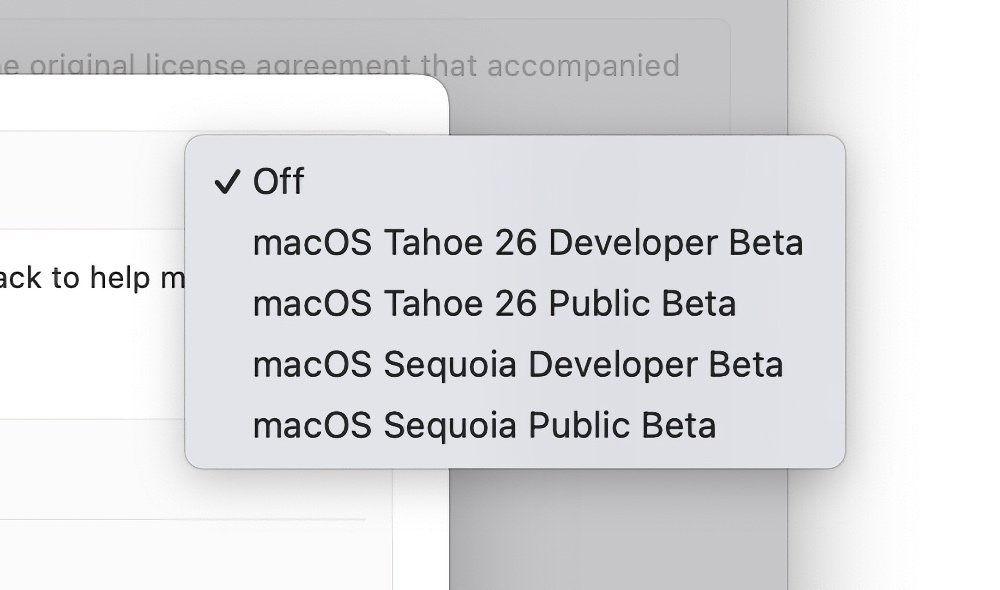
Once this is done, you will stop receiving beta updates completely and you can enjoy stable software.
If you want to test out macOS 26 Tahoe developer beta or public beta, you have that option right now. However, I will recommend sticking with the public beta, since it is far easier to download and install, especially when it comes to the onboarding process.