
You can adjust and calibrate the display auto brightness feature on your iPhone and iPad in order to fix high or low brightness issues.
Display Auto Brightness Either too Bright or too Dim on iPhone and iPad? Calibrate it Manually and Make Things Perfect
A few days ago, you decided to manually adjust the brightness slider from the Control Center only to realize that your iPhone or iPad display is either too bright or too dim from time to time.
Now that manually adjustment feels like a mistake and you wish you hadn’t done that.
Don’t worry, you can undo your mistake by simply calibrating the auto brightness feature, and it doesn’t take too much effort either.
In fact, you can actually fine-tune the auto brightness feature to exactly how you want it in dim or bright conditions.
Here’s what you have to do, and it works like a charm for me every single time:
Step 1. Go to a room that is completely dark. Make sure every single light source is turned off. The room needs to be pitch black.
Step 2. Unlock your iPhone or iPad and let the display adjust the brightness automatically. It will be either too bright or too dim.
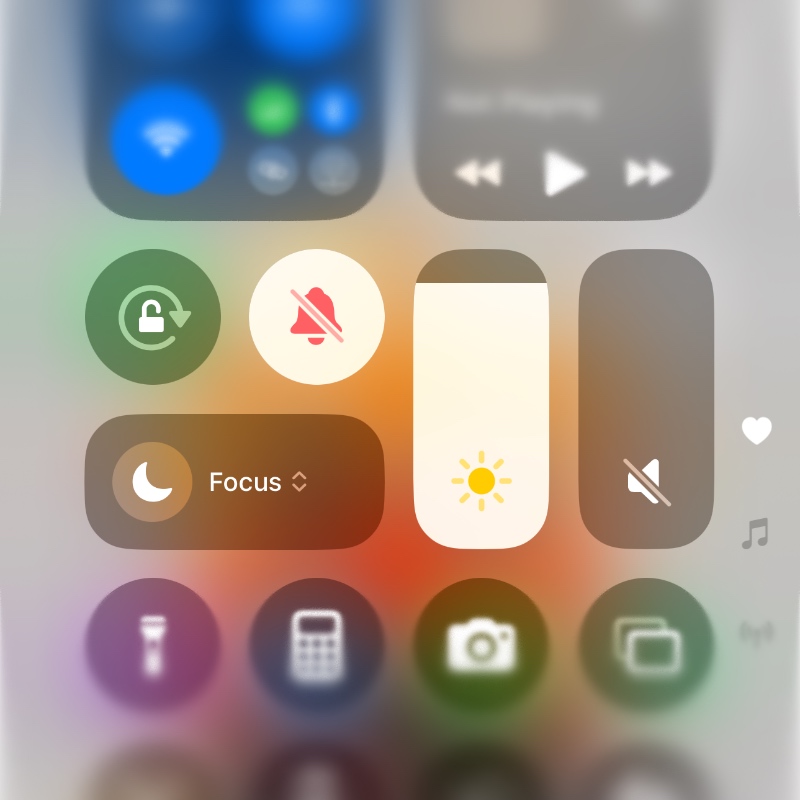
Step 3. Open Control Center by swiping down from the top right corner.
Step 4. Adjust the brightness slider to a point where you think the brightness should be in a completely dark room and leave it at that.
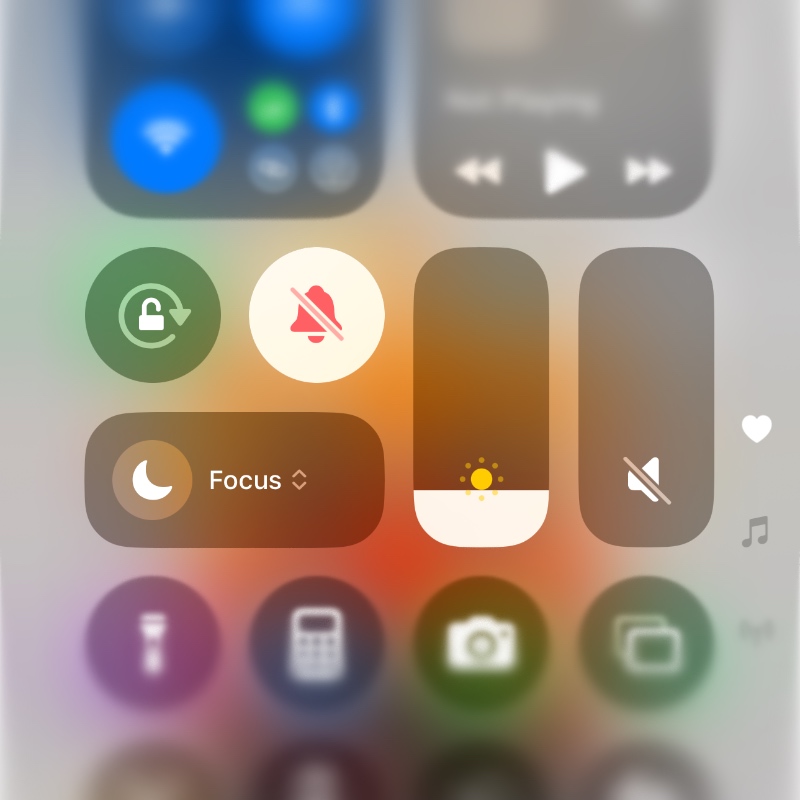
Step 5. Now step outdoor under the sun and adjust the display brightness to how it should be in a bright environment. If it’s a bright and clear day, set the brightness slider all the way to full.
That’s it, you’re done. When the ambient light changes, your iPhone and iPad’s auto brightness feature will adjust the brightness perfectly every single time.