

You can set your iPhone display to stay on at all times when it is in StandBy mode. The display will not turn off automatically.
Don’t Let that iPhone Display Turn off During StandBy Mode and Keep it Always On by Changing One Setting
StandBy mode turns your iPhone into a fantastic-looking desk clock when it’s in landscape mode while on charge. It doesn’t matter if you’re charging it using MagSafe or a USB-C cable; it just works.
By default, StandBy mode will keep your iPhone display on for a while, and when it notices that there is no activity around it and the room is dark, the display automatically turns off.
However, if you want to keep the display always on in StandBy mode, you do have that option as well.
But, before you do that, do keep the risks in mind. For example, it will shorten the lifespan of your iPhone’s display, and there’s huge potential for burn-in on the display too.
If you understand the risks, here’s what you have to do:
Step 1. Launch the Settings app.
Step 2. Scroll down a little and tap on StandBy.
Step 3. Make sure the StandBy toggle switch is enabled at the top.
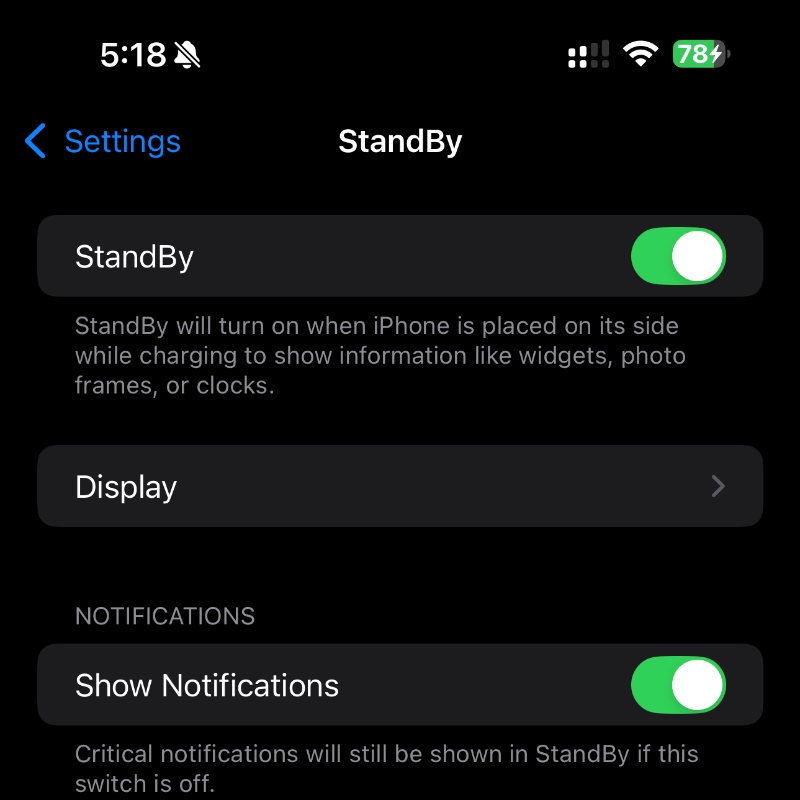
Step 4. Now tap on Display.
Step 5. Under the Turn Display Off section, choose Never.
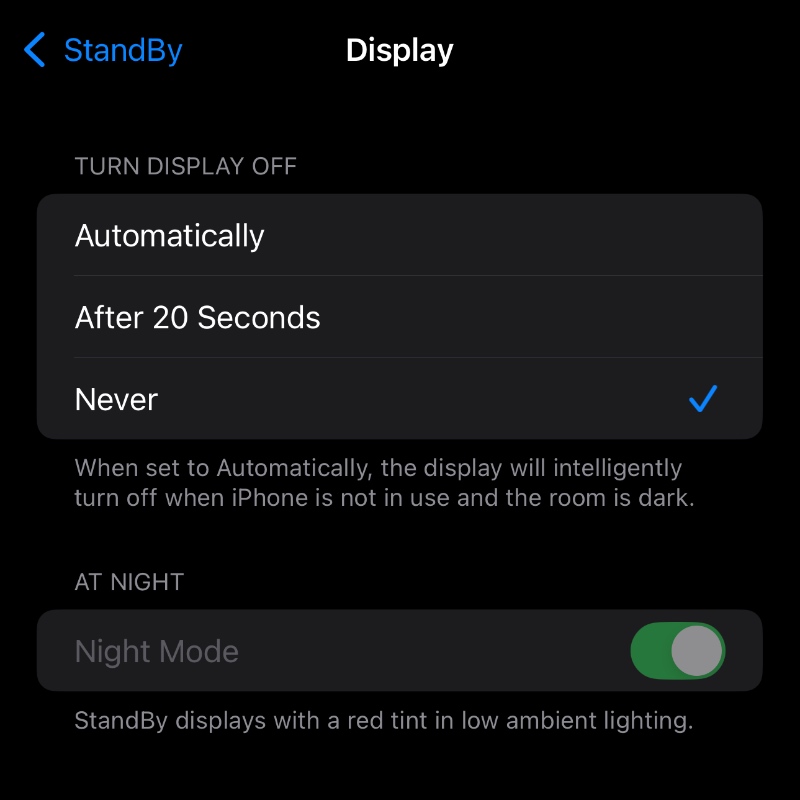
Once you do this, StandBy mode will keep your iPhone’s display always on. And again, do understand the risks when you do this, especially if you plan on using StandBy mode overnight.
The ‘Automatically’ option is the best from the bunch since it smartly decides when to turn the display off. But if you really care about that display and want to extend its life, then choose the ‘After 20 Seconds’ option.
As someone who occasionally uses StandBy mode, it doesn’t matter which option I choose, so it’s left at Automatically, the default setting. And believe it or not, sometimes I even forget that my iPhone has StandBy mode.