
Today I’m going to show you how you can completely disable and turn off HDR Dolby Vision recording on iPhone.
Don’t Want Dolby Vision HDR Video Recording on iPhone? You Can Disable it Completely
If there’s one thing that definitely impresses a lot of people, it’s the iPhone’s ability to shoot Dolby Vision HDR video. Just crank it up to 4K 60 frames per second, and jaws will start to drop around you.
However, the bright and flashy HDR effect doesn’t sit well with a lot of people. Some people go as far as disabling HDR in the Photos app and even Instagram as well.
Thankfully, Apple is not forcing everyone to use HDR video recording all the time. You can disable it from Settings and record video in standard definition. Sure, the colors might not pop out, but your videos will still look fantastic.
If that’s what you want, then let me show you how you can turn off HDR video recording on your iPhone. And, do keep in mind that this tutorial is only applicable to iPhone 12 and up; iPhone 11 does not support Dolby Vision HDR video recording.
Step 1. Launch the Settings app.
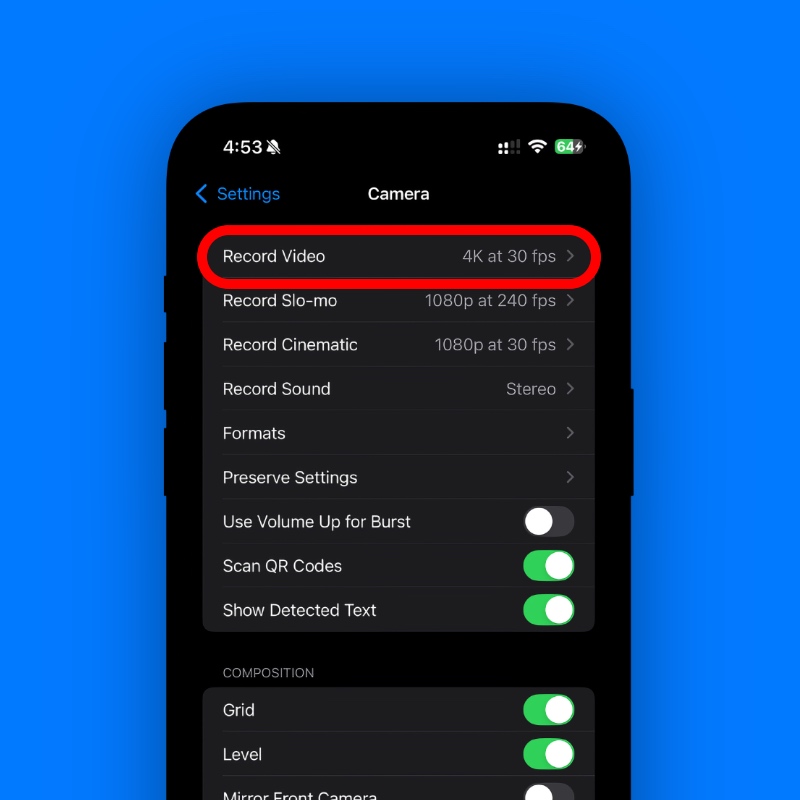
Step 2. Scroll down a little and find Camera. Tap on it to open.
Step 3. Right at the top you’ll see Record Video. Tap on it to open.
Step 3. Scroll down a little and disable the HDR Video toggle switch as shown in the screenshot below.
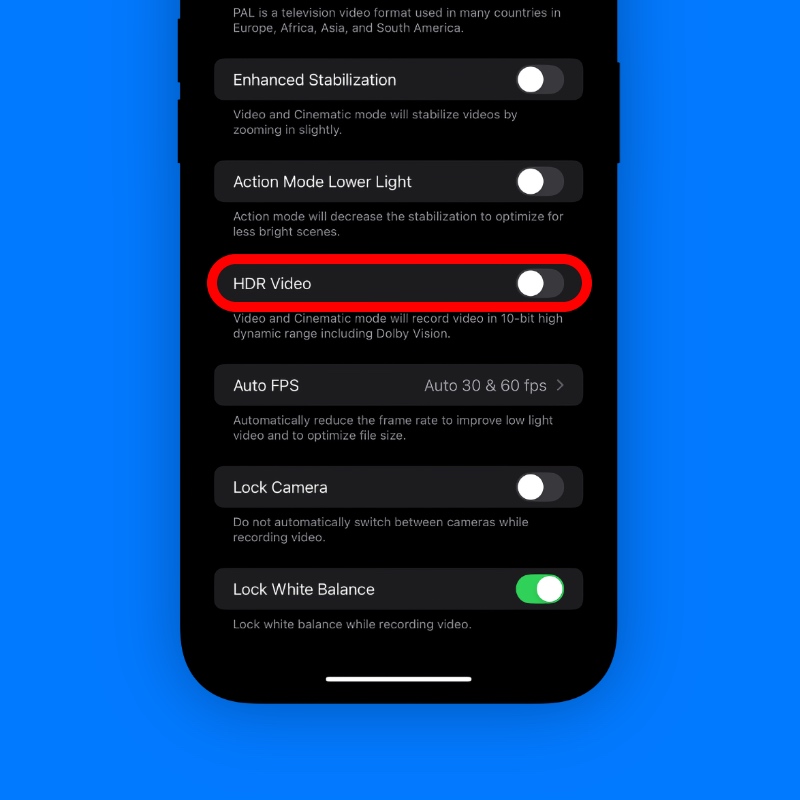
The moment you open the Camera app and look through the viewfinder, you’ll instantly notice that the display is not getting bright. Your iPhone video now looks absolutely normal, no Dolby Vision HDR or anything from now on.
On my iPhone, the feature is turned on, and I never disable it. I think HDR video looks way better in certain situations and is a great way to relive memories. But it’s entirely up to you whether the feature remains on or off.

![Siri AI Coming to the Original HomePod mini too [Update: False]](https://www.anotherapple.com/wp-content/uploads/2026/10/siri-ai-on-original-homepod-mini-300x169.jpg)