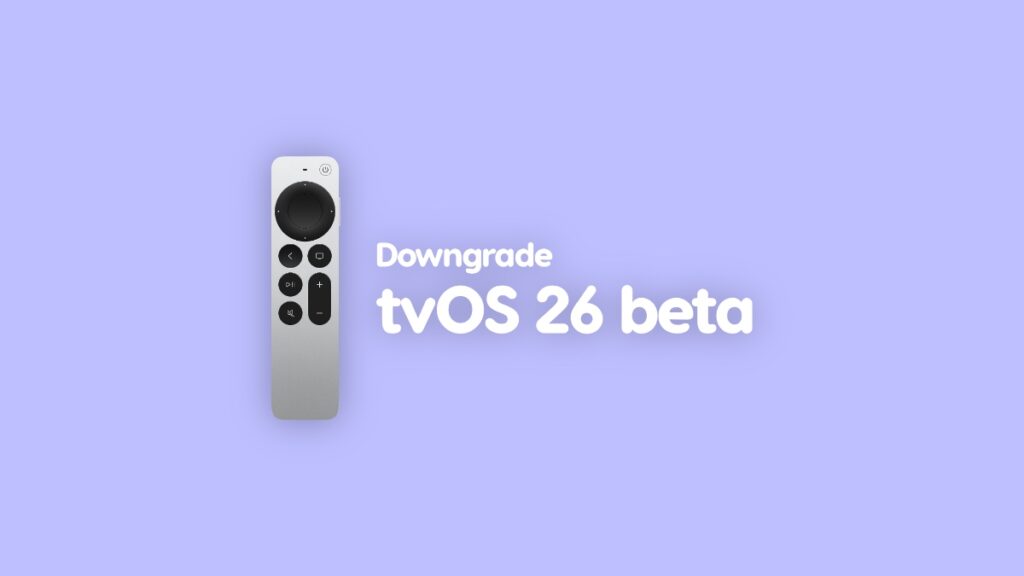

Here is a complete and detailed tutorial on how to downgrade tvOS 26 developer beta back to tvOS 18 on your Apple TV.
You Can Downgrade Your Apple TV HD with tvOS 28 Beta to tvOS 18 Using Your Mac and a USB-C Cable
Daily driving a beta update is really not a good idea at all. It only makes sense when you’re closer to the final release, when most bugs are ironed out.
If you have an Apple TV and want to downgrade from tvOS 26 beta to tvOS 18, you can obviously do that. But this luxury is limited to the Apple TV HD model only.
The reason for that is simple: the Apple TV HD is the only model in the lineup that has a USB-C port on the back. Using that port, you can connect the Apple TV HD to your Mac with a USB-C cable in order to restore firmware or perform diagnostics.
But you’re here for the downgrade, so let’s stick to that.
Download the Latest tvOS 18 Firmware
Download the tvOS 18 firmware file for your Apple TV from this link, and save it to your desktop. It may take a while to download if you have a slow internet connection.
Once saved, follow the steps outlined below:
Downgrade tvOS 26 Beta to tvOS 18 on Apple TV HD
Step 1. Unplug your Apple TV HD from your TV.
Step 2. Connect your Apple TV HD to power and connect a USB-C cable to its back with the other end going into your Mac.
Step 3. Launch Finder.
Step 4. You’ll see your Apple TV HD in the list on the left. Click on it to open.
Step 5. On the right, you’ll see a button labeled Restore Apple TV. Hold down the left Option key on the keyboard and click on Restore Apple TV.
Step 6. A pop-up window will appear and simply direct it to the tvOS 18 firmware file you saved to your desktop.
Step 7. Finder will now start to extract the firmware file and restore it to your Apple TV HD. Unplug your Apple TV HD when Finder asks you to do so.