


Here’s a complete guide on how to set up and use Visual Intelligence on your Apple silicon Mac running macOS 27 Golden Gate.
Ask Siri AI About Stuff that’s on the Screen with Visual Intelligence on the Mac, Now Available with macOS 27 Golden Gate
macOS 27 Golden Gate is the first version of Apple’s desktop operating system to feature Visual Intelligence. Just select an area of the display you want to get more information about, and using the power of Siri AI and Google, you’ll get all the answers you need.
But, before you get all excited about this, you there are a couple of things you have to do on your Mac first.
Install macOS 27 Golden Gate

Without macOS 27, you won’t get access to Visual Intelligence at all. As long as you have an Apple silicon Mac, just head over to System Settings > General > Software Update in order to install the latest version of macOS.
Once that is out of the way, head over to the next step.
Make Sure Siri AI is Enabled
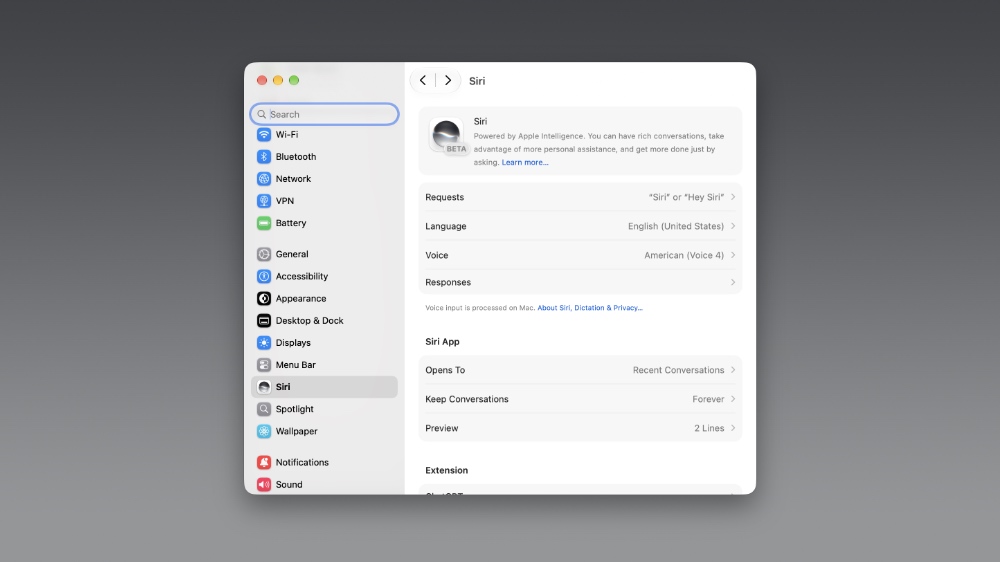
Head over to System Settings > Siri, and then make sure Siri AI is enabled here. You might be put on a waitlist, and once that is done, macOS will download the necessary Siri AI and Apple Intelligence files before you can start using Visual Intelligence on your Mac.
Using Visual Intelligence on the Mac
With everything enabled, all you have to do is press the Command+Shift+6 key combination on your keyboard, and your mouse pointer will turn into a crosshair. Select the area on the display, such as an image, and you’ll see an option for ‘Ask Siri’ and ‘Image Search.’
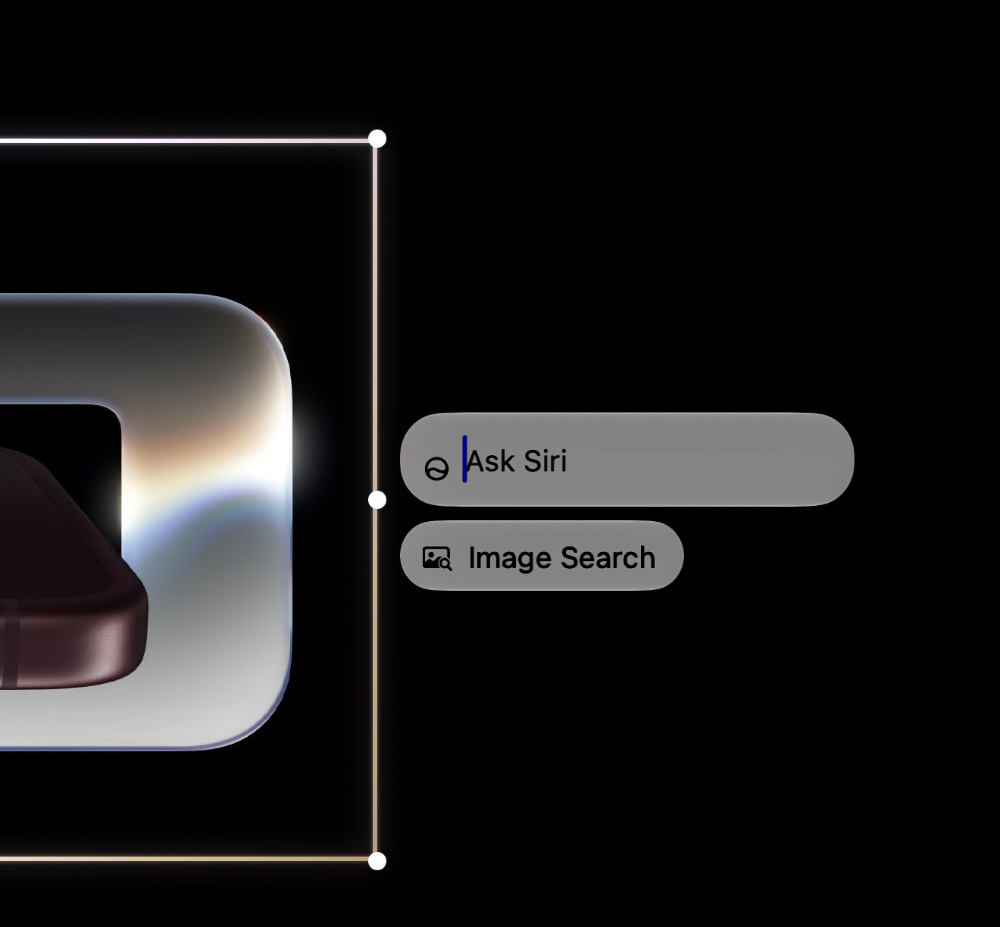
Type away what you want to know, and then hit the Return key to get your answers using Siri AI.
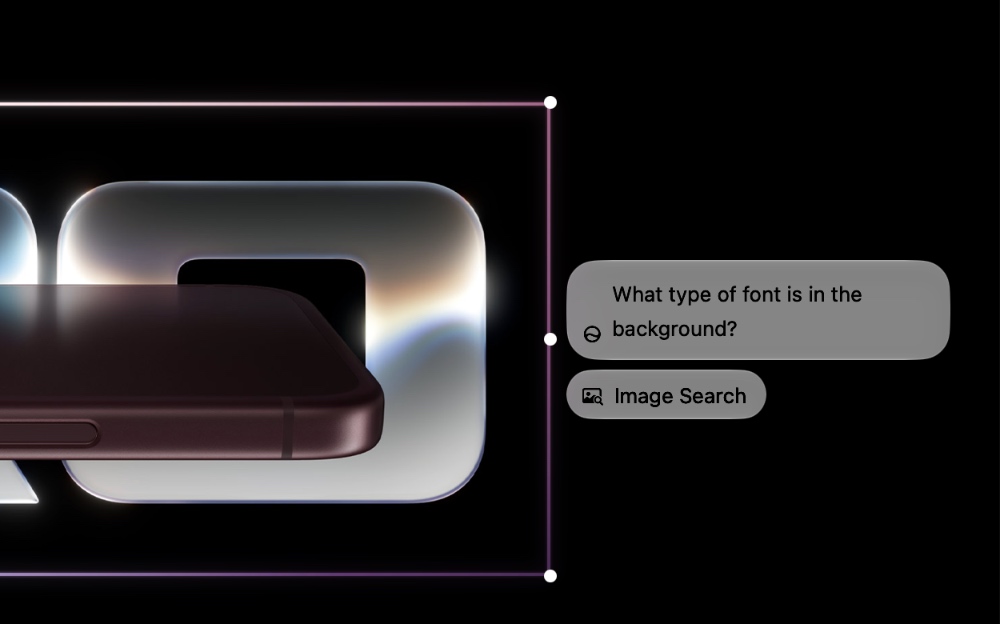
Alternatively, you can also press the Command+Shift+Space combination to quickly highlight the window and ask Siri AI anything you like about it.
If you click on the ‘Image Search’ option, Visual Intelligence will do a reverse image search on Google to find something similar on the web. Both options are handy, but obviously, the Siri AI is far more useful since you can go in-depth with questions and details.
Give it a shot right now and see how it works out for you.