
Here’s how you can find out your 4G or 5G cellular information, such as band, RSRP, more, using the built-in Field Test on iPhone and iPad.
Troubleshoot or Find Out Key Cellular Network Details Using the Built-in Field Test Mode on iPhone and iPad
Apple keeps things simple when it comes to showing the kind of network you’re connected to. Even if you’re connected to a LTE-A network, your iPhone will simply say 4G or LTE. Connected to a 5G NSA network? That’s just ‘5G’, because you don’t have to know more.
But if you do want to know more information about the cellular network you’re connected to, such as channel width, band type, signal strength, then you should head over to the built-in, hidden Field Test menu.
It will instantly tell you about the type of network you’re connected to, your true cellular signal strength, signal to noise ratio, and a lot more. The kind of information you actually need to know in order to assess how good or bad your cellular reception is.
Access Field Test Mode on iPhone or iPad
Step 1. If you’re using iOS 26 or iPadOS 26, just launch the Phone app from your Home Screen. Running iPadOS 18 or below? You can’t access Field Test because there’s no Phone app.
Step 2. Dial the following number:
*3001#12345#*
Step 3. Tap on the big green Dial button.
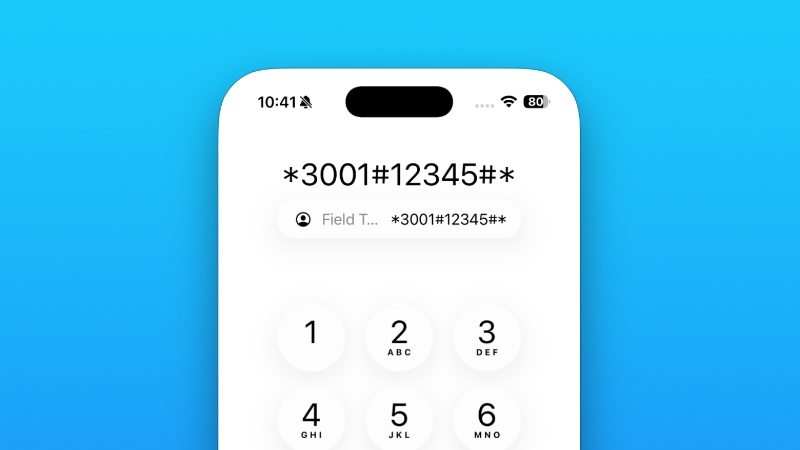
Step 4. You’re now in the Field Test menu, and it may take a while to load all the relevant information, so give it a little extra time if the page appears blank at launch.
You do need a cellular iPad in order to access the Field Test menu along with an active cellular connection, I’m sure you’ve figured that out by now.
The Field Test menu used to be extremely detailed in earlier versions of iOS. But with recent updates and changes to the software, Apple has removed a lot of information, except the things that matter the most, such as the band you’re connected to, the signal strength, your cellular tower ID, network type, etc.