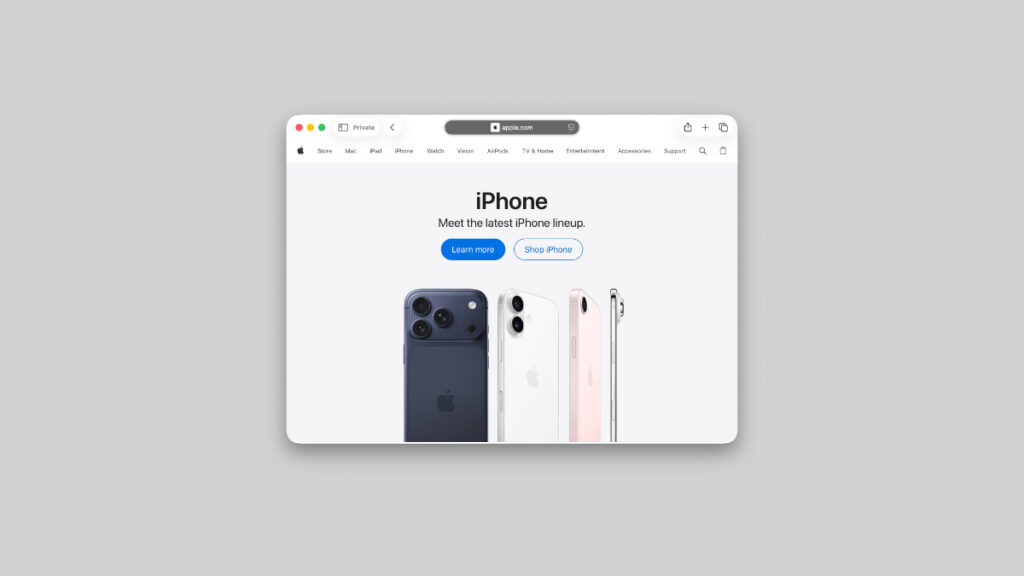

In iPadOS 26.4 and macOS 26.4, you can use the Compact tab view in Safari, and here’s how you can enable it right now on iPad and Mac.
Experience a Better Way to Browse the Web in Safari for iPad and Mac with Compact Tab View
If you truly want the best-looking browsing experience on Safari, switch over to the Compact tab view. It’s been around on iPhone, iPad, and Mac for quite a while, yet suspiciously missing on iPad and Mac with the iPadOS 26 and macOS 26 software updates.
Turns out, Apple was just tweaking things in the background for Liquid Glass, and has now rolled out the Compact tab view with iPadOS 26.4 and macOS 26.4 as well.
As the name suggests, once Compact tab view is enabled, your tabs will be grouped on the top of Safari in a minimal way, giving you more space to browse and scroll at the bottom. Again, a brilliant way to experience web browsing on iPad and Mac, though a lot of you will disagree with me.
Enable Compact Tab View in Safari for Mac
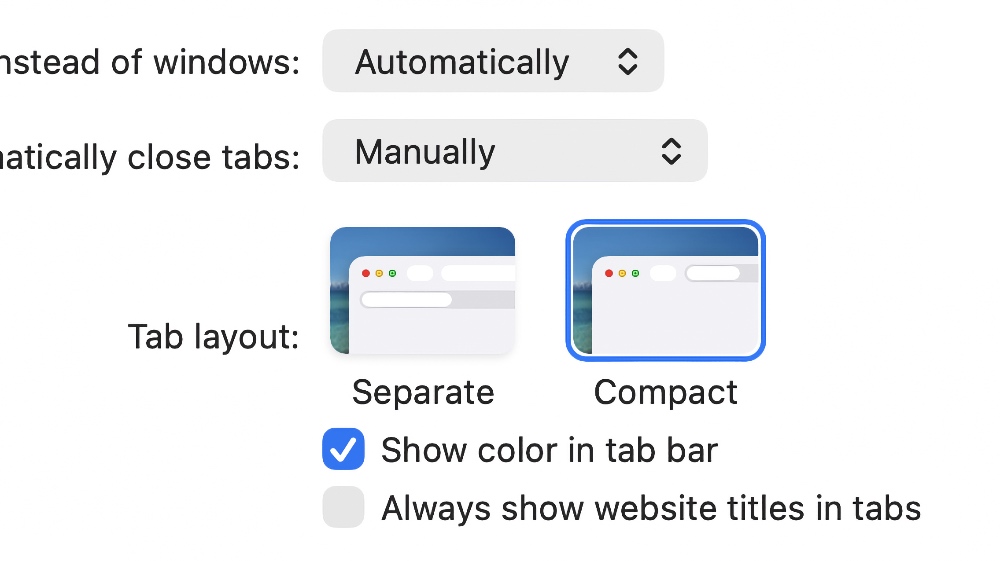
In order to enable Compact tab view on the Mac, here’s what you have to do:
Step 1. Launch Safari.
Step 2. In the menu bar, click on Safari.
Step 3. Click on Settings.
Step 4. Click on the ‘Tabs’ button at the top.
Step 5. Next to ‘Tab layout’ you’ll see two options: Separate and Compact. Click and choose Compact.
Enable Compact Tab View in Safari for iPad
On iPad, here’s what you have to do:
Step 1. Launch the Settings app.
Step 2. Scroll all the way down and tap on Apps.
Step 3. Find Safari and tap to open it.
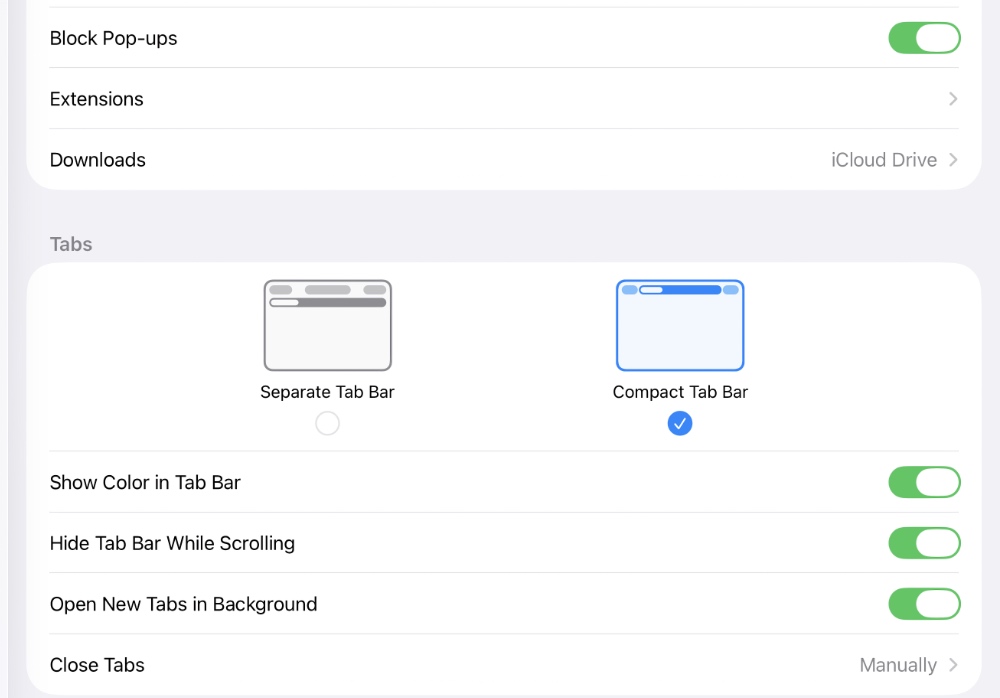
Step 4. Scroll down and find the Tabs section.
Step 5. Select Compact Tab Bar, as shown in the screenshot below:
That’s all you have to do. If, for some reason, you don’t like the change, you can revert everything by selecting either Separate on macOS, or Separate Tab Bar in iPadOS.
I prefer the Compact tab view because it looks better and makes websites look less like websites and more like apps. But of course, if you’re a power user, the new view may get in the way at times, especially if you have way too many tabs open at any given time.