WhatsApp is now officially available on Apple Watch, and if you can’t see the app at all, here’s the reason why and a fix for it.
If You Can’t See WhatsApp on Your Apple Watch then Manually Install the App in a Few Easy Steps
The ability to send and receive WhatsApp messages from Apple Watch is a huge deal for users. But you might have noticed that the app is not available on your Apple Watch after the latest update.
There’s a good reason for that, and I’ll tell you exactly what you have to do.
Enable Automatic App Install on Apple Watch
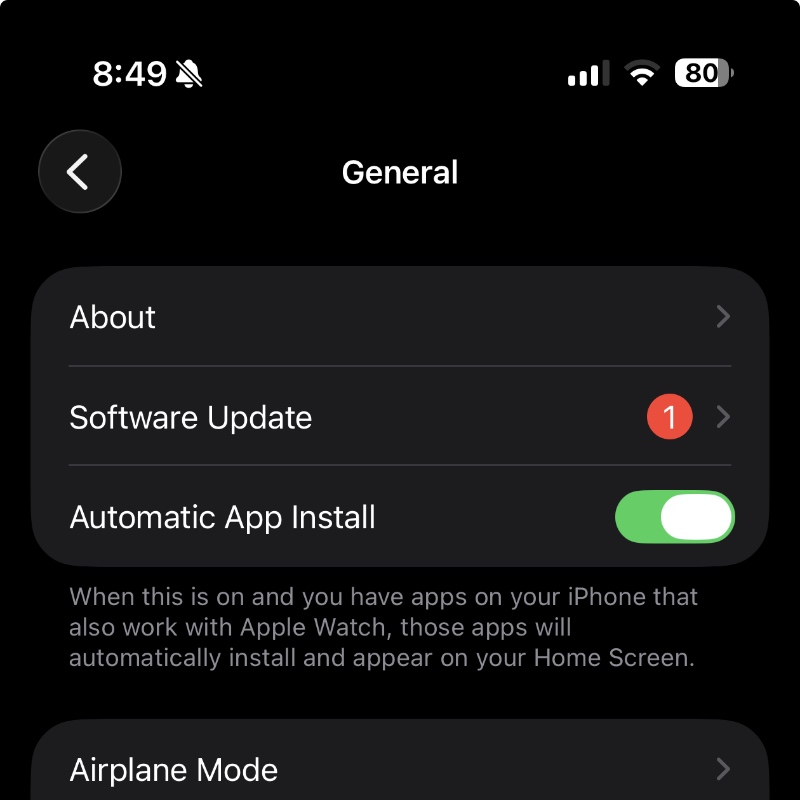
Apps install automatically on Apple Watch, if you have disabled this feature unknowingly, turn it on, and WhatsApp will appear in a few seconds on your wrist.
In order to do that, just launch the Watch app on your iPhone, go to General, then enable the Automatic App Install option at the top.
Install WhatsApp on Apple Watch Manually
If you’ve disabled the above feature deliberately and want to install WhatsApp anyway, then here’s what you have to do.
Launch the Watch app, scroll all the way down and find WhatsApp. Tap on the Install button next to it. Once the installation is complete, you’ll see the app under the ‘Installed on Apple Watch’ section.
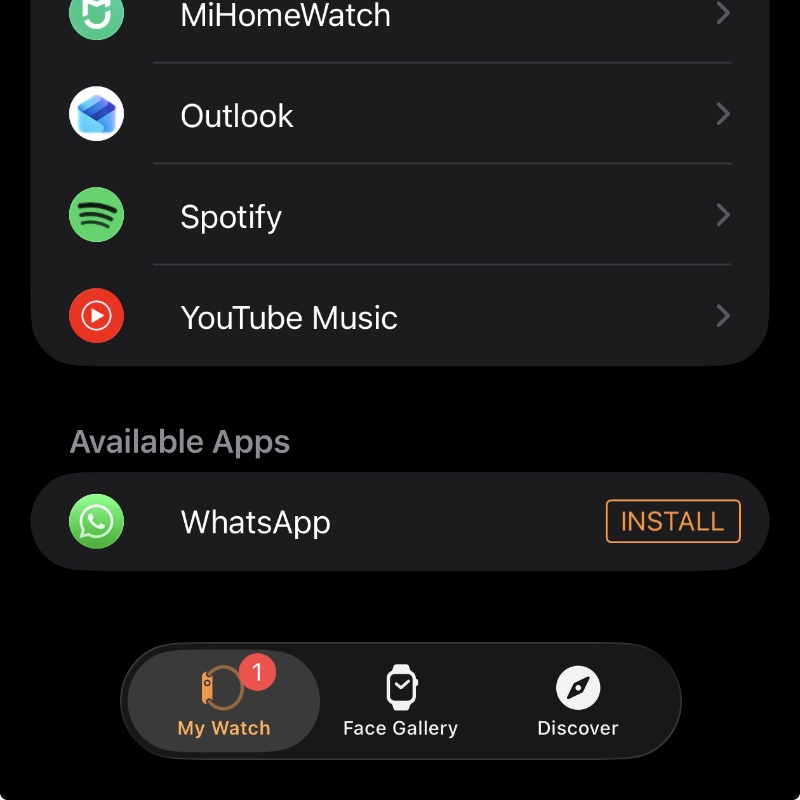
Once the installation is complete, you can verify it by pressing the Digital Crown on your Apple Watch and then find the app from the list or grid, depending on how you’ve set up your watch.