

Is your M1 or older iPad feeling way too slow on iPadOS 26? You can make it slightly better in just a few taps.
Old iPad Models May Not Work Great on iPadOS 26, and a Multitasking Feature is Mostly to Blame
I know a lot of you are holding on to your trusty old iPad because it works just fine. Even I am, because my M1 iPad Pro refuses to give up, and I see no need to replace it just yet.
But every now and then, you’ll see a couple of dropped frames when jumping between apps or scrolling a webpage in Safari. That’s completely normal, because you’re running modern software on old hardware.
However, you might notice a little too much lag in some places, and it turns out, the fix for most of these issues is a feature you need to turn off, and you’re probably not using it anyway.
Disable Windowed Apps
iPadOS 26 has a fancy new feature that allows you to have several apps on top of each other. While the feature is great, for some reason, even when you’re not using it, it slows the iPad down.
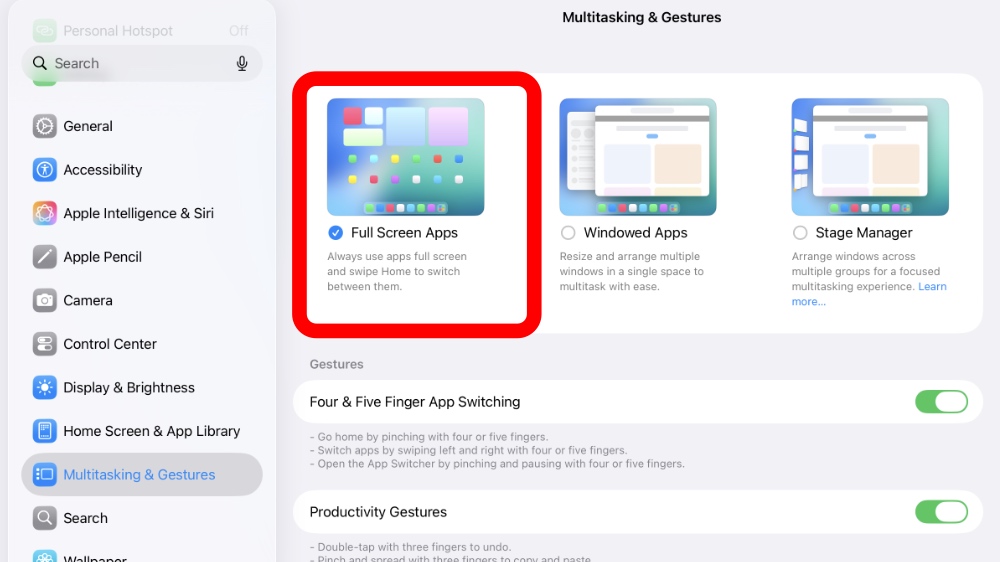
Disable the feature by going to Settings > Multitasking & Gestures, and select ‘Full Screen Apps’.
The good news is, you’ll see a good performance boost instantly. The bad news is, you can’t have multiple apps open at the same time.
A lot of people might see this as a downgrade as it defeats the purpose of having iPadOS 26 in the first place. But the truth is, there’s no point in having a feature enabled on iPad, or any device for that matter, which you’re not using at all.
Besides, if you want to jump into that multitasking windowed action, you can always enable the feature whenever you feel like it. Enjoy that extra bit of performance on your iPad in the meantime.
If everything fails, do consider performing a clean installation of iPadOS 26 on your iPad. A fresh installation fixes a lot of issues, and years of over-the-air software updates can always be blamed for slow performance as well. You’ll find more details on it posted here.

![Siri AI Coming to the Original HomePod mini too [Update: False]](https://www.anotherapple.com/wp-content/uploads/2026/10/siri-ai-on-original-homepod-mini-300x169.jpg)