

You can completely lock down WhatsApp on iPhone using Face ID for enhanced privacy and security.
Lock Your WhatsApp Using Face ID and Remove it from Apple Watch for Ultimate Protection and Privacy
I’ve already talked about how you can lock apps on your iPhone and iPad using Face ID. You can follow that method to lock WhatsApp as well, or any app for that matter.
However, that method has a small problem. The button to disable Face ID is right on the app icon itself, which means if someone is careful enough, they can sneakily take a scan of your face and disable Face ID protection and get right into your app a dozen times.
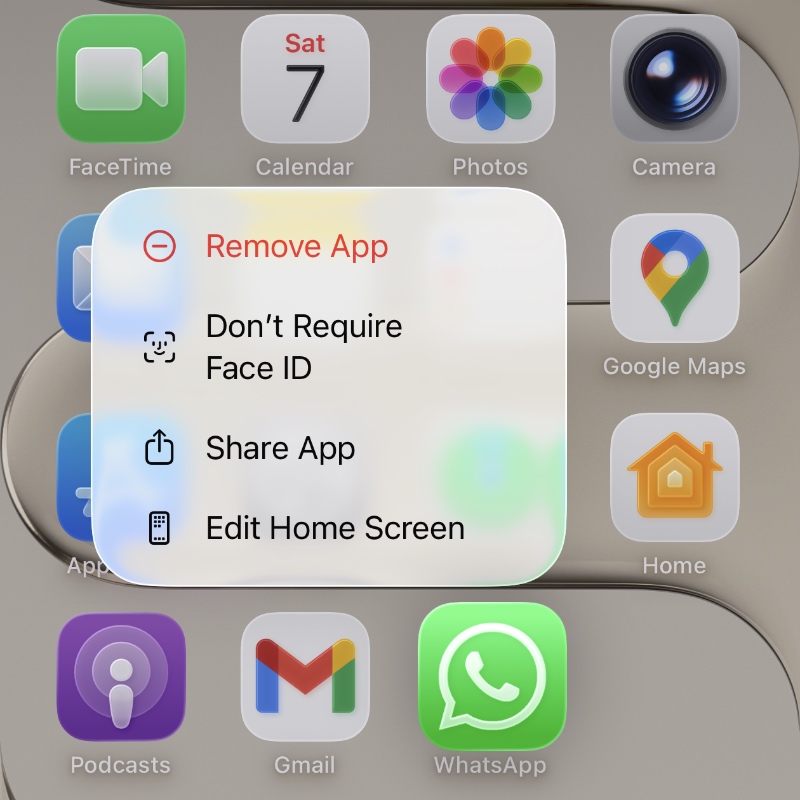
Since WhatsApp allows you to lock the app from within its own settings page, this means the app will stay locked no matter what, and if someone does try to sneak into it, you’ll definitely know about it with one glance at your iPhone screen.
Here’s how you can set it up:
Step 1. Launch the WhatsApp app from your Home Screen.
Step 2. Tap on the Settings button at the bottom.
Step 3. Now tap on Privacy.
Step 4. Scroll down, and open App lock.
Step 5. Enable the Require Face ID switch. Make sure you set the duration to ‘Immediately’ for maximum protection.
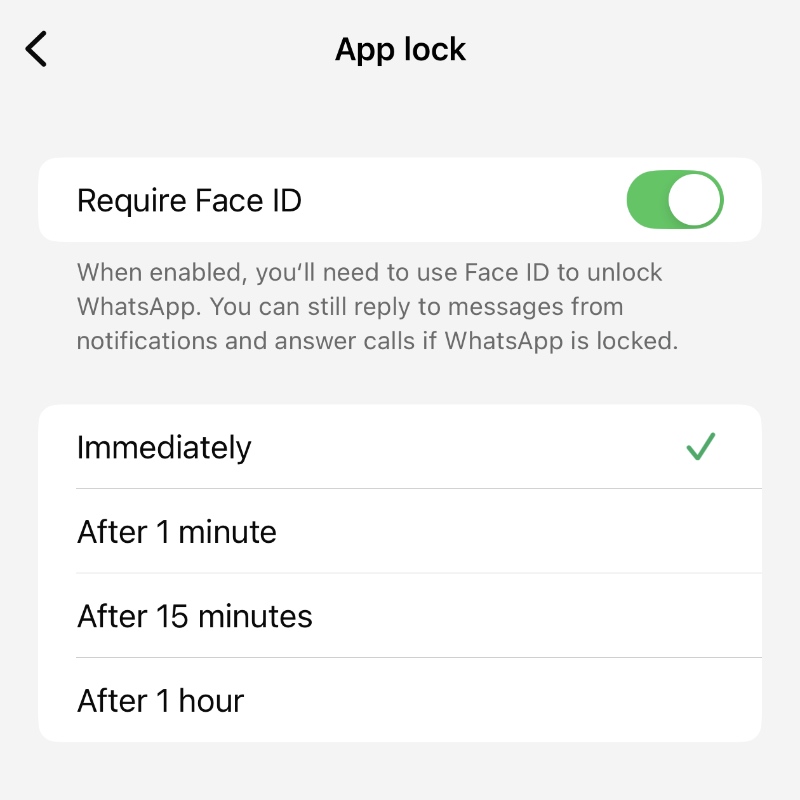
You can double the protective measure by enabling the feature above, and the one which iOS 26 provides. But immediately, I can make things sound worse for you by telling you that this does not lock down or protect WhatsApp on your Apple Watch.
For maximum protection, make sure you remove the app from your Apple Watch instead. You can do that by launching the Watch app on your iPhone, scroll all the way down, and tap on WhatsApp. Disable the ‘Show App on Apple Watch’ switch.
That’s it, your WhatsApp is now secure and private.