
Here’s how you can request the desktop version of a website using Safari in iOS 26 running on any iPhone model.
Safari for iOS 26 Lets You Open the Desktop Version of a Website – Here’s How to Request it on Your iPhone
iOS 26 can be slightly overwhelming, especially if you’re coming from another platform. It will be a while before you eventually get used to the new things.
If you just started using Safari for all your web browsing needs, and are wondering how you can open the desktop version of a website, then don’t worry. I will show you how to do just that.
Compact and Bottom Tab Style
Step 1. Launch Safari on your iPhone.
Step 2. Open any website of your choice.
Step 3. On the left of the address bar, you’ll see the ‘menu’ button. Tap on it to reveal more options.
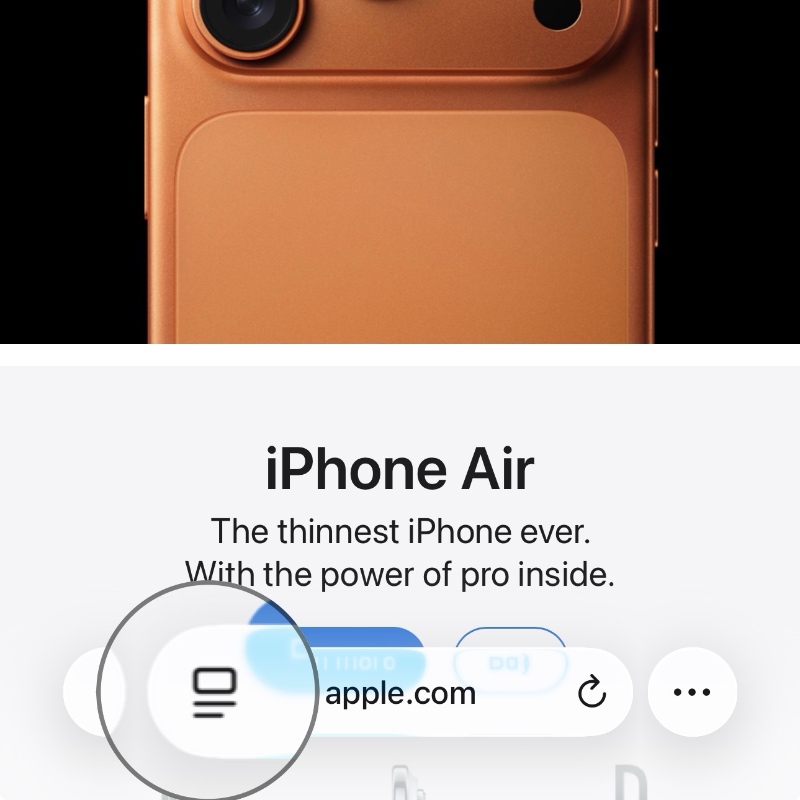
Step 4. Now tap on the ‘three dots’ menu button on the right.
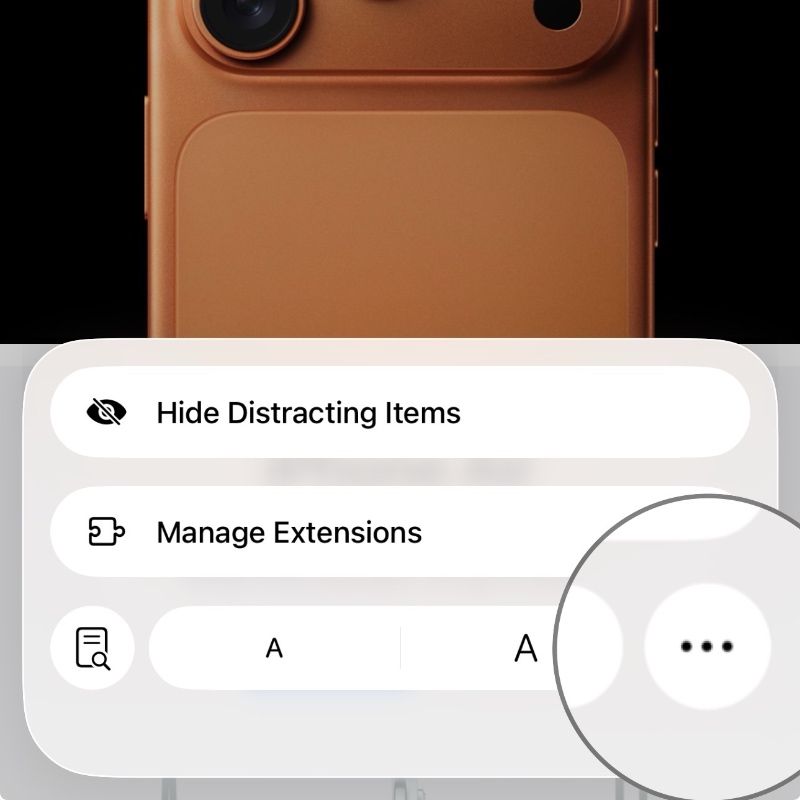
Step 5. Just tap on the Request Desktop Website button and you’re done.
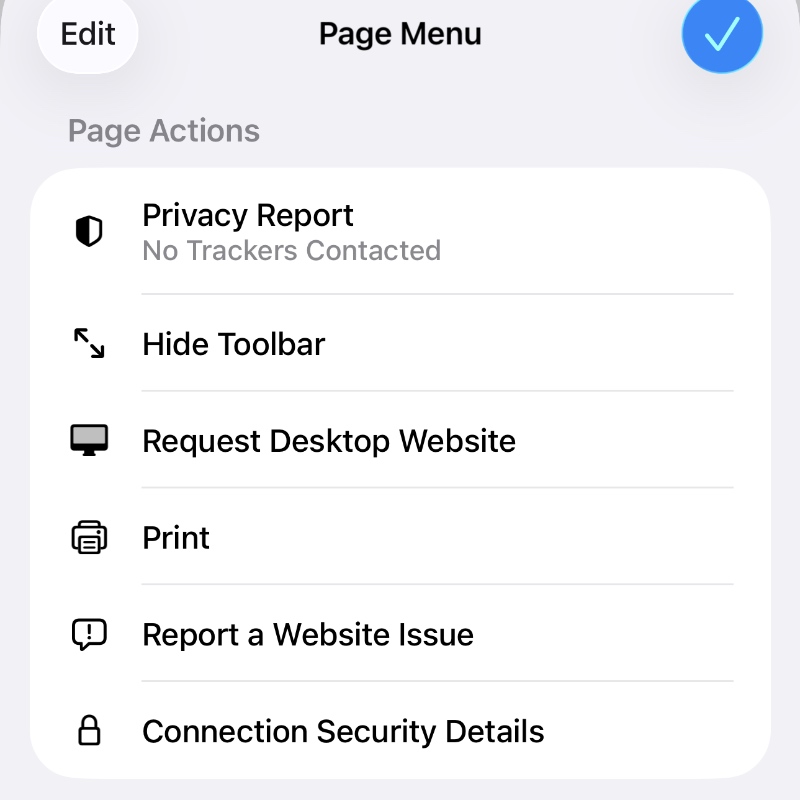
Top Tab Style
If you have switched the tab style to ‘Top’ in Safari, then follow these steps:
Step 1. You will see the address bar at the top. Tap on the ‘menu’ button on the left.
Step 2. Tap on the ‘three dots’ icon on the bottom right.
Step 3. Now simply tap on the Request Desktop Website button.
Though websites these days adjust themselves dynamically based on the type of device you’re opening them on, but sometimes you really do want to access the desktop version of a site for any reason at all.
Interestingly, the steps to request the desktop version of a site are the same as iOS 18. So if you’re coming from the older version of the software on your iPhone, you’ll feel right at home, except everything will be Liquid Glass.