
Here’s how you can downgrade from iOS 26.1 and iPadOS 26.1 beta to iOS 26 and iPadOS 26 on your iPhone and iPad right now.
You Can Downgrade from iOS 26.1 and iPadOS 26.1 to iOS 26 and iPadOS 26 on iPhone and iPad Using DFU Mode
Downgrading software on iPhone and iPad is easy. All you have to do is provide your device the firmware file it needs for the downgrade using Finder and wait for everything to restore.
But that’s not how it works when you’re downgrading from beta software, because there are some extra steps involved.
That extra step is DFU mode, and it is a necessary part of the software downgrade process when a beta is involved.
If you currently downloaded and installed the new iOS 26.1 or iPadOS 26.1 beta on your iPhone or iPad, then here’s what you need to do in order to downgrade back to iOS 26.0 or iPadOS 26.0.
You Will Lose Your Data Completely
This entire process is going to wipe your iPhone and iPad clean. This means your data will be lost, including everything and anything that’s important, therefore backup everything using Finder or iCloud. You’ll find the tutorial for it posted here.
Download the iOS 26 and iPadOS 26 Firmware File
Download the iOS 26.0.1 or iPadOS 26.0.1 firmware file and save it to your desktop. You’ll find each and everything posted here.
You will also find the iPhone Air, iPhone 17, and iPhone 17 Pro firmware files at the above links as well. Each and every single device from Apple is covered.
Put Device in DFU Mode
Putting an iPhone or iPad in DFU mode is not an easy process. You will find the tutorial for iPhone posted here, and tutorial for iPad posted here.
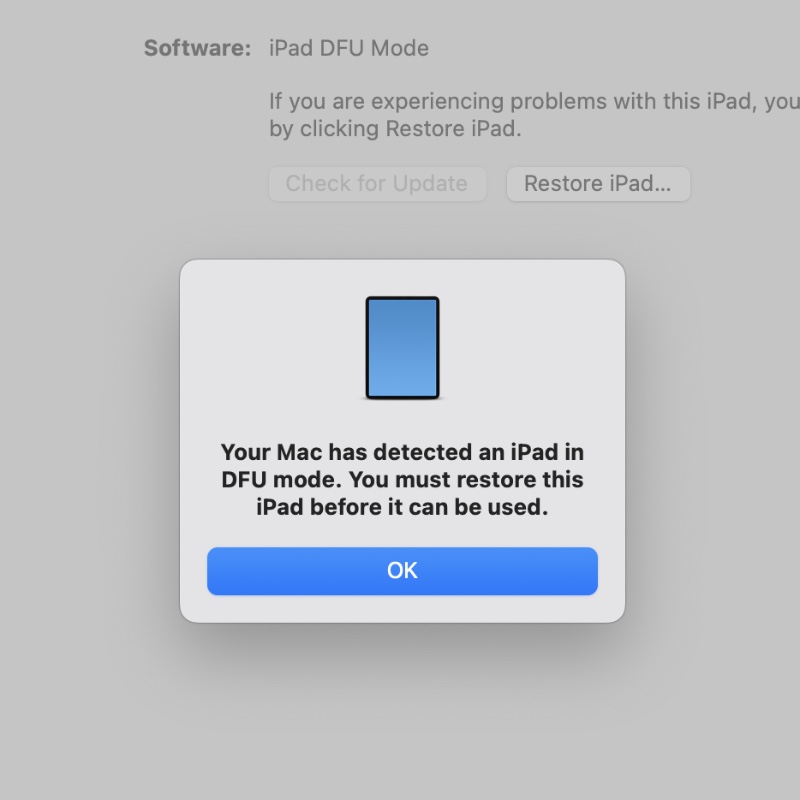
It may take two or more tries to get it right. And once you do, it will show up in Finder as (you guessed it) as a device in DFU mode.
Restore Using iOS 26.0 or iPadOS 26.0 Firmware File
When you see the prompt like the one shown above, just click on OK, and then hold down the left Option key on your Mac’s keyboard and click on either the Restore iPhone or Restore iPad button.
When you do that, a new window will open up. Just select the iOS 26.0 or iPadOS 26.0 firmware file and Finder will restore your device. The entire process may take a while too.