
I’m quite certain that your Mac feels slow after installing macOS 26 Tahoe. Disable FileVault and you’ll be just fine.
macOS 26 Tahoe Turns On FileVault for Enhanced Security, But it Will Slow Down Your Mac
Apple is taking security very seriously in macOS 26 Tahoe. At the time onboarding, the FileVault disk encryption feature will be turned on, ensuring that your data stays nice and secure.
What this does is, encrypt all your data, and requires you to enter a password every time you turn on your Mac. It’s definitely a nice layer of security, but if you don’t want to compromise on performance, then you might want to turn it off.
In order to do that, launch System Settings on your Mac, scroll down to Privacy & Security, and then select FileVault from the list of options on the right. Now simply disable FileVault.
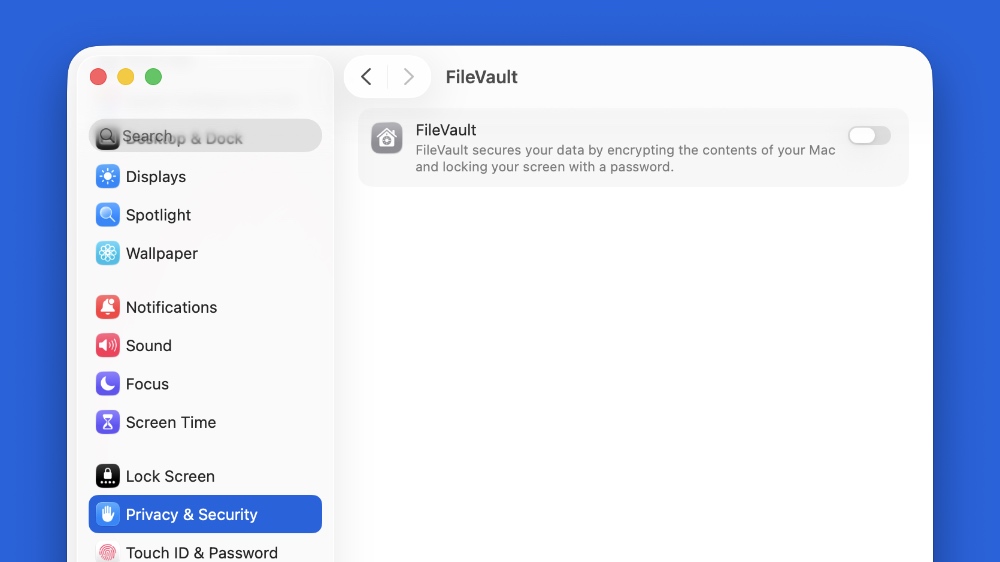
Honestly, I will suggest keeping FileVault on, especially if you have a MacBook Air or MacBook Pro. If it’s an iMac or Mac mini sitting at your home, then keeping it disabled is fine.
One more thing, make sure that you restart your Mac once the installation of macOS 26 Tahoe is complete and you’re at the desktop. And once you’ve booted back up, plug your MacBook Air or Pro to a power source for a few hours as well.