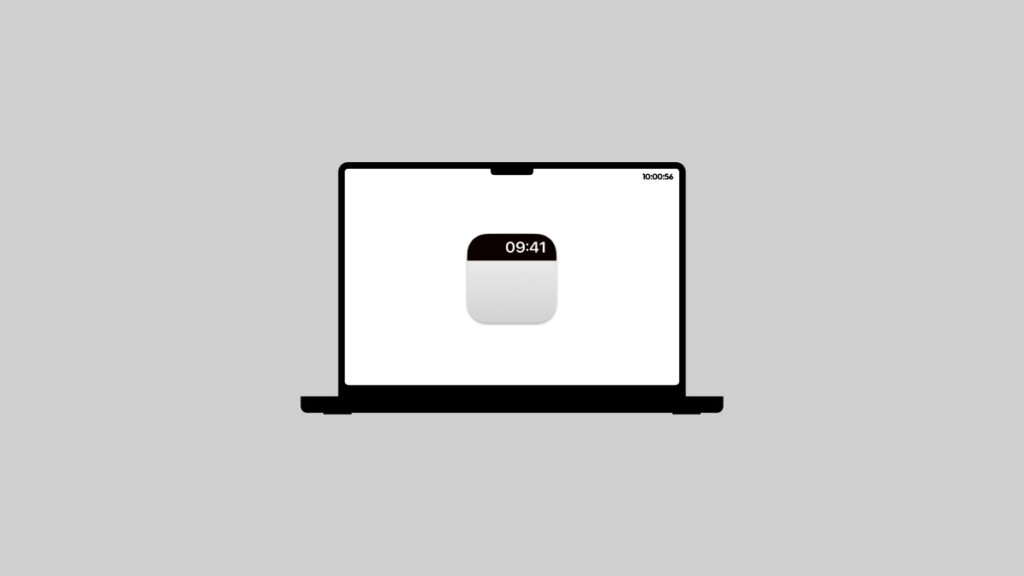

If you’re going for a minimal-looking Mac setup, and Corner Time is not on your checklist, you’re doing it wrong.
A Minimalist Setup on the Mac will Remain Incomplete Without Corner Time – Astonishingly Simple, Yet so Brilliant
There are plenty of ways to achieve minimalism on your Mac. You can do it by hiding the Dock, putting up a clean wallpaper, or even hide the menu bar.
Once you do all that, you get rid of something important too – the clock. Sure, you can take your mouse pointer to the top of the display to reveal it, but it wouldn’t it be great if the clock was persistently there?
Just the clock, absolutely nothing else.
Corner Time does exactly that, and it goes a mile extra with customizable features I wasn’t expecting at all.
An App in Kilobytes in 2025?
The first thing you’ll instantly notice about Corner Time is its size. At the time of writing, it’s just 538KB on the Mac App Store.
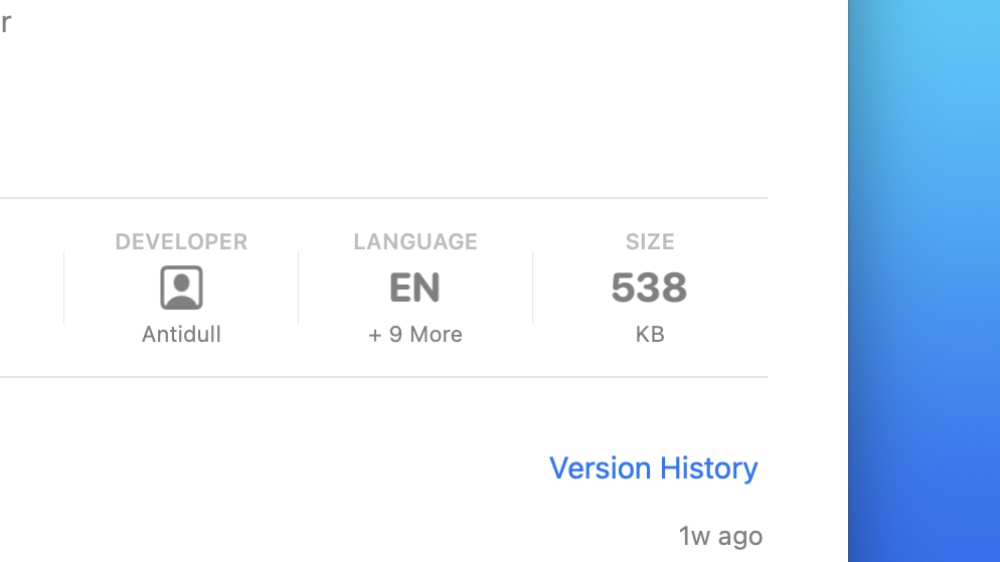
Apps these days casually go beyond the 200 megabytes mark, so this was rather surprising, and that too in a good way.
Seriously, who even talks about app size in a review these days?
First Launch and Impressions
At first launch, you’ll be greeted with an interface that is friendly and inviting because nothing is complicated here. Exactly what a minimalist expects.
You will only see the clock if you set the menu bar to hide automatically, and the app actually walks you through the process as well, something which I’ve highlighted already.
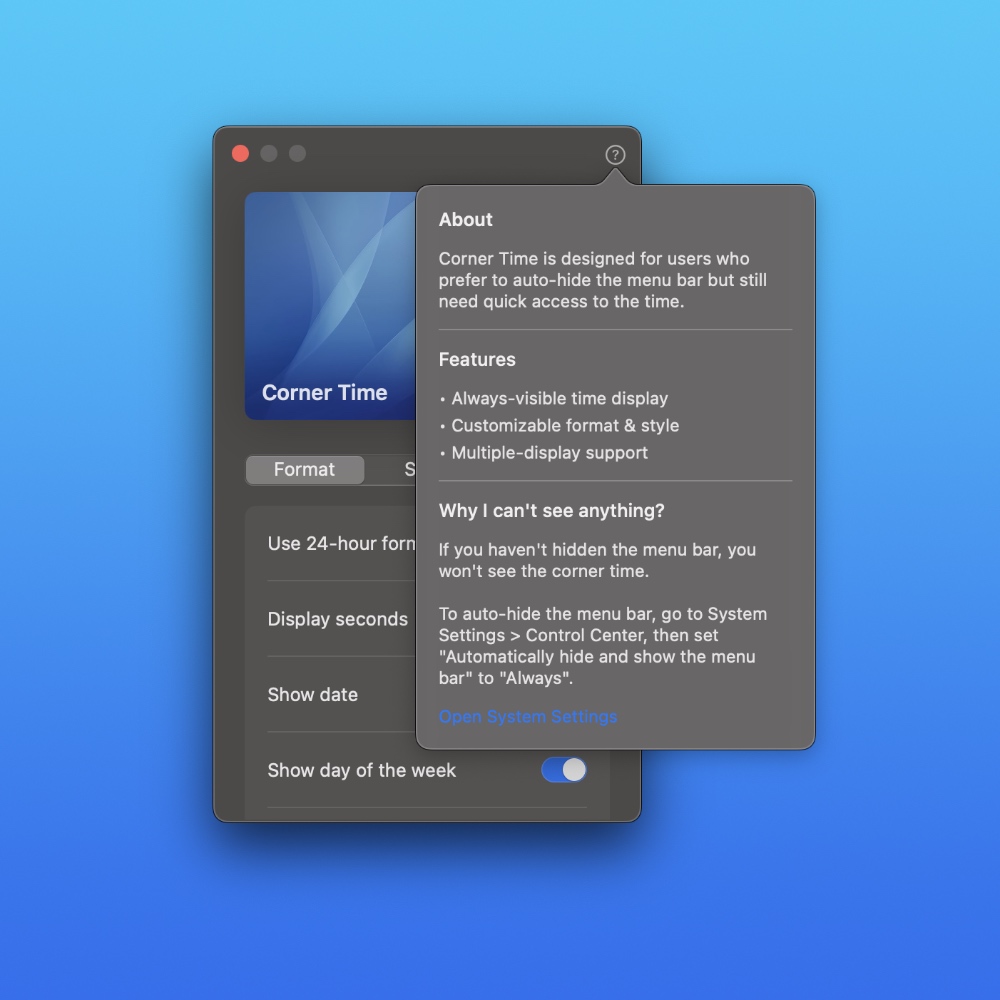
In case you do miss the initial walkthrough, just click on the ‘?’ button on the top right corner. Also, make sure you enable the ‘Launch at login’ option under the General tab to make sure the app starts to do its thing the moment you turn on your Mac.
Lots of Customization in Such a Simple App
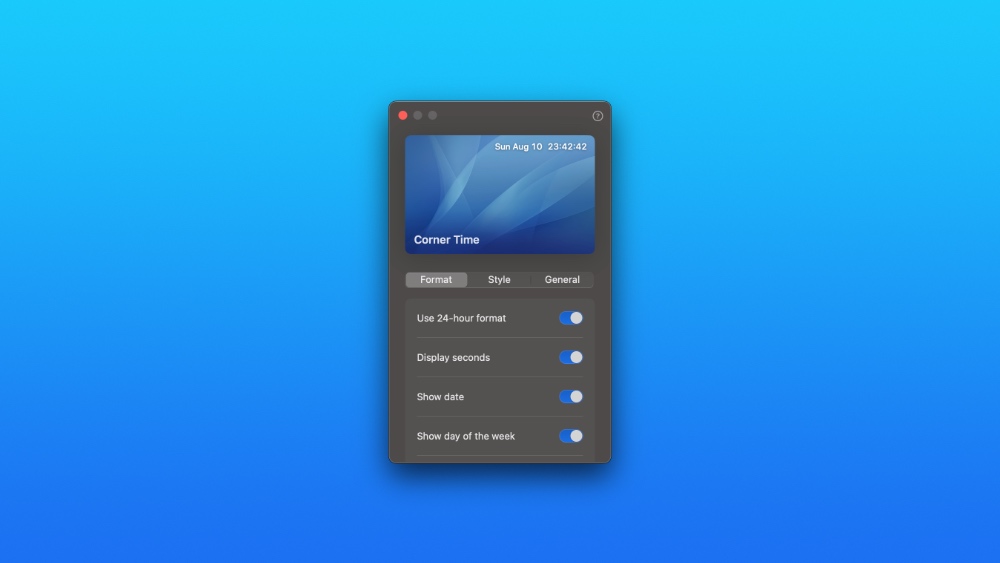
Once that is done, you are presented with a bunch of customizable options, allowing you to set whether you want a 24-hour format clock, see seconds, the date, the day of the week, or set your own custom format, if you like.
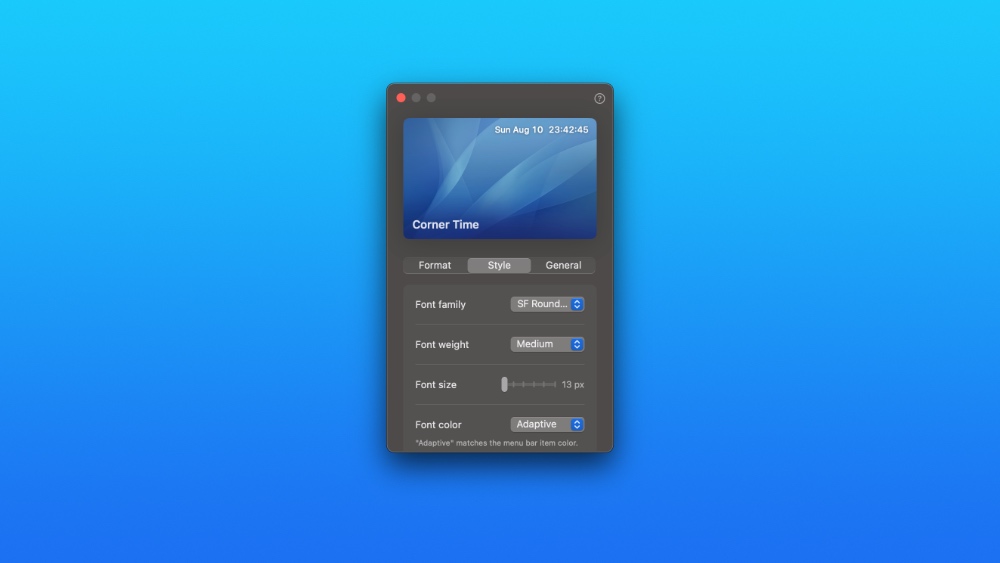
You can select the font type of the clock, with three options to choose from: SF Pro, SF Mono, SF Rounded. All fantastic fonts that fit the macOS aesthetic perfectly.
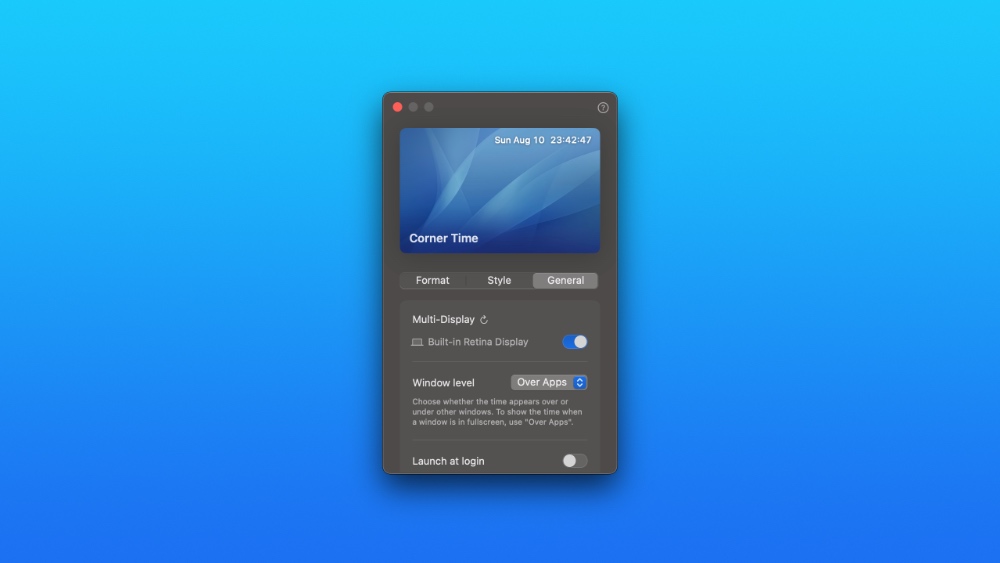
Want a light or bold font instead? That option is there too, along with font size, font color, and you can even select if you want to show a faint background behind the clock so that it stays readable.
And of course, you have the option to select whether you want to show the clock on the built-in display or the external one.
The Only Downside?
Intuitively, the clock is on the top right of the display, but it would have been a nice touch if the app allowed the user to move it to the far left. You know, for those who want to achieve a totally different look.
Conclusion
Corner Time shows a persistent clock at the top of the display if you have chosen to hide the menu bar, and that clock is fully customizable. That’s the easiest and quickest way to explain the app to anyone.
In a day and age when single-purpose apps are no longer fun to use, Corner Time feels like a breath of fresh air. And, if you’re someone who strives to achieve minimalism in their workflow, this is the app you should install on your Mac right now.
It costs just $1.99, and it’s worth every single penny, because the app is right on point in its current form. With time, it will only get better and gain more options.
If you’re interested in keeping up with the app and its developer, make sure you visit the official website by going to this link.
Download Corner Time for the Mac (Mac App Store link)