
Here’s how you can hide the Dock on your Mac for a wonderfully clean look, and get more desktop space for apps too.
Achieve the Cleanest Look on Your Mac by Hiding the Dock from View and Automatically Show up When You Want it to
Yesterday, I showed you that you can hide the menu bar on the Mac, in order to achieve that perfectly clean and minimal look. If you want to take that adventure further, then you will be pleased to learn that you can hide the Dock on your Mac too.
The row of app icons sitting at the bottom of the display serves an important purpose of giving you access to your favorite apps, but if you want more space on the display or just want to practice a bit of minimalism, then you might want to hide that Dock.
The process of hiding the Dock is extremely easy, and here’s what you have to do on your Mac:
Step 1. Launch the System Settings app on your Mac.
Step 2. Click on Desktop & Dock on the left.
Step 3. You’ll see a bunch of options on the right, enable the toggle switch next to ‘Automatically hide and show the Dock.’
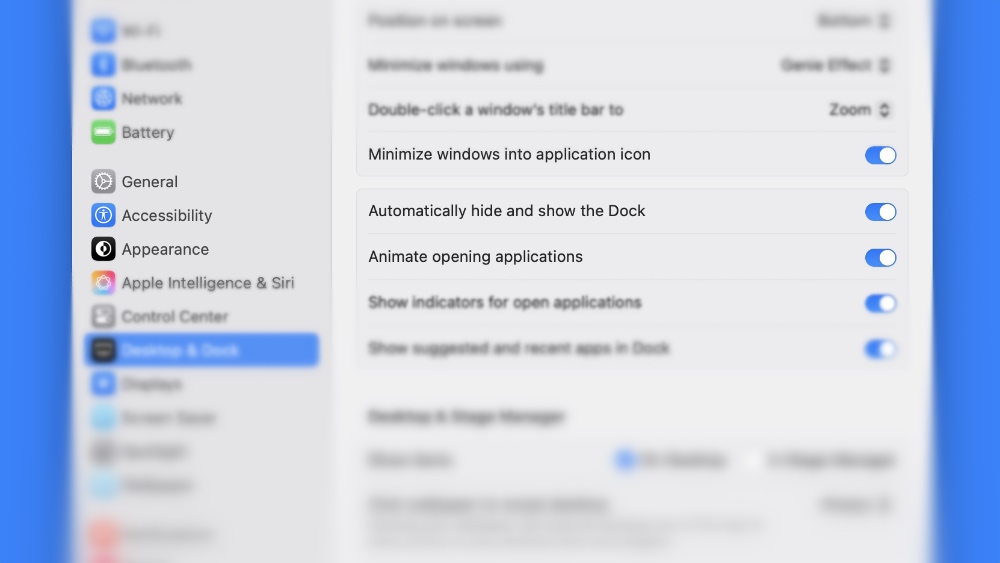
Once you do this, you’ll instantly see the Dock go away from view. In order to get it back, just take your mouse pointer to the bottom of the display, and you’ll see the Dock back up again.
Combined with hiding the menu bar, you can achieve a very minimal and aesthetic look that focuses on your wallpaper and widgets.
You can experiment around and see what works out for you, but ultimately it boils down to keeping the Dock in view at all times, but keep the essential apps at the bottom.
But who knows, the all-screen and no menu bar and Dock look works wonderfully for you, and it could be exactly what you’ve been looking for.