

Here’s how you can customize font size, weight, or disable the clock on the Mac Lock Screen in just a few clicks.
macOS 26 and Beyond Lets You Customize the Lock Screen Clock or Disable it Entirely
The macOS Lock Screen looks similar to the one on iPadOS, especially when it comes to time telling. Rather than have time displayed in the corner, you’ll see a large clock right at the top on the Lock Screen when you wake up your Mac from sleep.
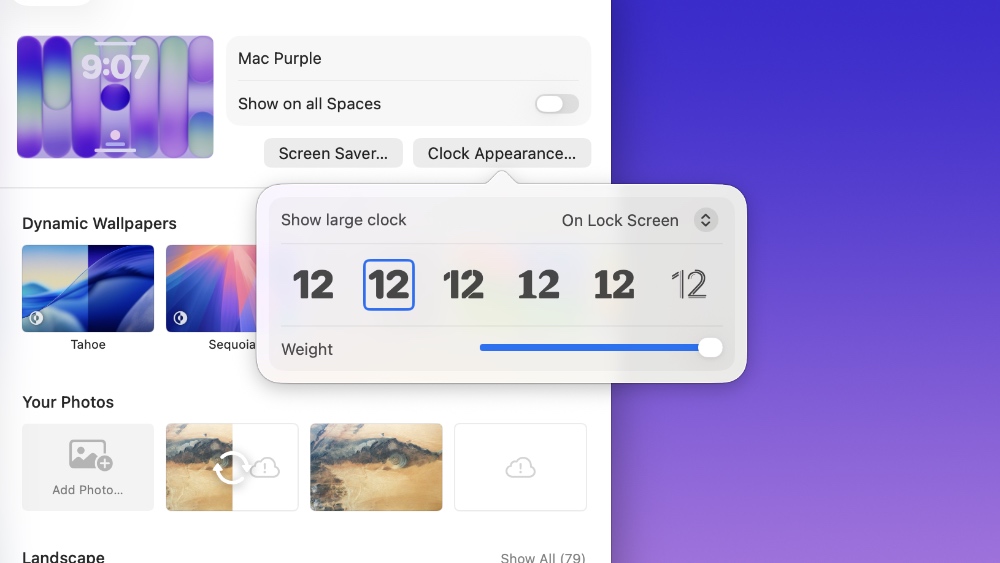
Just like iPadOS, you can actually customize this clock as well. The customization options include changing the font, adjusting how bold the font is, or disabling the clock altogether.
Such an obvious thing should be easy to access as well, but for some reason, the option lives in the Wallpaper section instead. With that being said, here’s what you have to do in order to customize the Lock Screen clock on your Mac.
Note: This feature is only available in macOS 26 Tahoe and above.
Step 1. Launch the System Settings app.
Step 2. In the list of options on the left, click on Wallpaper.
Step 3. Now click on Clock Appearance on the top right. You’ll see all the customizable options here, including font type, font weight, and whether you want to see the lock on the Lock Screen, Screensaver, or both. You have the option to disable the clock entirely here as well.
If you really want that ultimate clean look on the Mac, you can disable the clock completely on the Lock Screen. And while you’re at it, you can also disable the menu bar if you like.
The only thing I don’t like about this feature is how it’s not as customizable as iOS and iPadOS. Apple should allow users to stretch the clock in order to fill up the display vertically.

![Siri AI Coming to the Original HomePod mini too [Update: False]](https://www.anotherapple.com/wp-content/uploads/2026/10/siri-ai-on-original-homepod-mini-300x169.jpg)