
Here’s how you can use Apple CarPlay and listen to your iPhone audio using your AirPods instead of the car’s stereo system.
Keep Using Apple CarPlay and Listen to Your iPhone Audio Through Your AirPods for Any Reason You Like
The moment you connect to Apple CarPlay, your iPhone’s audio is routed through the car’s built-in entertainment system. In fact, you have to use your car’s built-in volume controls to make any sort of volume changes too.
Thankfully, the audio part isn’t forced on you, and you can have CarPlay running while listening to audio using your AirPods as well. This is actually quite useful, especially if you want to attend phone calls and maintain privacy in the car.
The way this works is straightforward. First of all, connect your AirPods to your iPhone, and then connect your iPhone to your car using CarPlay. Now follow the steps as they are below:
Step 1. Bring down Control Center.
Step 2. If you haven’t removed the media widget from Control Center, then select the audio source button.
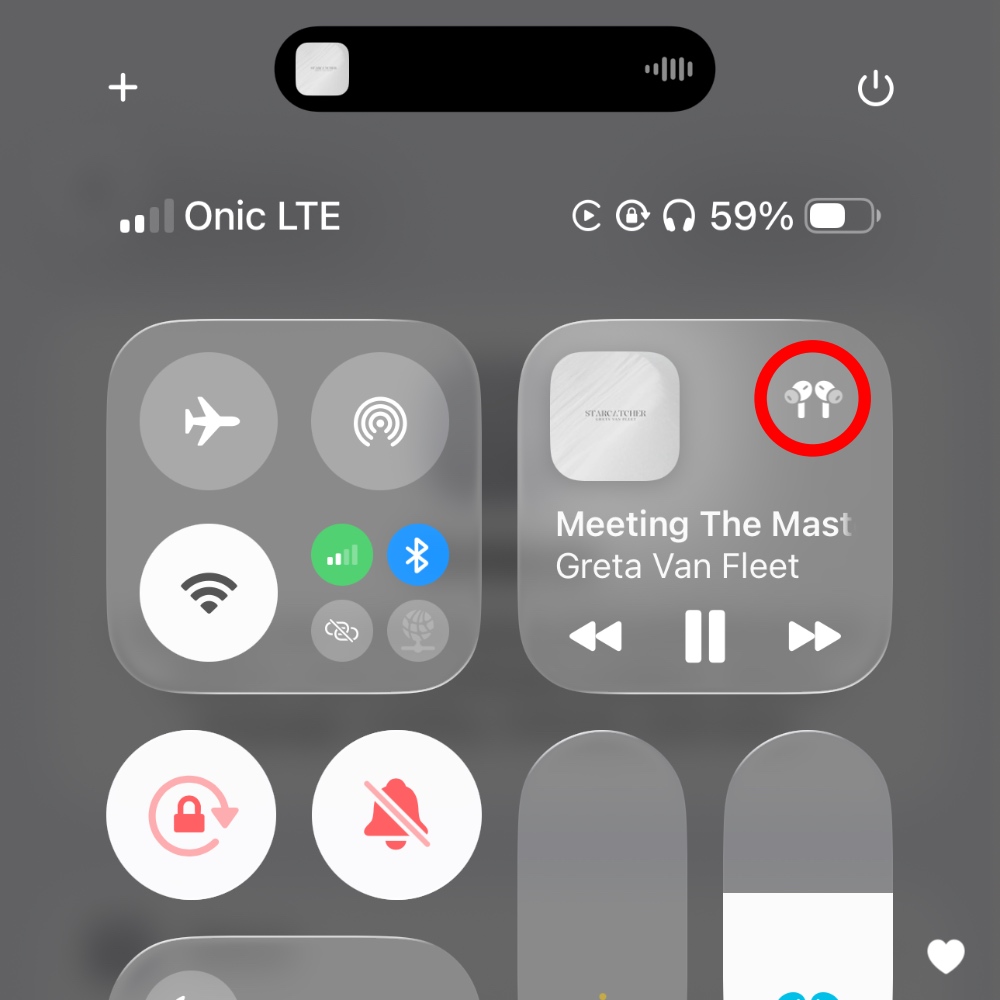
Step 3. Now choose your AirPods instead of CarPlay, which is set by default when you are connected to Apple CarPlay.
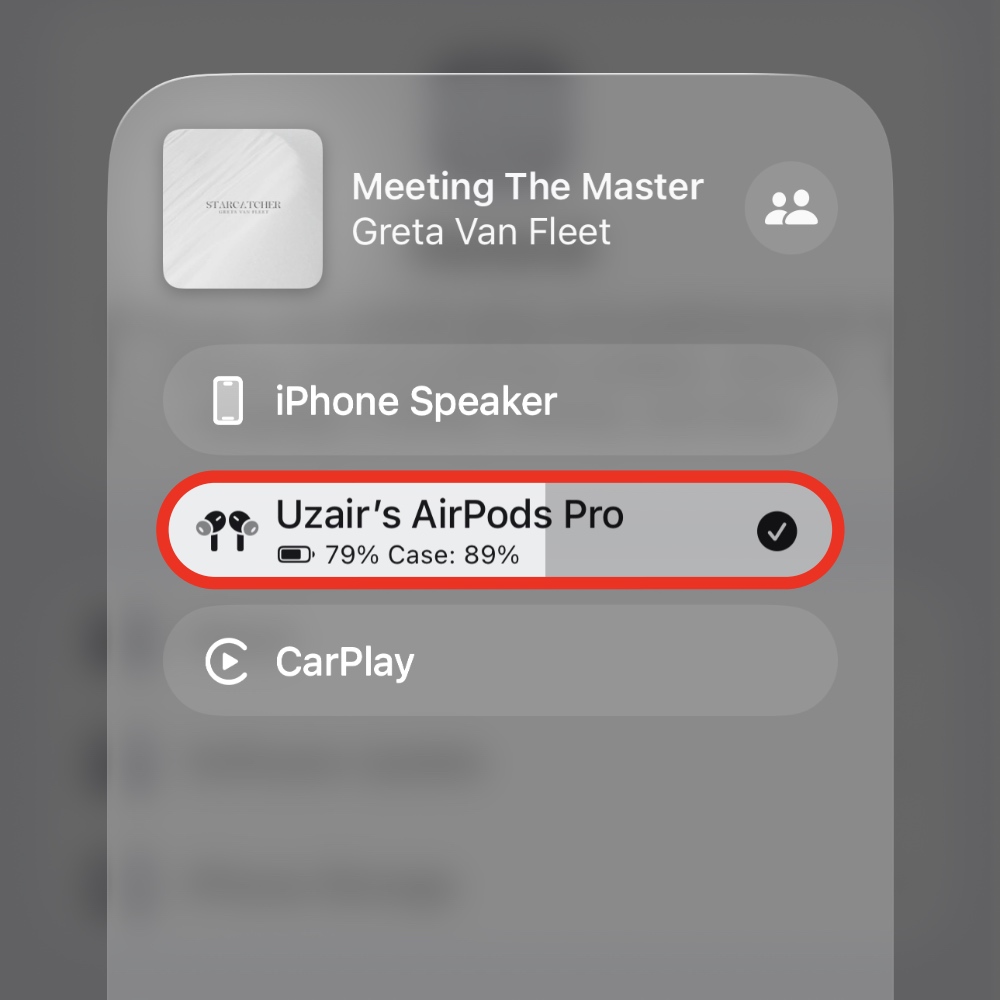
From now on, you will hear everything from your iPhone through your AirPods. If you are done using your AirPods, make sure you select CarPlay again from the audio source; otherwise, you’ll hear all your audio from your iPhone speaker.
If you don’t want to annoy the passengers in the car with your podcast or music, then this feature definitely comes in handy. But make sure you do not go overboard with it either, because anything that takes attention away from the road isn’t a great thing.
Be responsible, that’s what I am trying to say here.