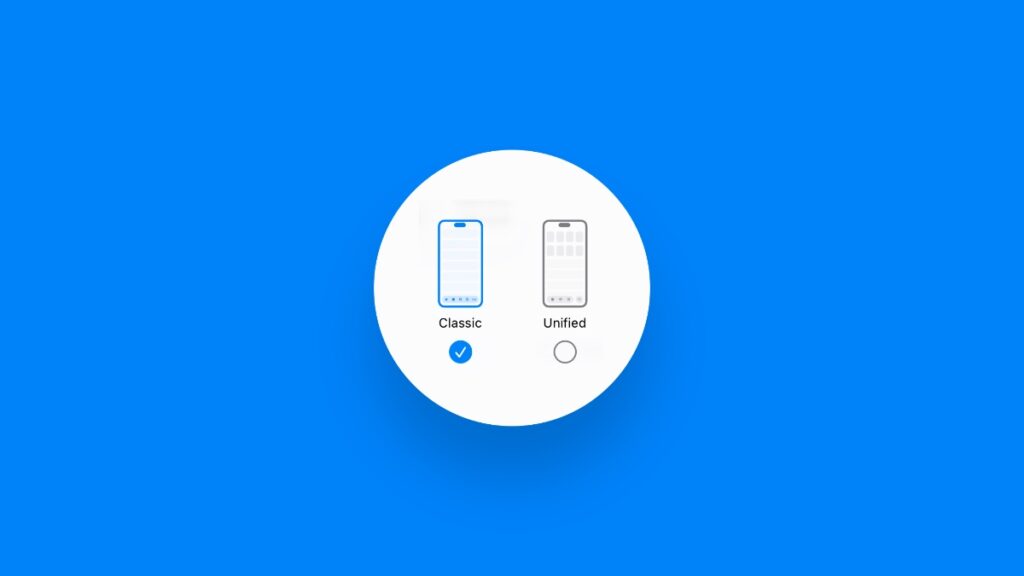

Don’t like the new Unified Phone app in iOS 26? You can change it back to how it was in iOS 18 on your iPhone right now.
You Can Disable the Unified View in the iOS 26 Phone App on iPhone and Get the Classic Look Back
The Phone app in iOS 26 has a new ‘Unified’ view, which basically puts Favorites, Recents, and Voicemail in one unified view instead of separate tabs. Is it a good idea? Apple thinks so.
While the Unified look does have its advantages, a lot of people are used to the old Phone app from yesteryear. But don’t worry, Apple is not forcing the Unified view onto everyone, you can get the Classic view back in just a couple of taps.
Step 1. Launch the Phone app on your iPhone.
Step 2. Tap on the Calls tab at the bottom.
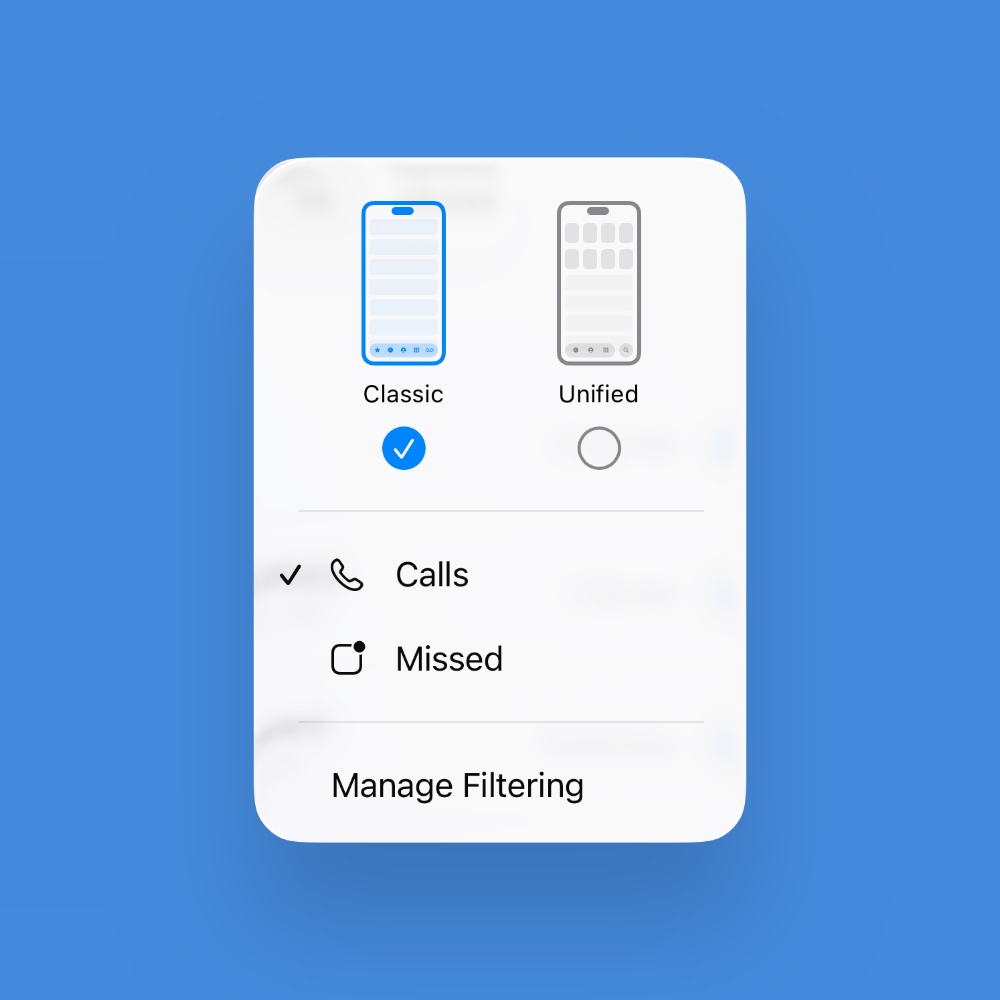
Step 3. See the menu button at the top right hand corner? Tap on it.
Step 4. Now simply select Classic.
I tried the new Unified look for a while, and I had no choice but to revert back. For some reason, it just doesn’t sit well with me. Maybe because I’m used to the Classic style way more than I should be and resistant to how I see the Phone app in the first place.
If you’re someone coming from another platform like Android, maybe you will find the change a little exciting, and even more so when you realize there are two to choose from – Classic and Unified.