

You can change the color of folders in macOS 26 Tahoe on your Mac and customize them however you like, including emoji.
Give Your Folders Some Color and an Emoji in macOS 26 Tahoe for the Best-Possible Customized Look and Feel
Probably the most underrated feature in macOS 26 Tahoe is the ability to change the color of a folder. Not only that, you can even give it an emoji for an even more personal look and feel.
If you love organizing data on your Mac in carefully crafted folders, this feature will take things to the next level.
The way this feature works is simple, it’s not hidden away at all. All it takes is right clicking on a folder, and just a couple of clicks afterwards.
Change the Color of a Folder
Step 1. Right-click on any folder whose color you want to change.
Step 2. Click on Customize Folder.
Step 4. Right at the top you’ll see a row of pre-defined colors, select your favorite one, that’s all.
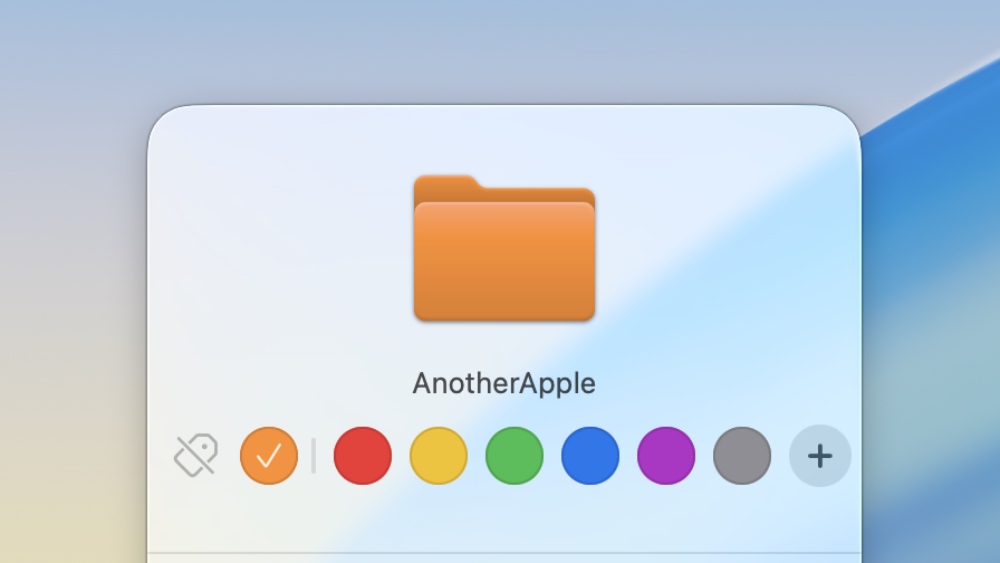
If you want to remove the color of the folder, click on the ‘Remove all tags’ button on the far left of the color strip.
Add an Emoji to a Folder
Step 1. Right-click on a folder.
Step 2. Click on Customize Folder.
Step 3. You’ll see a bunch of icons underneath to choose from, and at the bottom you’ll see an Emoji button too. Choose the latter since it’s more colorful, fun, and familiar.
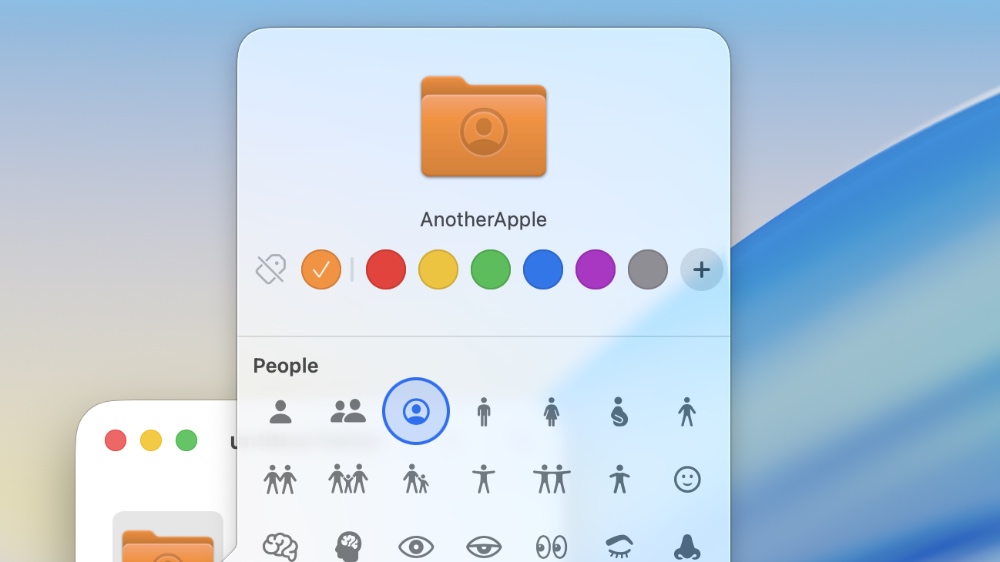
If you want to remove all icons or emoji from your folder, just click on the Clear button on the bottom left.
That’s about it. You can keep on doing this for any folder you have on your Mac.
Interestingly, if you go to System Settings > Appearance, and change the Theme color from here, it will change the color of the folders on your Mac as well. It is a great option as well if you are bored of the usual blue folders on your Mac.