
Here’s how you can switch between Compact, Bottom, and Top tab styles in Safari on your iPhone running iOS 26.
Move the Safari Address Bar from the Bottom to Top by Switching Tab Styles in iOS 26 on Your iPhone
Safari in iOS 26 has a very interesting look out of the box. Honestly, I like it because the default ‘Compact’ UI is designed in such a way that it puts focus on your webpage, and not the Safari UI around it.
And, the address bar sits at the bottom of the display as well, allowing you to access it easily since iPhones have gotten so big over the years.
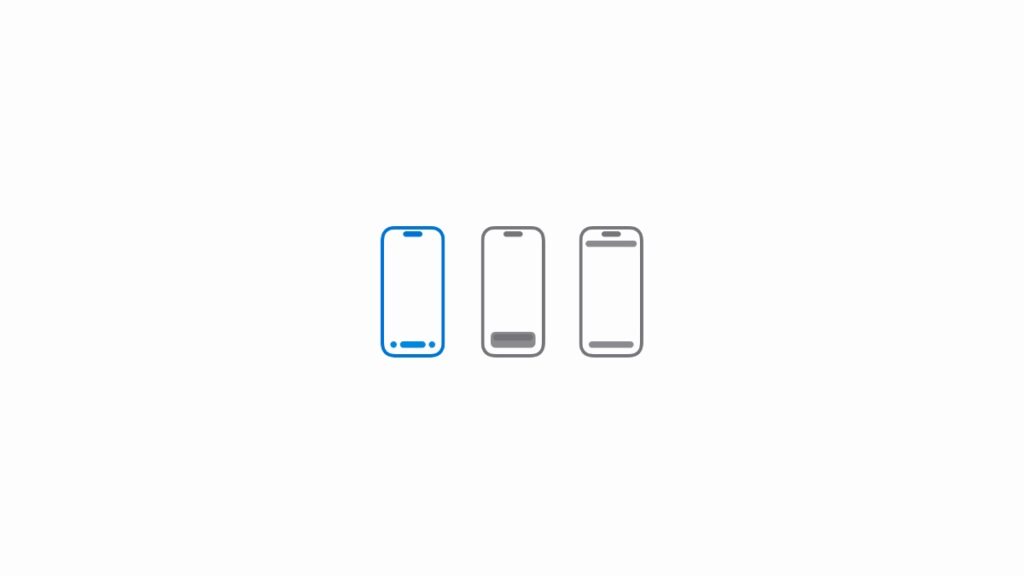
However, not everyone might agree to the change, or style, that’s why Apple is allowing users to switch between Compact, Bottom, and Top tab options in Safari.
While it is not exactly how it was in iOS 18, since iOS 26 focuses on the new Liquid Glass design, it’s as close as it gets to something you are familiar with, and that’s a good thing.
Basically, what you’re doing is changing the position of the address bar – either on top of the display or bottom, depending on your preference.
Step 1. Launch the Settings app.
Step 2. Scroll all the way down to Apps and tap to open it.
Step 3. Find Safari and open it.
Step 4. Scroll down a little and find the Tabs section. It will give you three options to choose from: Compact, Bottom, and Top.
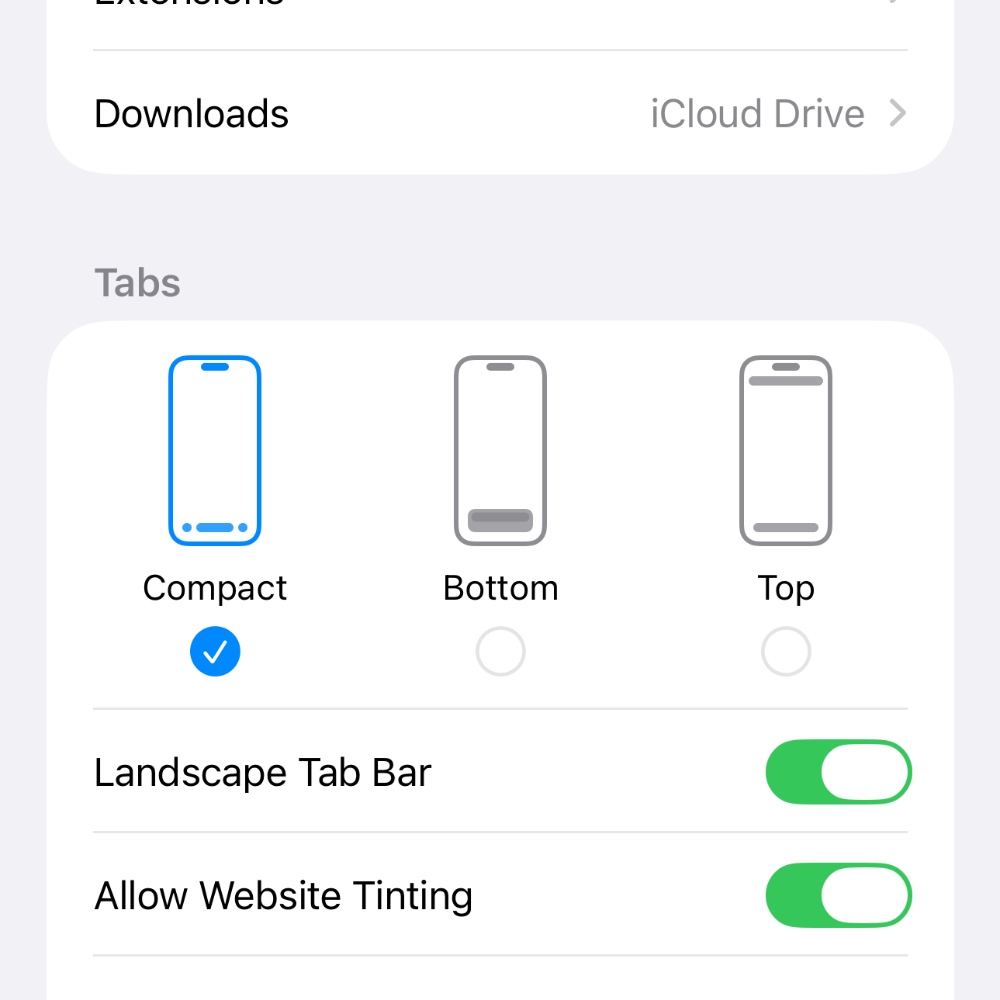
Compact is the default one, Bottom keeps the address bar at the bottom, while Top brings back the traditional Safari UI back, with the address bar at the top of the display.
Choose the one you want and you’re done.
The Compact option really makes a big difference when you’re browsing the web. It gives you an extra big screen real estate that makes reading something on a website that much fun.