
Don’t like the transparent look? You can enable the menu bar background in the latest macOS 26 Tahoe update for the Mac.
Get the Background Back in the Mac Menu Bar in macOS 26 Tahoe and Get the Sequoia Look Back
Aesthetic-wise, I’m a huge fan of the transparent menu bar in macOS 26 Tahoe. It looks cleaner, and if you have an iMac, it looks even nicer on it, thanks to the big display.
Not everyone shares the same sentiment though. If you want the menu bar the way it was in macOS Sequoia, with a background behind it, here’s what you have to do:
Step 1. Launch System Settings.
Step 2. Click on Menu Bar on the left.
Step 3. Right at the top you’ll see an option called: Show menu bar background. Click on it to enable.
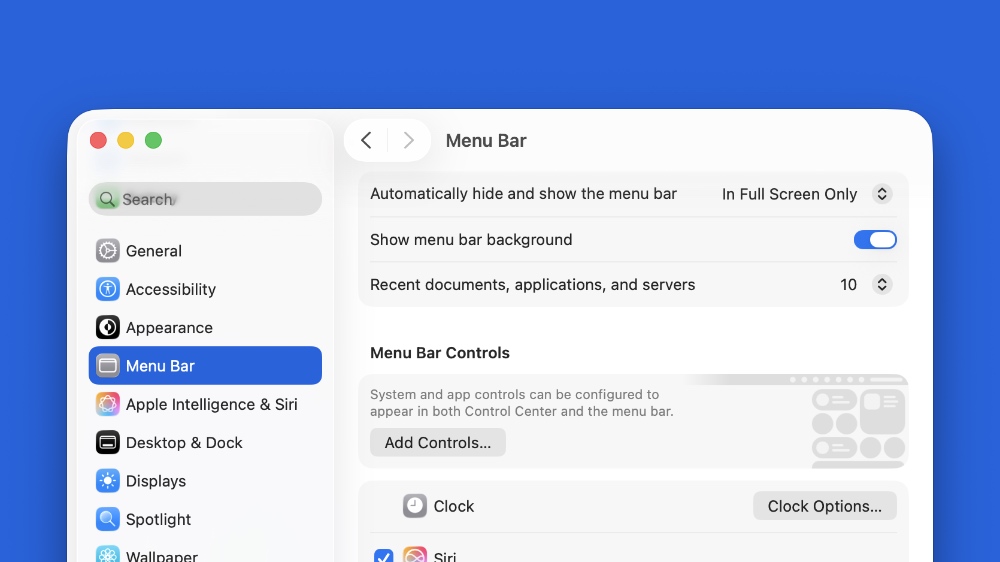
Once you do this, you’ll instantly see a background appear behind the menu bar. This will make the menu bar items more readable as well, especially if you’re using a wallpaper that has too much happening in it.
The new look is definitely polarizing, and I totally get why some people may not be fans of it. But for me, it’s a big win because it feels brand new, and this is the sort of change that makes macOS fresh again.