
Here’s a very detailed tutorial on how to downgrade iOS 26 and iPadOS 26 to iOS 18 and iPadOS 18 on iPhone and iPad, respectively.
Don’t Like Liquid Glass? Downgrade from iOS 26 and iPadOS 26 Back to iOS 18 and iPadOS 18 on iPhone and iPad
Although iOS 18.7 and iPadOS 18.7 will be released for users who do not want to update to iOS 26 and iPadOS 26, but if you’ve already updated, you have a limited window to downgrade back.
When I say limited, I mean extremely limited.
At the time of writing, Apple is signing iOS 18.6.2 and iPadOS 18.6.2 firmware updates for iPhone and iPad. If you want to downgrade from the new operating system, that’s the version of iOS 18 and iPadOS 18 you’ll be downgrading to.
Usual Precautions
Downgrading from a major release of iOS and iPadOS is not a walk in the park. You have to do a bunch of things in the right order; otherwise, you’ll lose your data, and I will not be held responsible if anything goes wrong.
I will suggest reading the tutorial from start to finish thoroughly before attempting any part of it on your device.
Backup Your Data Right Now
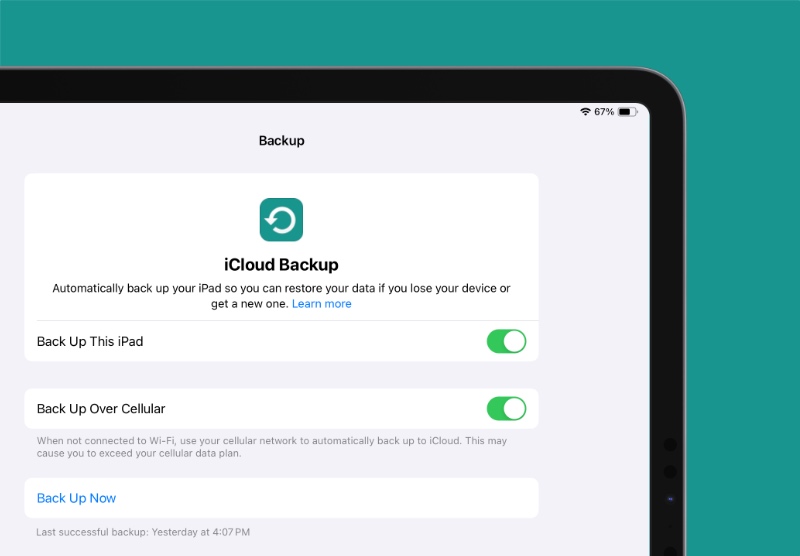
Make sure you properly backup your iPhone and iPad either using iCloud or Finder. I will suggest doing both, just to make sure you have multiple copies of everything.
You will find all the details on how to backup your device posted here.
Turn Off Find My
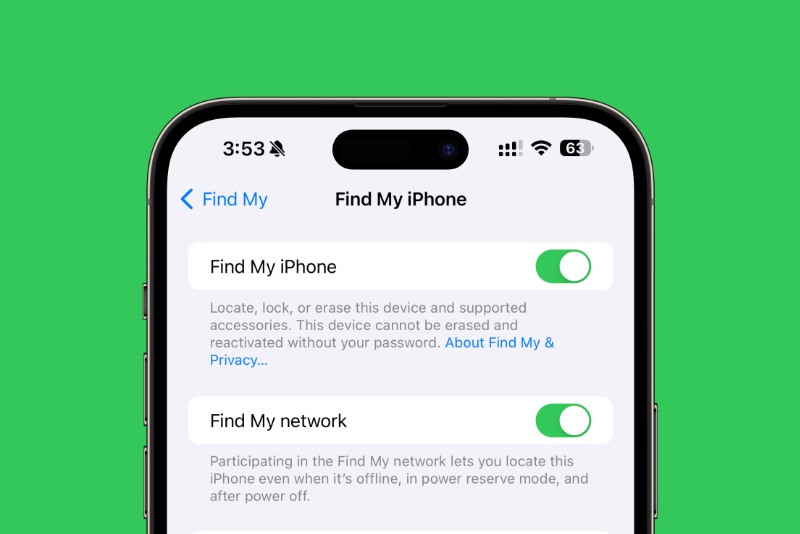
This is a crucial step as well. If you do not turn off Find My, your device won’t let you restore the firmware file. You will find all the details posted here. Once Find My is turned off, continue reading for more.
Download iOS 18 and iPadOS 18 Firmware Files
Like I said earlier, Apple is currently signing iOS 18.6.2 and iPadOS 18.6.2. That’s the version you’ll be downgrading to, and you’ll find all the firmware files in the links below:
- iPhone 16e
- iPhone 16 Plus
- iPhone 16
- iPhone 16 Pro Max
- iPhone 16 Pro
- iPhone 15 Pro Max
- iPhone 15 Pro
- iPhone 15 Plus
- iPhone 15
- iPhone 14 Pro Max
- iPhone 14 Pro
- iPhone 14 Plus
- iPhone 14
- iPhone SE (3rd-generation)
- iPhone 13
- iPhone 13 mini
- iPhone 13 Pro Max
- iPhone 13 Pro
- iPhone 12 Pro Max
- iPhone 12, iPhone 12 Pro
- iPhone 12 mini
- iPhone SE (2nd-generation)
- iPhone 11 Pro, iPhone 11 Pro Max
- iPhone 11
- iPhone XR
- iPhone XS, iPhone XS Max
- iPad mini 7 with A17 Pro
- iPad Pro 11-inch (M4), iPad Pro 13-inch (M4)
- iPad (A16)
- iPad Air 11-inch (M3)
- iPad Air 11-inch (M2), iPad Air 13-inch (M2)
- 11-inch iPad Pro (4th-generation), 12.9-inch iPad Pro (6th-generation)
- iPad Air (5th-generation)
- 10.2-inch iPad (10th-generation)
- 11-inch iPad Pro (3rd-generation), 12.9-inch iPad Pro (5th-generation)
- iPad mini (6th-generation)
- 10.2-inch iPad (9th-generation)
- iPad Air (4th-generation)
- 10.2-inch iPad (8th-generation)
- iPad mini (5th-generation), iPad Air (3rd-generation)
- 11-inch iPad Pro (1st and 2nd generations), 12.9-inch iPad Pro (3rd and 4th generations)
- 10.2-inch iPad (7th generation)
Put Device in DFU Mode
This is perhaps the most tricky part of the entire tutorial. You have to put your iPhone and iPad in DFU (Device Firmware Update) mode in order to restore the iOS 18.6.2 and iPadOS 18.6.2 firmware files.
You’ll find steps for putting your iPhone in DFU mode posted here. If you have an iPad, you’ll find the steps posted here.
Once your device has successfully entered DFU mode, it will be detected by Finder and will show you a warning that you need to restore your iPhone or iPad firmware in order to use it.
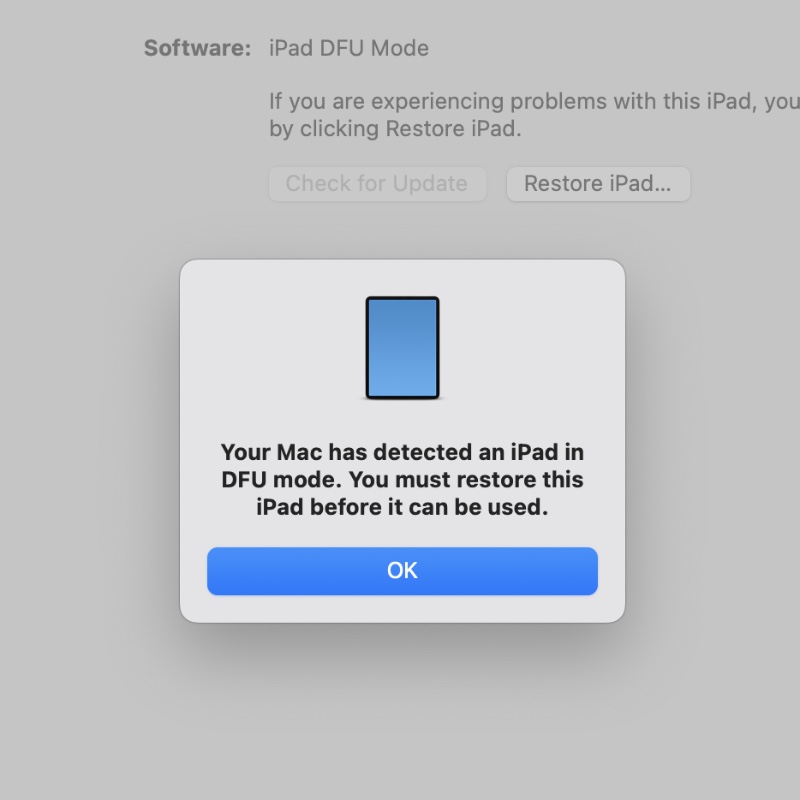
What you’re going to do is, hold down the left Option key on your Mac’s keyboard, and then click on the Restore iPhone or Restore iPad button in Finder. Once you do that, a new window will open up, and then choose the iOS 18.6.2 or iPadOS 18.6.2 firmware you saved to your Mac.
The restore process will take some time, but you will be back to iOS 18 and iPadOS 18. However, if Apple is not signing the firmware, and eventually that will happen, you will no longer be able to downgrade.