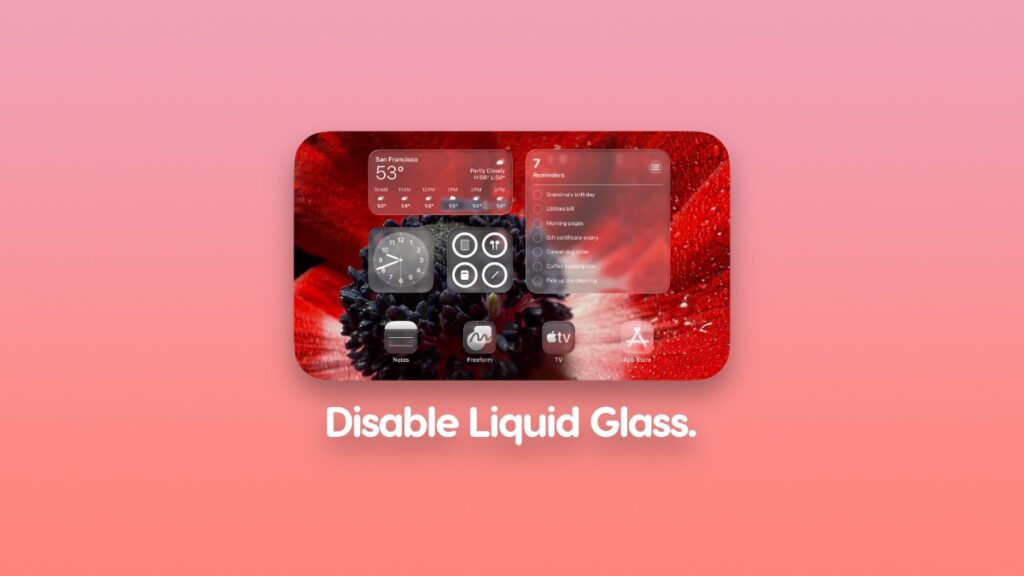

You can disable the Liquid Glass effect in iOS 26, iPadOS 26, and macOS 26 Tahoe on your iPhone, iPad, and Mac, respectively.
iOS 26, iPadOS 26, and macOS 26 Tahoe Allows You to Completely Disable the Liquid Glass Effect
Probably the best feature of iOS 26, iPadOS 26, and macOS 26 Tahoe is the new Liquid Glass user-interface. At the same time, it’s the most polarizing one as well.
For some users, it might be a little too over the top and can become hard to read or deal with in certain situations.
If you want to disable the Liquid Glass effect on your iPhone, iPad, or Mac after the iOS 26, iPadOS 26, and macOS 26 Tahoe update, here’s what you have to do.
iOS 26 and iPadOS 26
Step 1. Launch the Settings app.
Step 2. Tap on Accessibility.
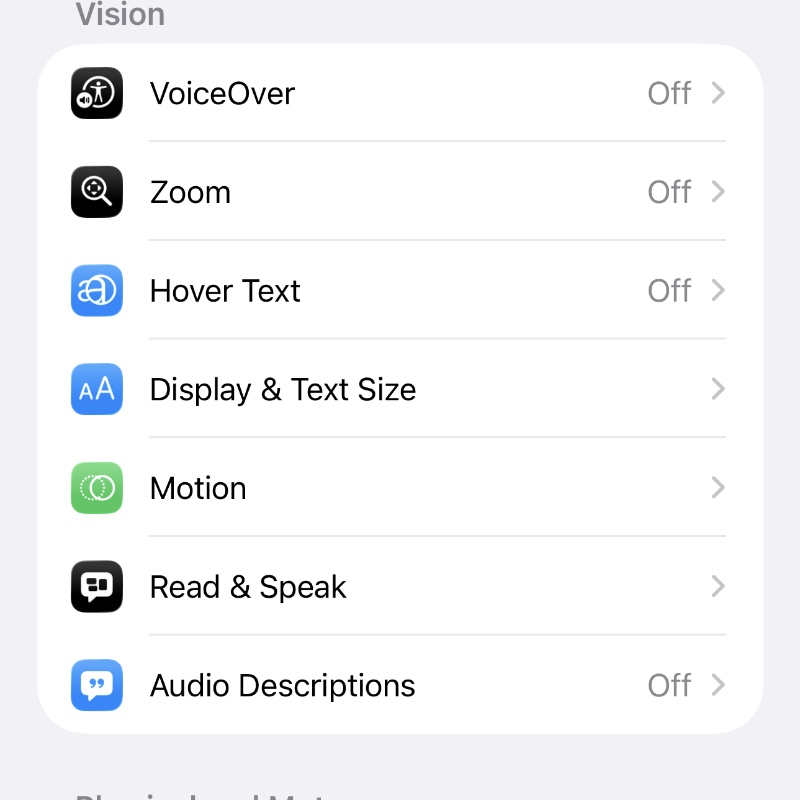
Step 3. Under the Vision section, find Display & Text Size and then open it.
Step 4. Enable the Reduce Transparency toggle switch.
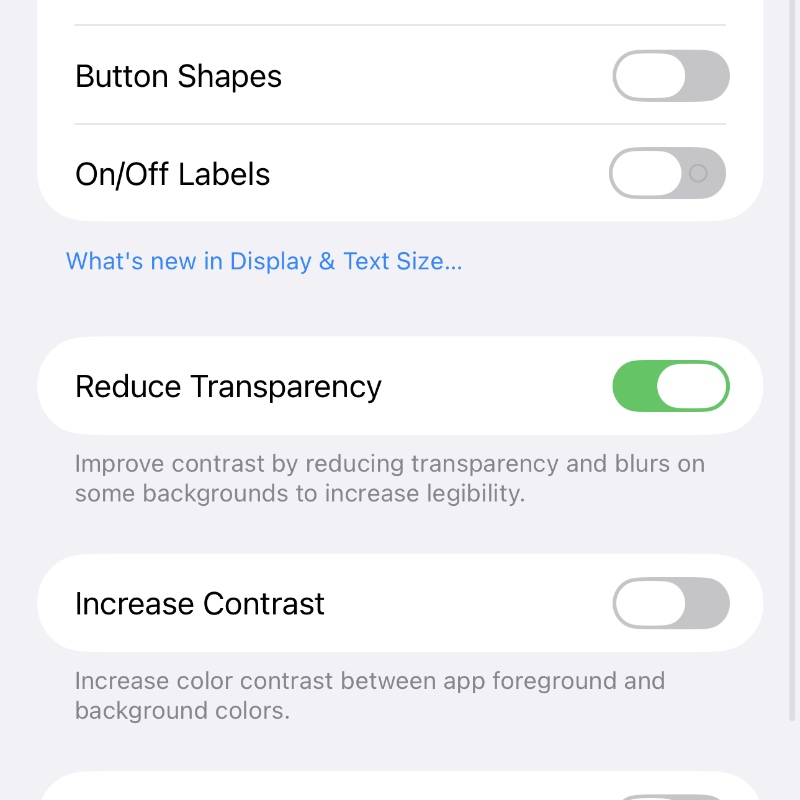
You can confirm the change by going through parts of iOS and iPadOS such as Control Center, Messages app, and more. You will not see any glass transparency effect, ensuring every bit of text is readable throughout the system.
macOS 26 Tahoe
Step 1. On your Mac, launch System Settings. You can do that by clicking on the Apple icon in the menu bar and then click on System Settings.
Step 2. In the list of options on the left, click on Accessibility.
Step 3. Click on Display on the right.
Step 4. Now simply enable the Reduce Transparency toggle switch.
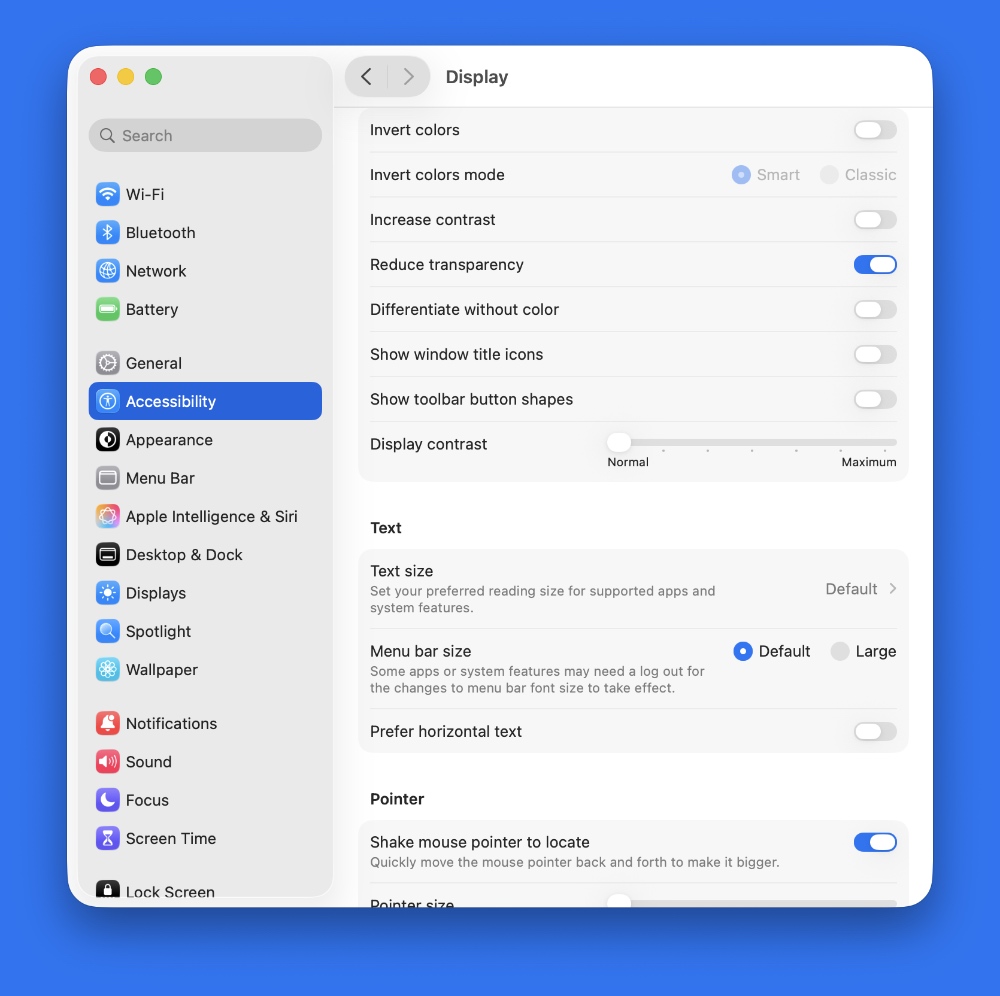
The moment you enable that toggle switch, every single glass effect from macOS 26 Tahoe will be disabled.
While this won’t instantly turn the operating system into iOS 18, iPadOS 18, or macOS 15, the purpose is to disable the glass transparency effect so that everything is readable.
Personally, I love the Liquid Glass effect. It feels fresh, and looks fantastic on a device like the iPad and Mac. The larger display really enhances the effect and that’s exactly how it’s meant to be viewed.