
You can set the menu bar on your Mac to hide automatically and achieve that perfect minimal and clean look in macOS.
macOS Lets You Hide the Menu Bar on the Mac for a Clean and Minimal Look
I’m sure you have a very clean and minimal Home Screen setup on your Mac. You achieved it by keeping the Dock icons to a minimum, and maybe used a pristine-looking wallpaper as well.
But, in order to make things even more cleaner, you can even set the menu bar to hide automatically as well. Whenever you want it back, just take your mouse pointer to the top of the screen, and it will return.
Here’s what you have to do in order to hide the menu bar on your Mac:
Step 1. Launch System Settings on your Mac.
Step 2. Find Control Center on the left and click on it.
Step 3. In the list of options on the right, scroll all the way down.
Step 4. Find the ‘Automatically hide and show the menu bar’ option and set it to Always.
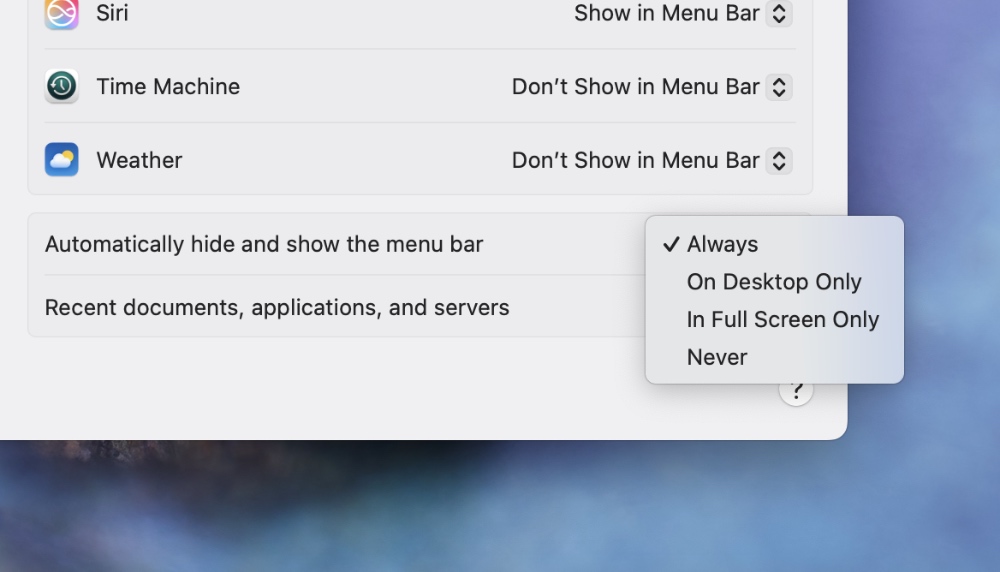
The menu bar will instantly go away, and you can have it back by taking the mouse pointer to the top of the display, like I mentioned before.
This is such a great way to focus on the task at hand and take the clutter of the menu bar away.
Trust me when I say this: with too many icons living in the menu bar, such as Wi-Fi, battery, and more, it can really get in the way of achieving your goals for the day.
By default, the menu bar will disappear when you go into full-screen mode. However, you can also set the menu bar to stay at the top of the display persistently. All you have to do is select Never in step 4.
But should you do that? Really?