

New to macOS? Here’s how you can force quit applications on the Mac if they become unresponsive or slow, so that you can start over.
It’s Easy to Force Quit an Unresponsive Application on the Mac Using a Simple Keyboard Shortcut
Eventually, you’ll come across an app or service on the Mac which becomes unresponsive or shows unexpected behavior, forcing you to quit it completely so that you can start over again.
On Windows, the Alt+Control+Delete combination is the way to go when such a thing happens. But what about the Mac?
The key combination you are going to press in order to force quit an application is: Command+Option+Escape.
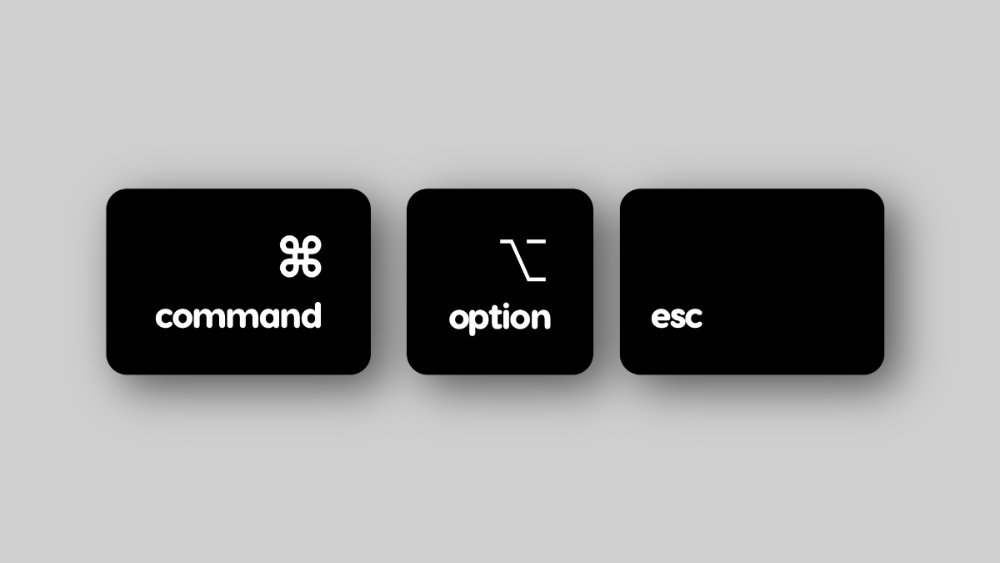
The moment you press those keys, a window like the one shown below will pop open. Select the app which you want to quit and then click on Force Quit.
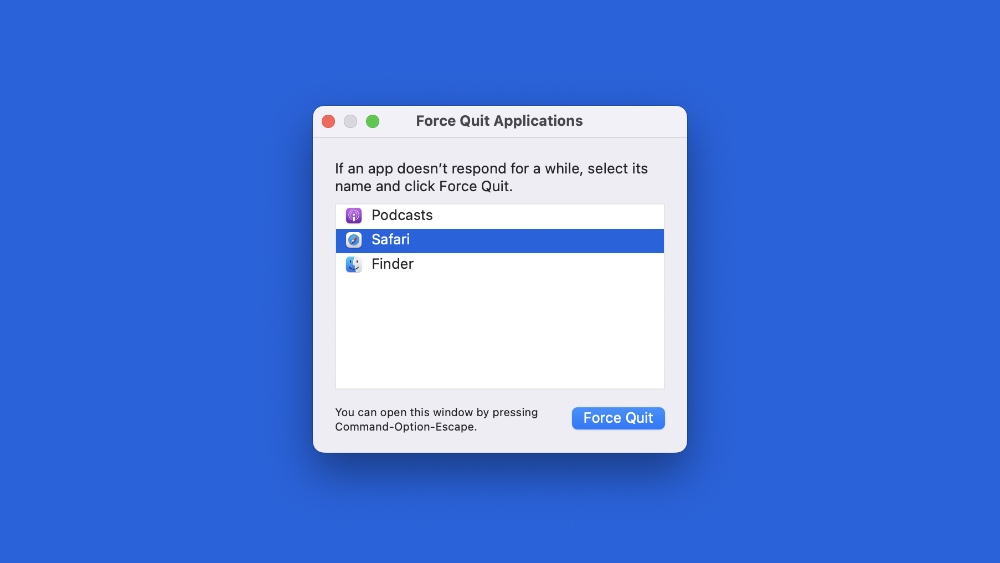
Once again, the key combination is: Command+Option+Escape.
And it does not matter at all which Command or Option keys you press on the keyboard – either the ones on the left or the right. Just press all three together, and you’ll be good to go.
This is an essential shortcut which every new Mac user should know about. Whenever you run into an application that needs a start-over, those three magical keys are going to fix things for you instantly.
For me, centering Spotlight and app windows are equally important, with the latter one possible with a simple Fn+Control+C keyboard shortcut. Just try it and you’ll instantly see the app window center itself perfectly on the Mac display.